Use the multi-node provisioning workflow when you need to create a Couchbase VDB that spans multiple nodes on the target environment. The Couchbase 2026.1.0 connector supports multi-node provisioning by defining the target node topology, including the primary node and any additional nodes, before you submit the VDB request.
-
Navigate to Manage, and select Datasets.
-
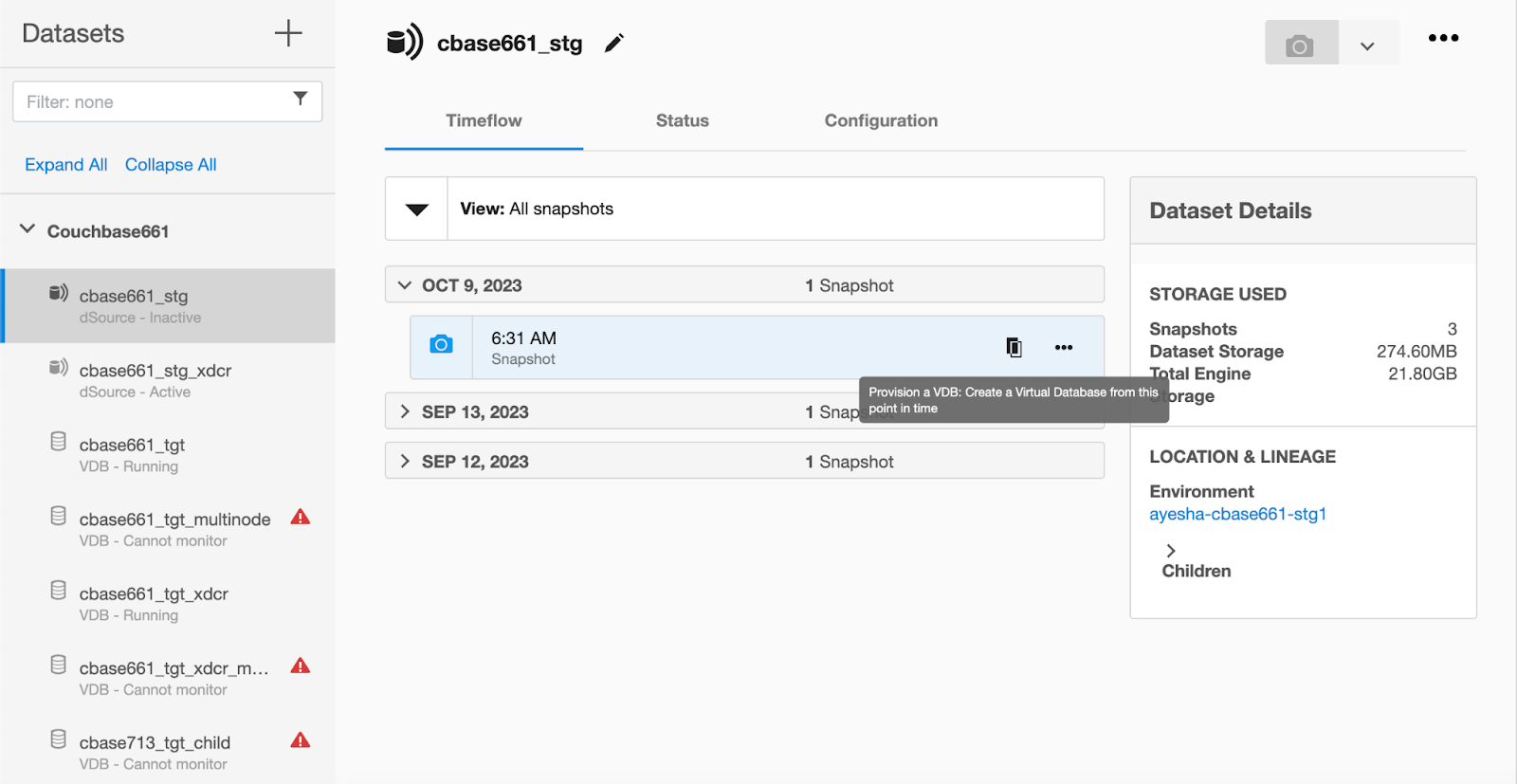
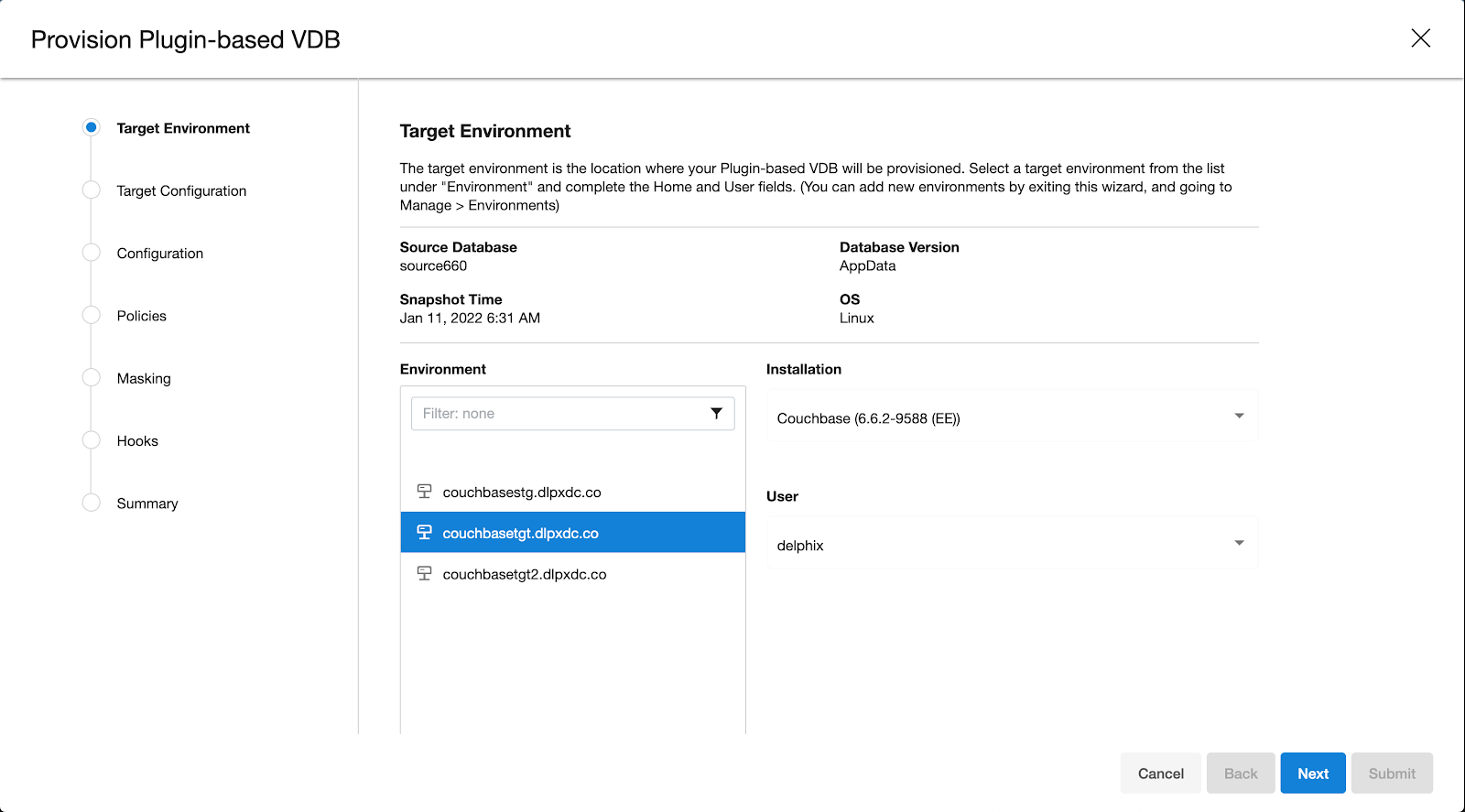
Select the dataset and the snapshot that you want provision from. Click the provision VDB icon to open the provision VDB wizard.
-
Select the target host from the dropdown on which VDB needs to be created.
-
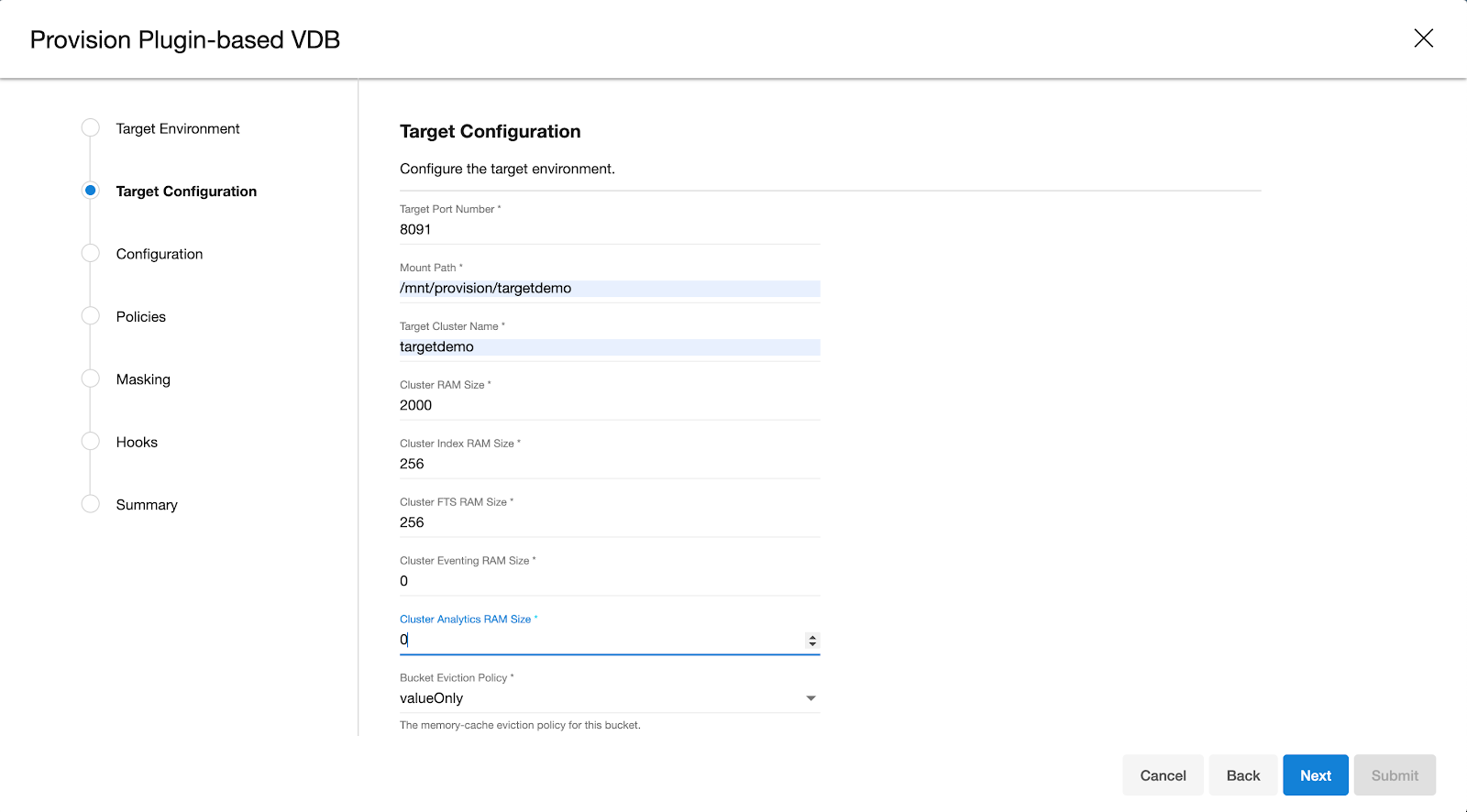
Enter the following values for the target configuration:
-
Target Port Number: Port number on which Couchbase services will be started. ( ex. 8091 )
-
Mount Path: NFS mount path where dSource snapshot will be mounted by Engine ( ex. /mnt/provision/targetdemo )
-
Target Cluster name: Cluster name which is required to be set up on the target host. ( ex. targetdemo )
-
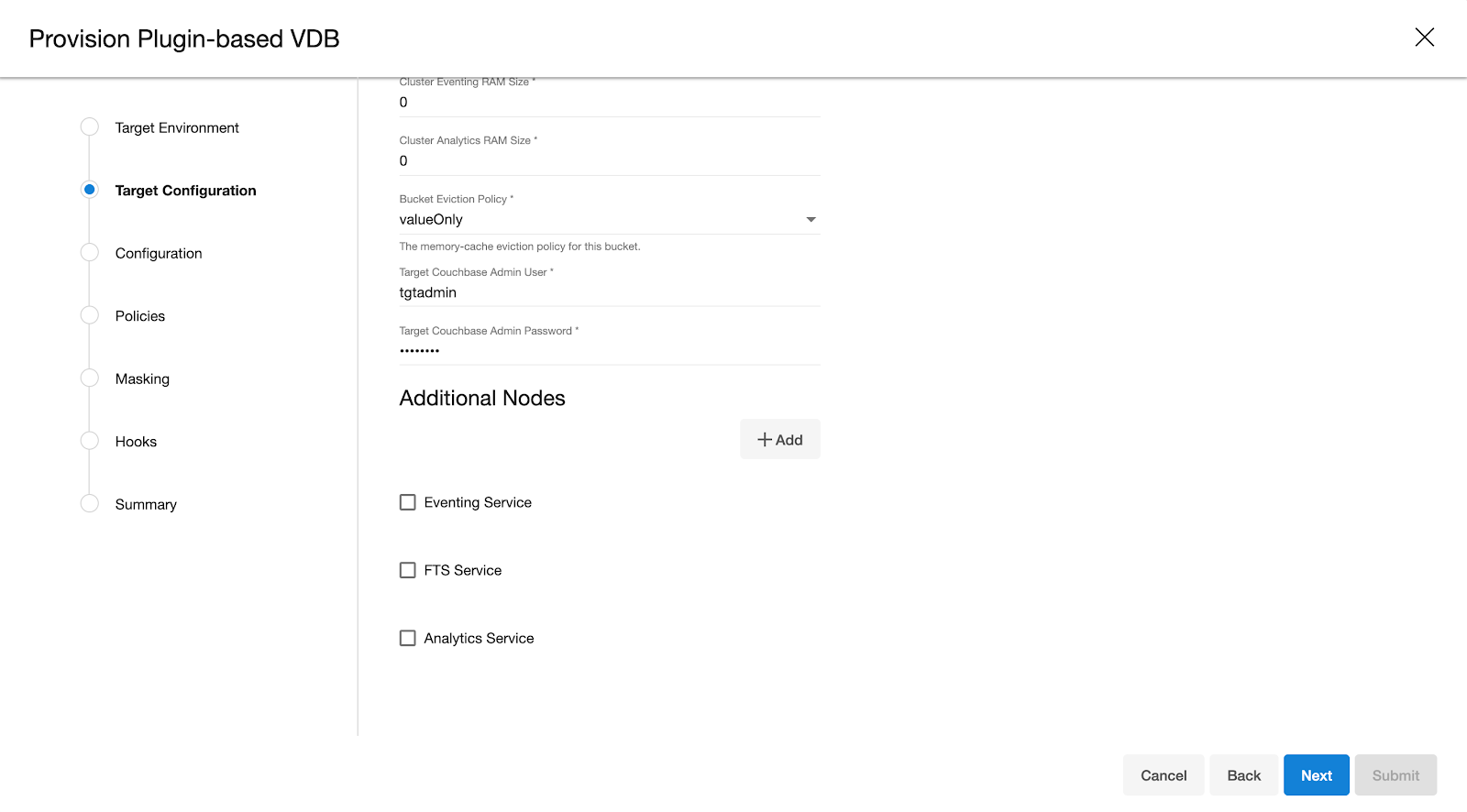
Cluster Ram Size: Whole Cluster memory
-
Cluster Index Ram Size: Cluster indexer memory
-
Cluster FTS Ram Size: Cluster FTS memory ( if needed and FTS service will be configured )
-
Cluster Eventing Ram Size: Cluster Eventing memory ( if needed and Eventing service will be configured )
-
Cluster Analytics Ram Size: Cluster Analytics memory ( if needed and Analytics service will be configured )
-
-
Enter the following values for the target configuration:
-
Target couchbase Admin User: Target Cluster admin username
-
Target couchbase Admin password: Target Cluster admin password
-
Select services needed on the first node of the cluster ( FTS, Eventing, Analytics )
-
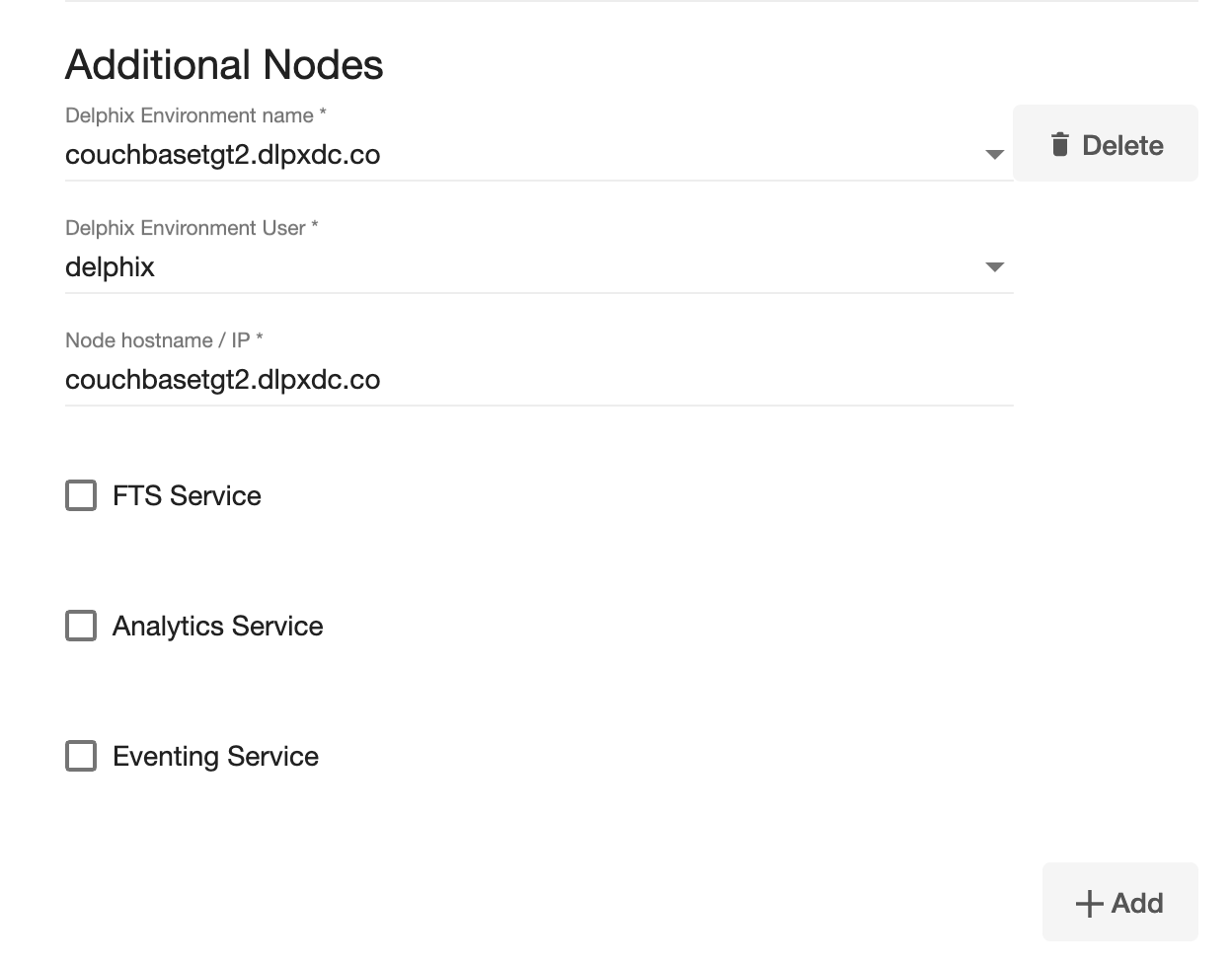
Click Add button to open a dialog box for additional node. If you need more nodes, click Add button again to add more nodes.
-
Enter the following values for each node:
-
Delphix Environment Name: Select an additional node environment from the drop-down menu
-
Delphix Environment User: Select an environment user
-
Node hostname / IP: Enter a hostname or IP of the new node - it will be used as a server name in Couchbase configuration
-
node_list: Provide the ordered list of target nodes included in the multi-node cluster configuration. The node list defines the participating nodes for the new VDB and is required when you add additional nodes to the deployment.
-
Select services needed on the additional node of the cluster ( FTS, Eventing, Analytics )
-
-
-
Provision connector based VDB. Enter the following value:
-
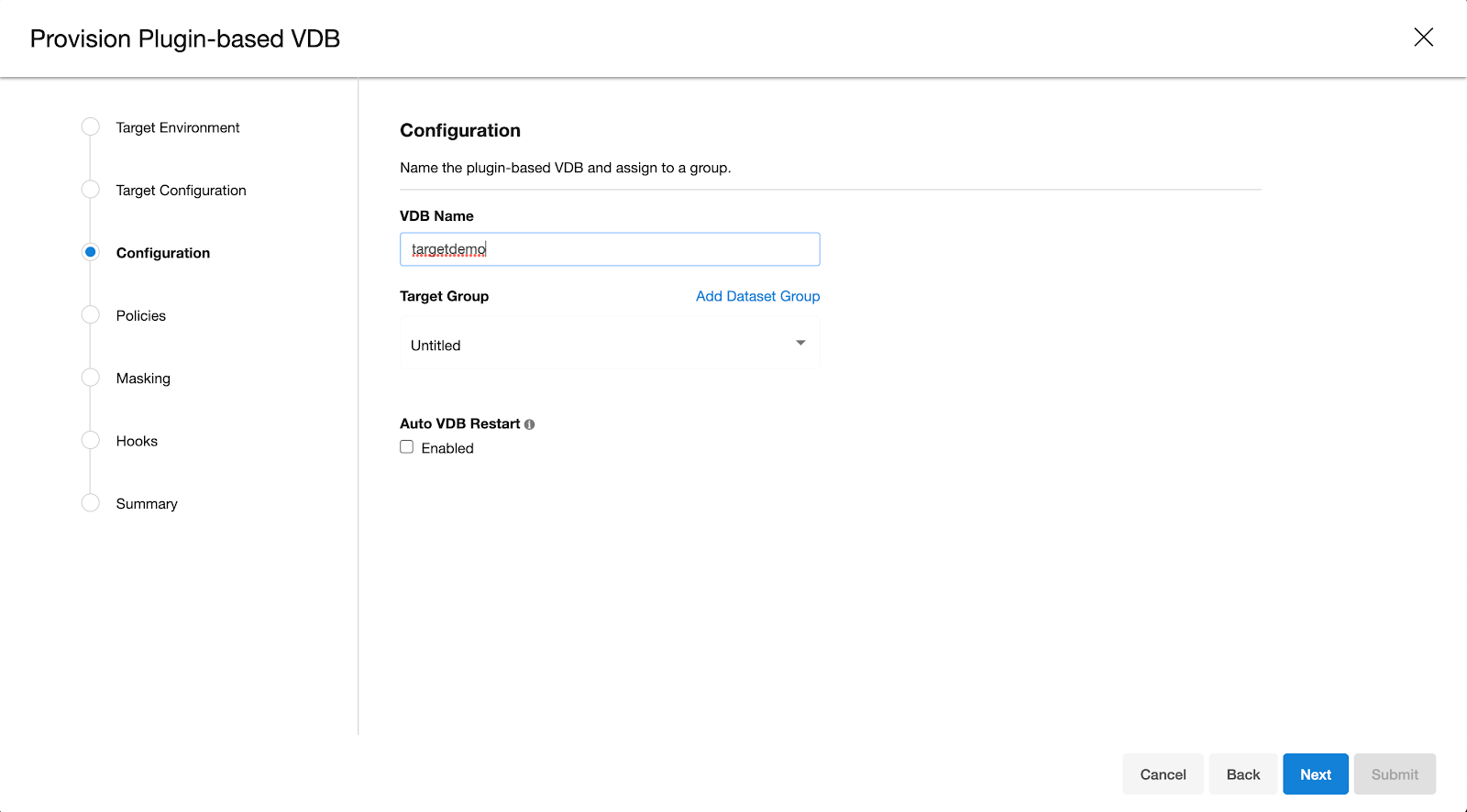
VDB Name: Delphix Target Cluster name
-
Target group: Delphix Target Cluster group
-
-
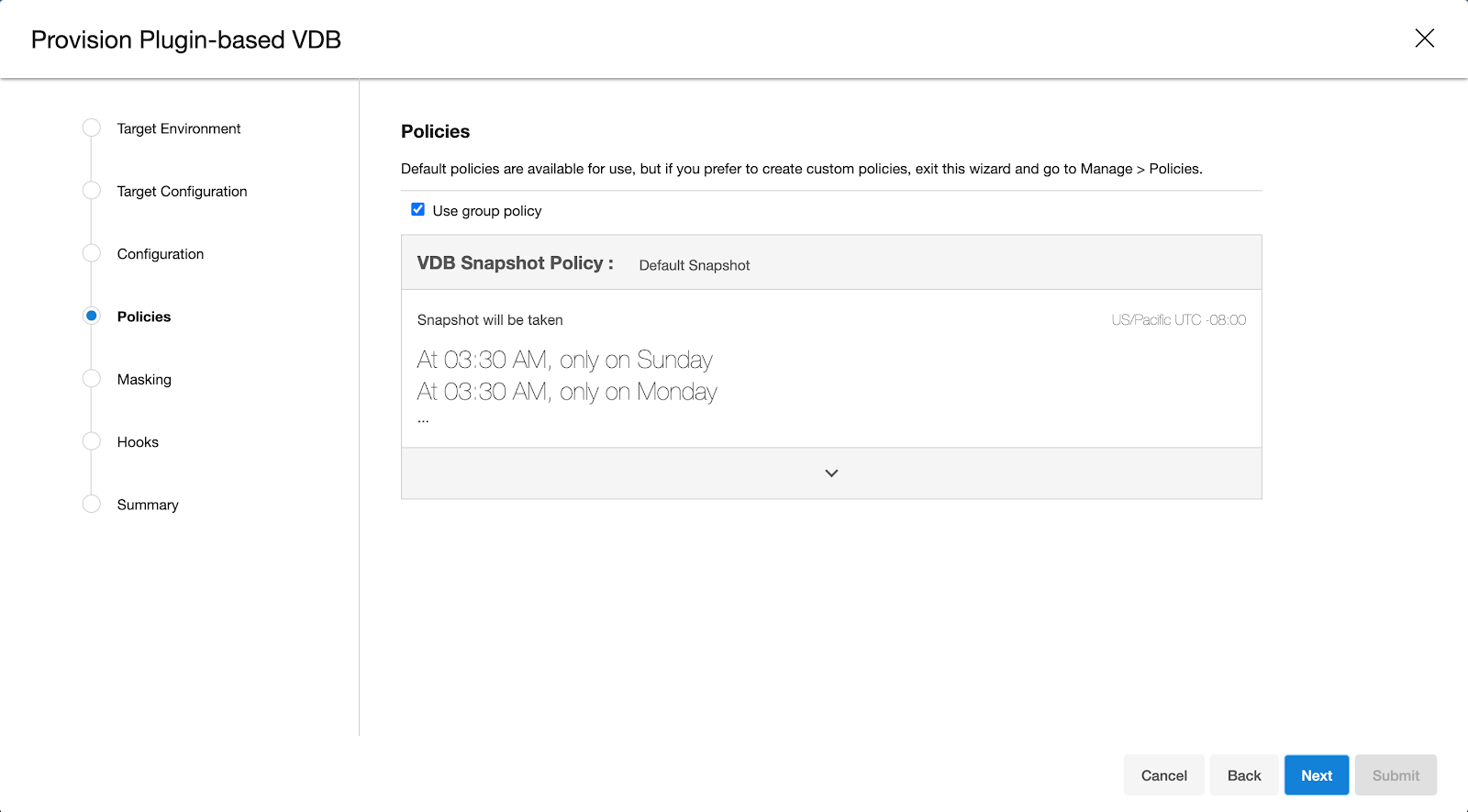
Select a policy for VDB, select Next.
-
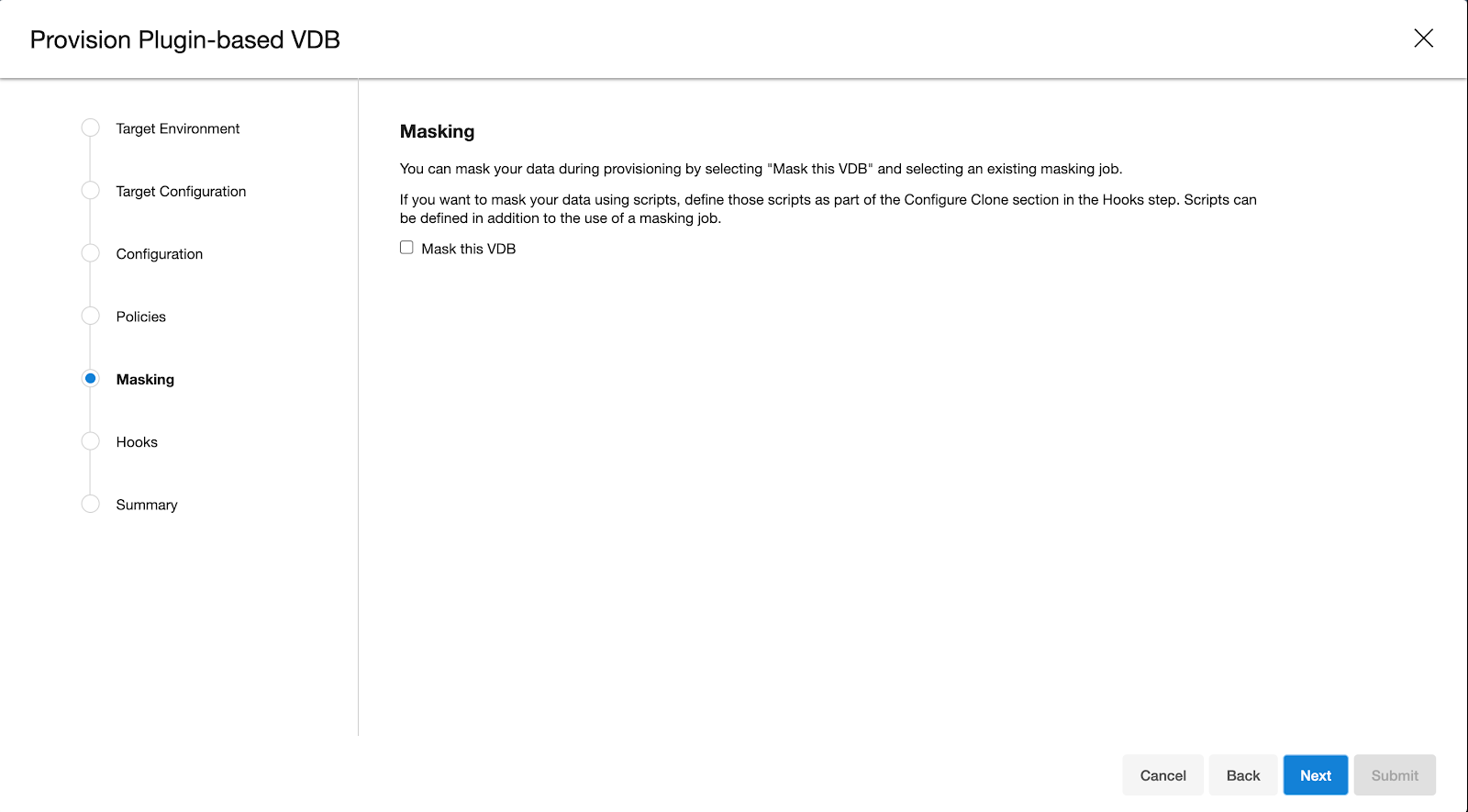
Select masking for VDB if needed, select Next
-
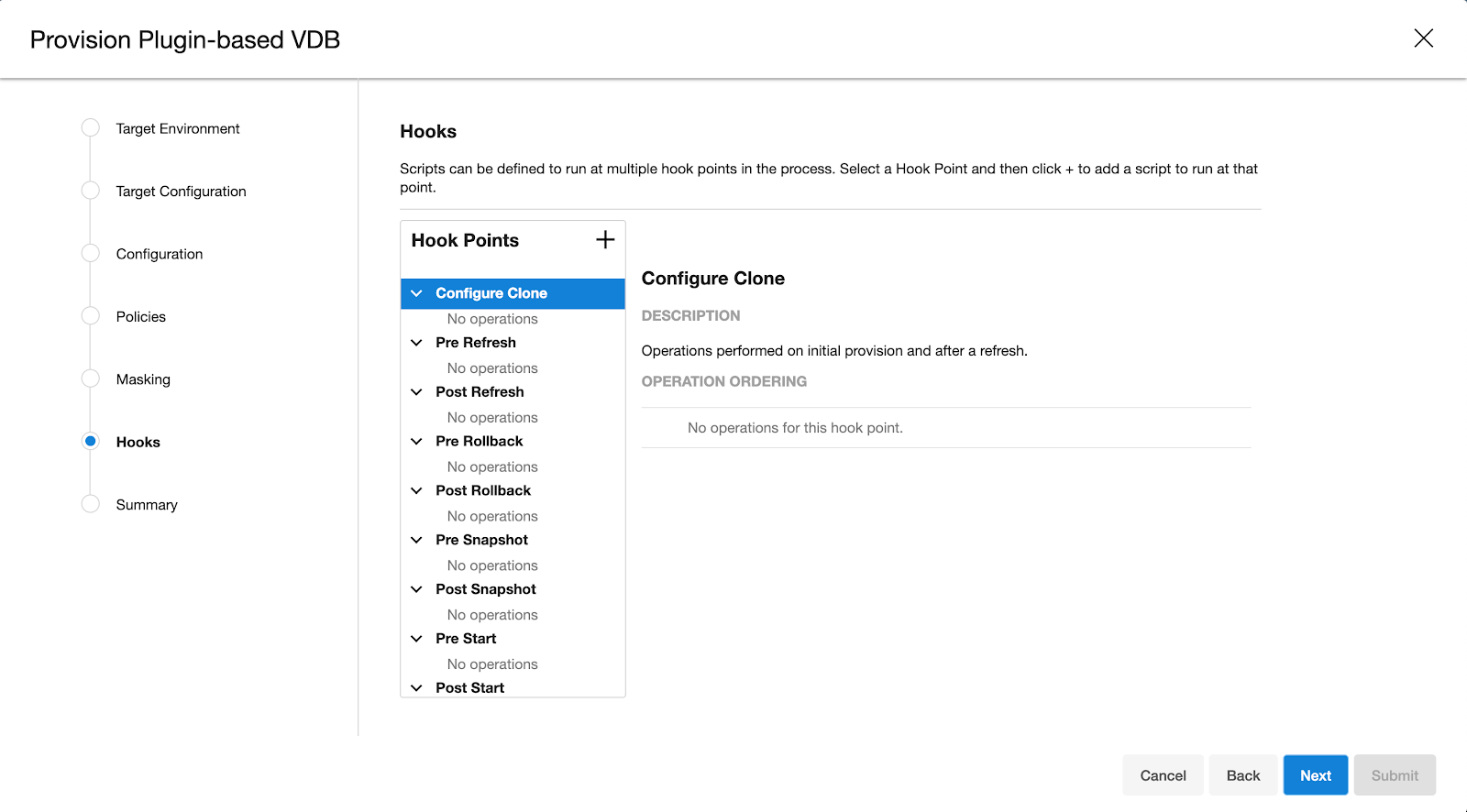
Add hooks for VDB if needed, select Next
-
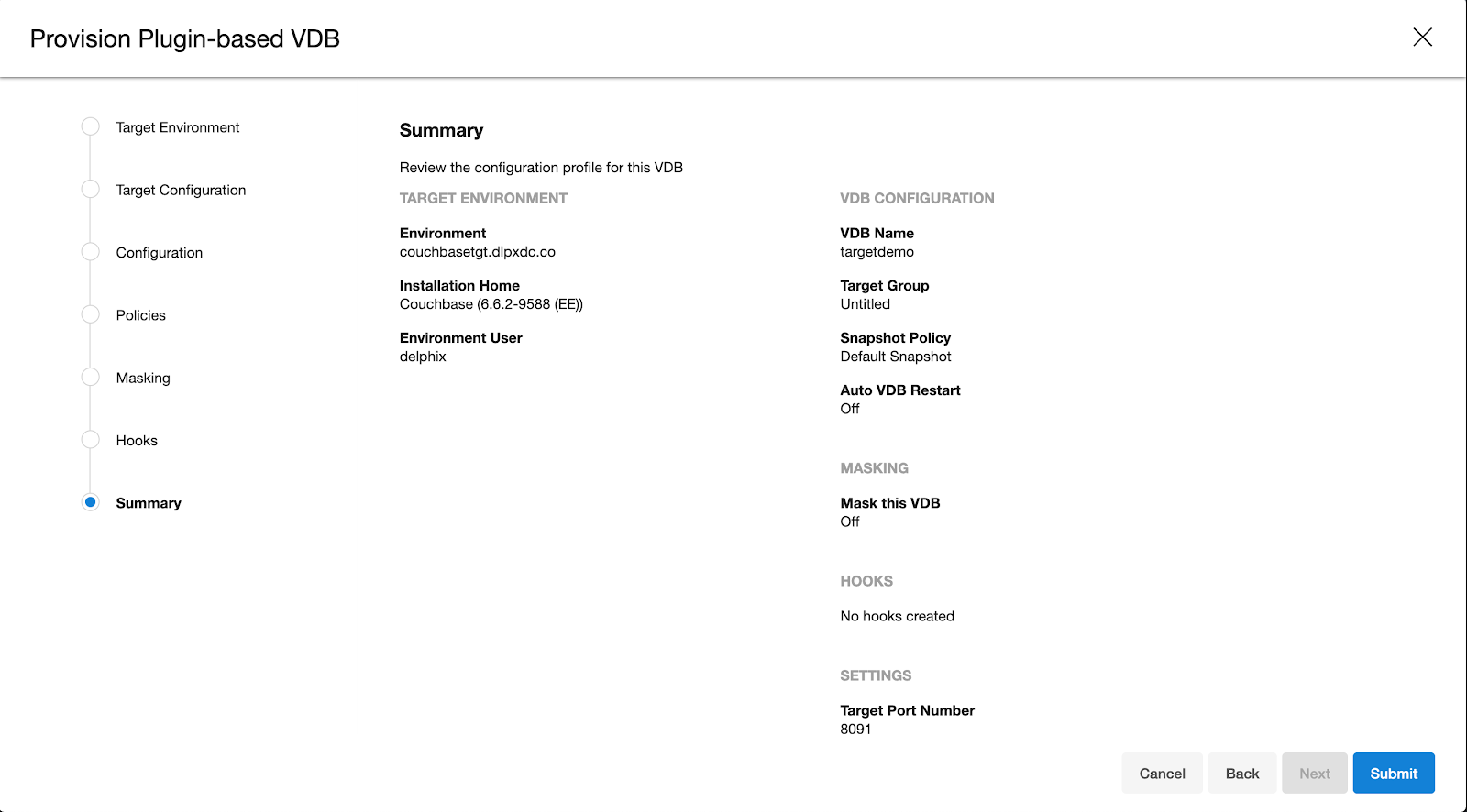
Preview the summary and select Submit

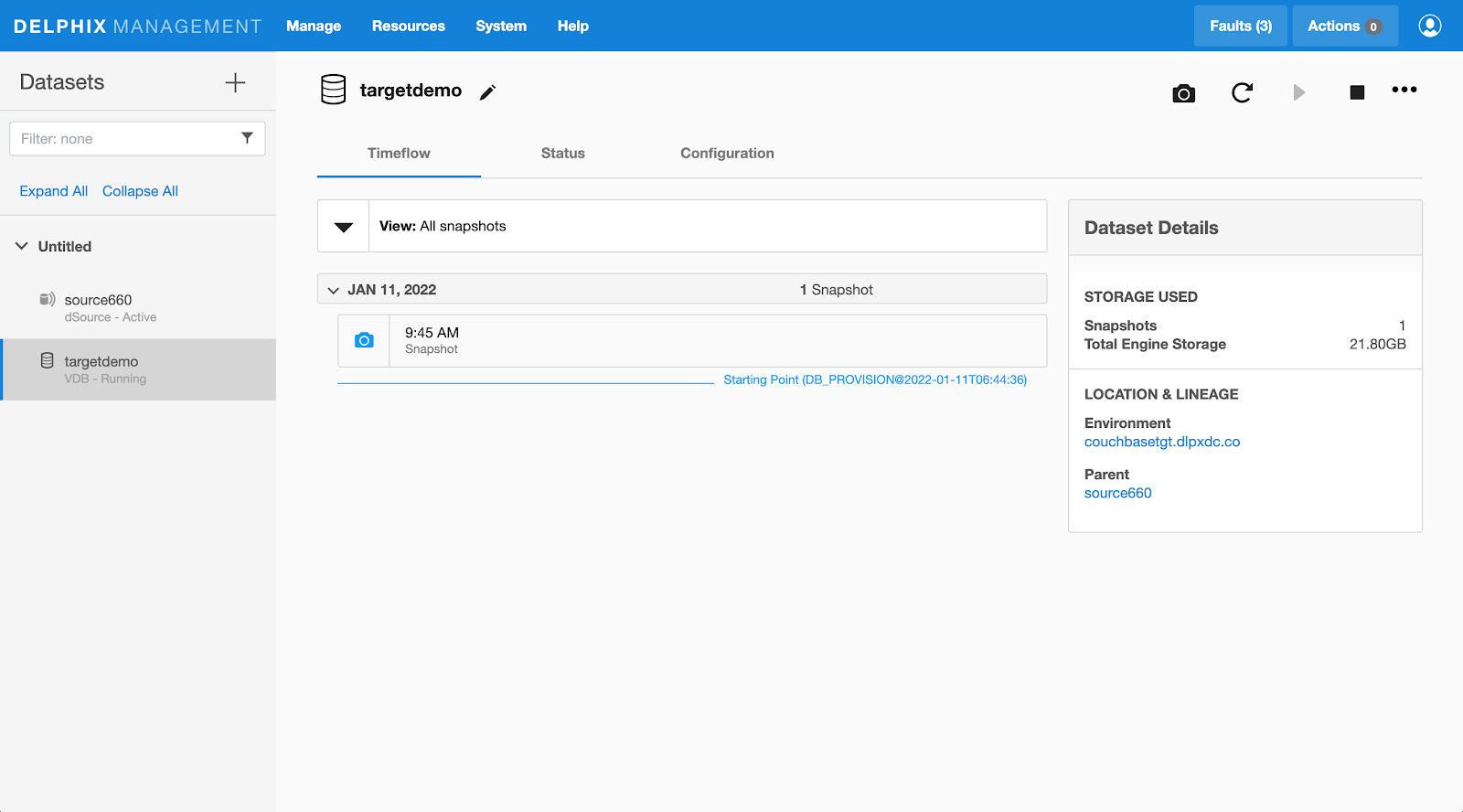
Once the VDB is created successfully, you can review the datasets on Manage > Datasets > vdb Name.