
Create a new snapshot entry in the VDB Timeflow. You can use either Take a snapshot (Default) or click Create Snapshot option in the Actions menu to take the snapshot.
Create a Snapshot for a VDB
To create a snapshot in DCT, follow these steps:
-
Login to the DCT instance.
-
Select the Data tab and click the VDBs link in the left navigation pane.
-
Select a VDB and click Actions > Create Snapshot option.
-
Click Confirm to create a snapshot.
Create a Snapshot for a non Staging Push dSource
To create a snapshot for a non staging push dSource in DCT, follow these steps:
-
Login to the DCT instance.
-
Select the Data tab and click the dSources link in the left navigation pane.
-
Select a dSource and click Actions > Create Snapshot option.
-
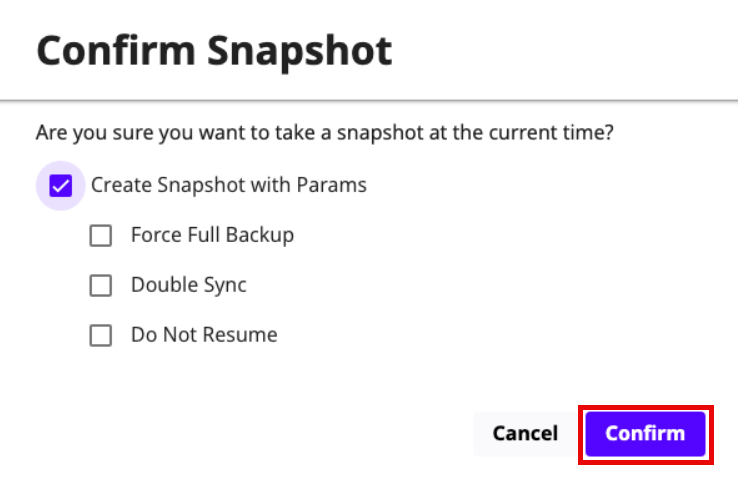
Select the Create Snapshot with Params check box and choose the following options:
-
Force Full Backup: Select this option only when a full backup is required, instead of the default incremental backup. Full and Incremental backups consume the same space on the Delphix Engine.
-
Double Sync: Selecting this option will perform a normal SnapSync operation followed immediately by a second SnapSync. After the first SnapSync is successful, the Engine will immediately perform a second SnapSync without waiting for the Log Files required for the first SnapSync to be made consistent. This is most useful when performing the initial SnapSync ( or when "Force Full Backup" is selected ) on a very large database that would lead to a large number of archive logs being required to make the SnapSync consistent. Provisioning from a SnapSync that requires excessive recovery is typically time-consuming.
-
Do Not Resume: If a failure is encountered during the initial SnapSync, the Delphix Engine can resume the SnapSync at a later date. This option will cause the engine to not resume, but rather to start the initial SnapSync over again.
-
Click Confirm to create a snapshot.
-