Prerequisites
-
Install a Delphix Engine of a version compatible with connector version of choice. Refer to the support matrix for more details.
-
Install MSSQL binaries on staging, and target servers
Downloading the Connector
The Connector is provided as a zip file in the Delphix download site. Follow below steps to download connector:
-
In the web browser, go to the Delphix download site.
-
Login to the download site using email and password credentials. Customer support credentials.
-
Go to: Delphix Product Releases -> Continuous Data Connectors -> MSSQL -> Linux -> v<version_number> -> sc_mssqlinux_<version_number>.json and download the connector (json file).
Installing the connector
-
Login to the Delphix Management application.
-
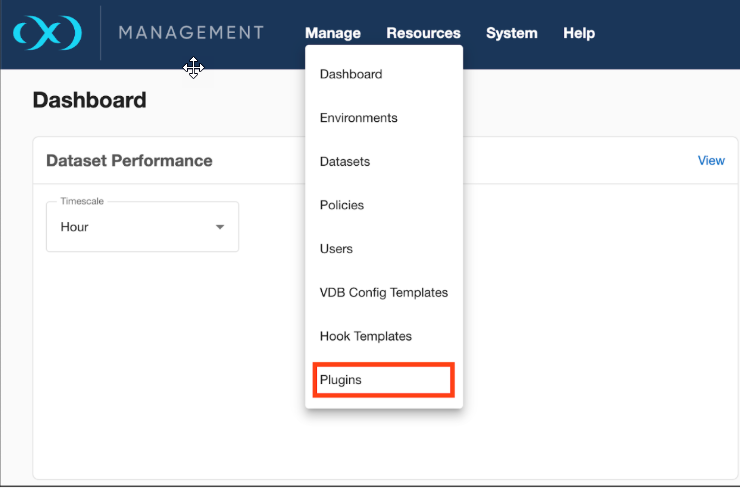
Click Manage > Plugins.
-
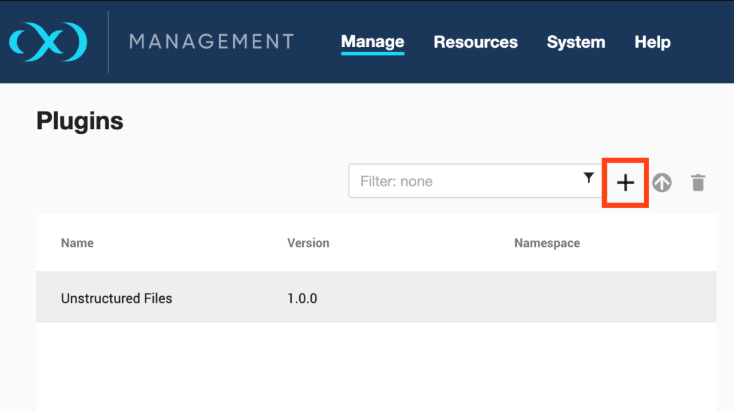
To upload a plugin, click the
 icon.
-
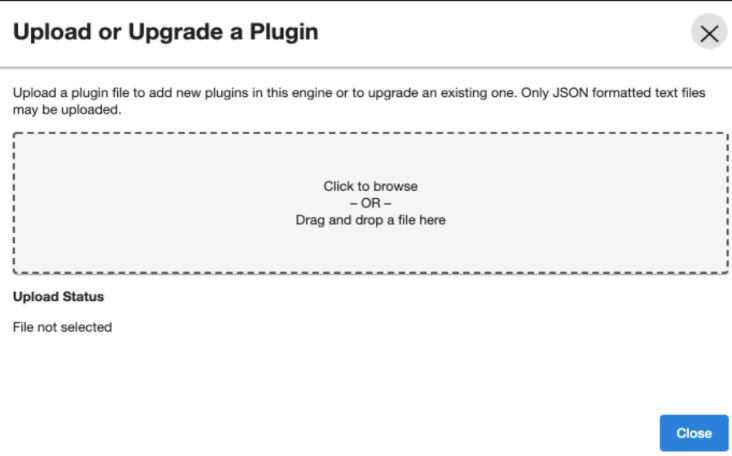
This step displays the Upload or Upgrade a Plugin dialog. Upload the <file_name>.json. For example, sc_MSSQLLinux_<version>.json.
-
For more information, refer to the Continuous Data Engine connector management section.
Upgrading the connector
The procedure to upload a higher version connector is the same as installing a new MSSQL DATABASE Connector. Kindly refer to the section “Upload connector to the Continuous Data”.
Instructions to upgrade a connector
-
Upload the higher version connector. Refer “Upload/Install connector to the Continuous Data” section above.
-
Refresh all (corresponding) environments.
-
Ensure connector discovery is completed successfully.
-
Take a new snapshot of the dSource and VDB.
Upgrading MSSQL Version on source/staging/target host
Dsource upgrade tends to help with dsource in-place upgrade to a higher but compatible version after upgrading your source database.
Prerequisites
-
Take a full backup of source with the new version (after it gets upgraded).
-
Run the in-place upgrade procedure of mssql binaries on staging server.
Upgrade Dsource steps (follow the steps in order)
-
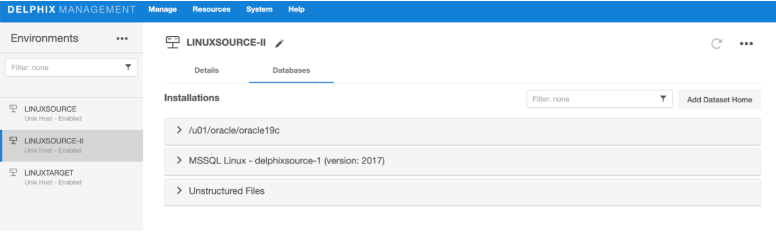
Refresh the staging environment after the MSSQL in-place gets upgraded.
-
The new version will show up with a new repository after the refresh operation.
-
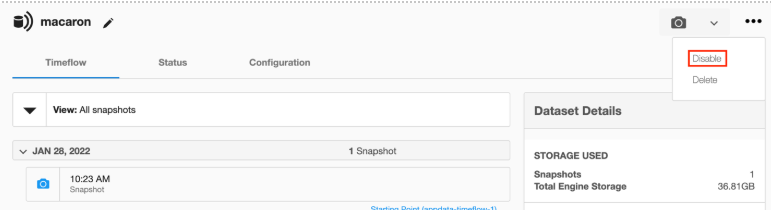
Disable the dsource to be upgraded.
-
Change repository reference in dsource (sourceconfig) using delphix engine CLI. To do so run below command as per the below image.

-
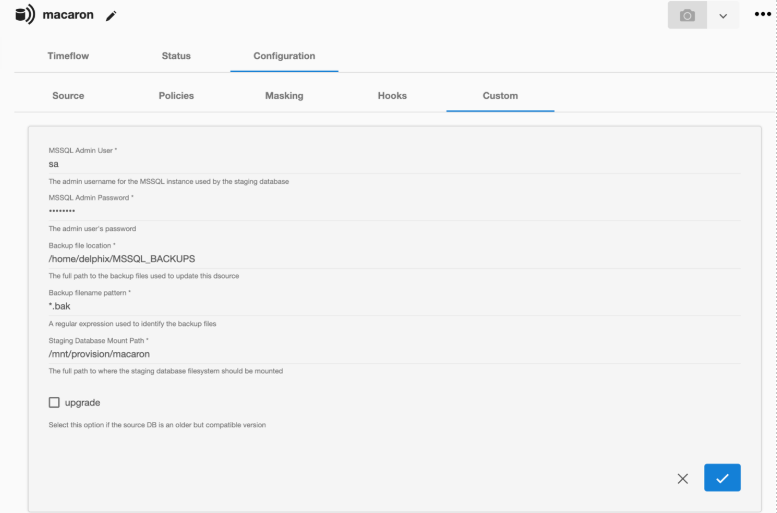
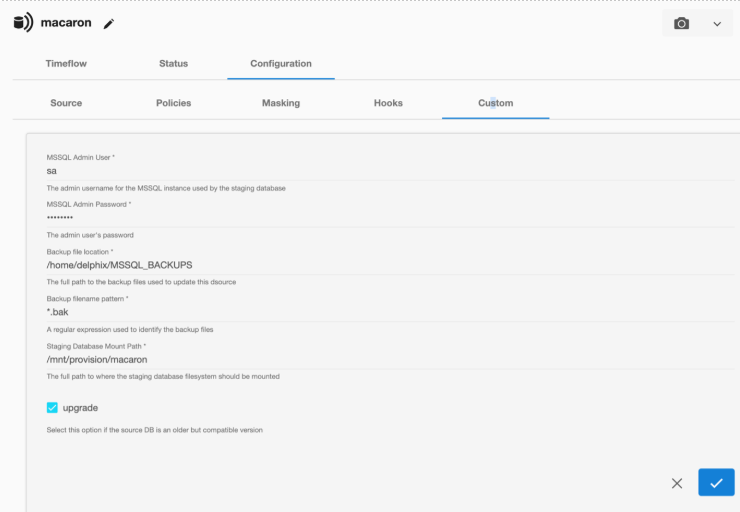
Navigate back to the Delphix engine UI and set the upgrade flag in dsource configuration.
-
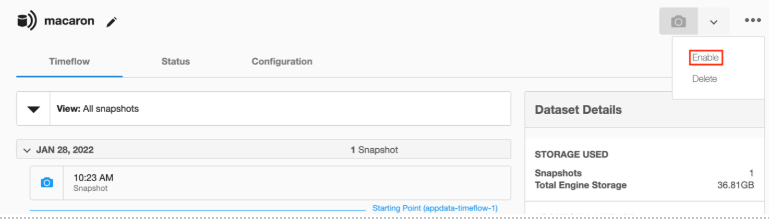
Enable the dsource to be upgraded.
-
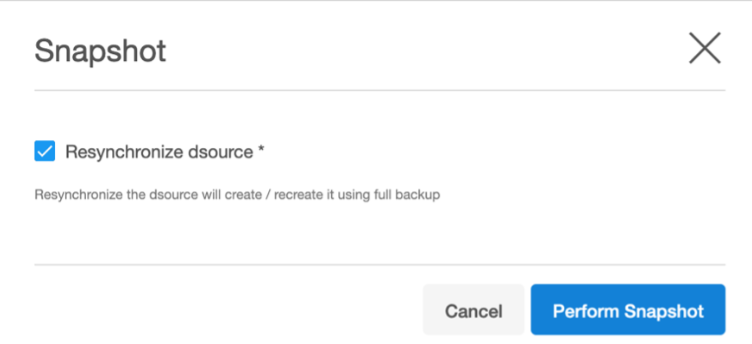
Perform a snapshot using Resynchronize dsource option
-
Unset upgrade flag after the upgrade.