This topic describes the procedure to perform the Virtual to Physical (V2P) operation on an Oracle virtual database (VDB) to a standard physical filesystem-based storage.
Perform V2P operation with the Export to New Physical Database option
To perform V2P operation on Oracle VDB with standard file system in DCT, follow these steps:
-
Log in to the DCT instance.
-
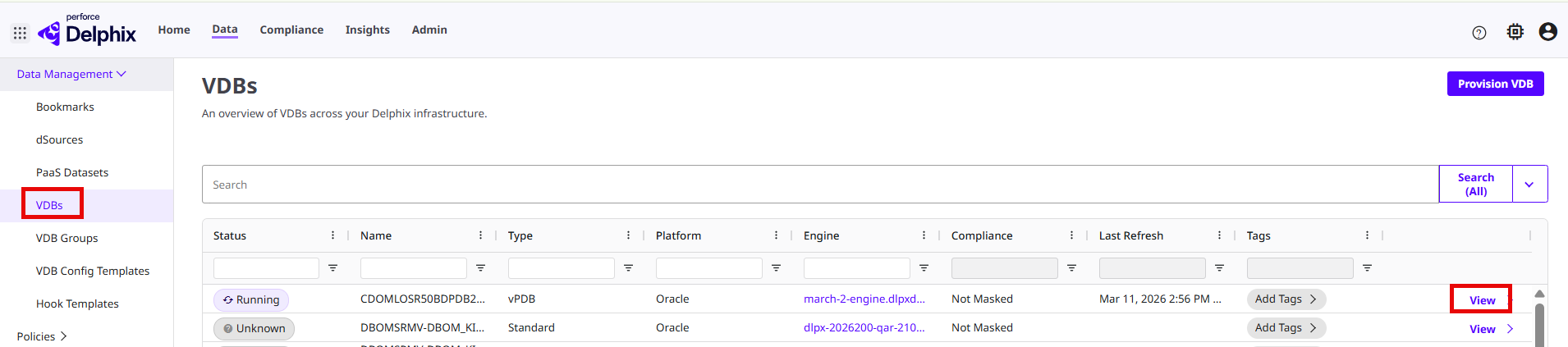
Navigate to Data>VDBs and select any Oracle VDB and click View.
-
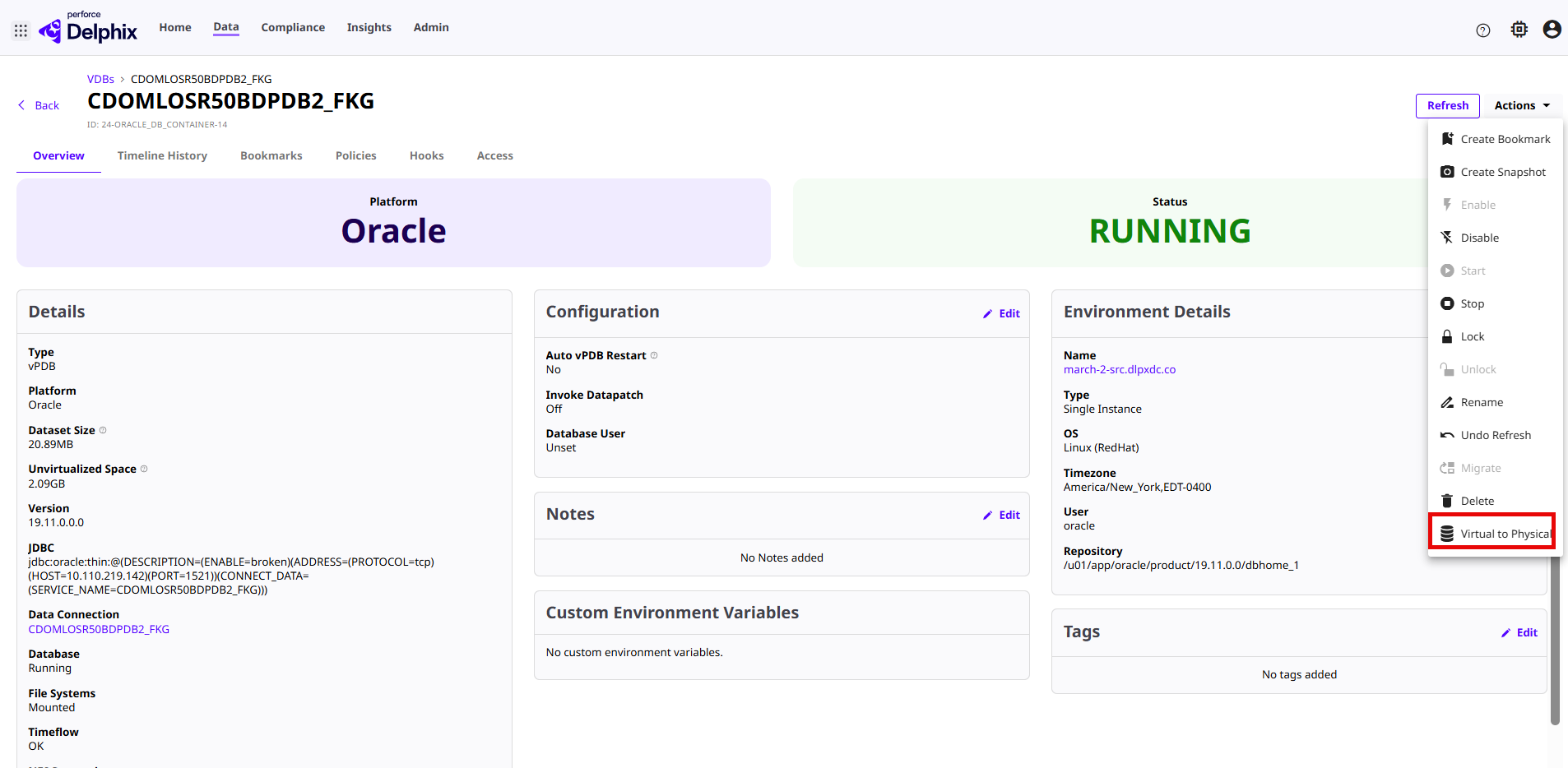
Click on the Actions menu and select the Virtual to Physical option.
-
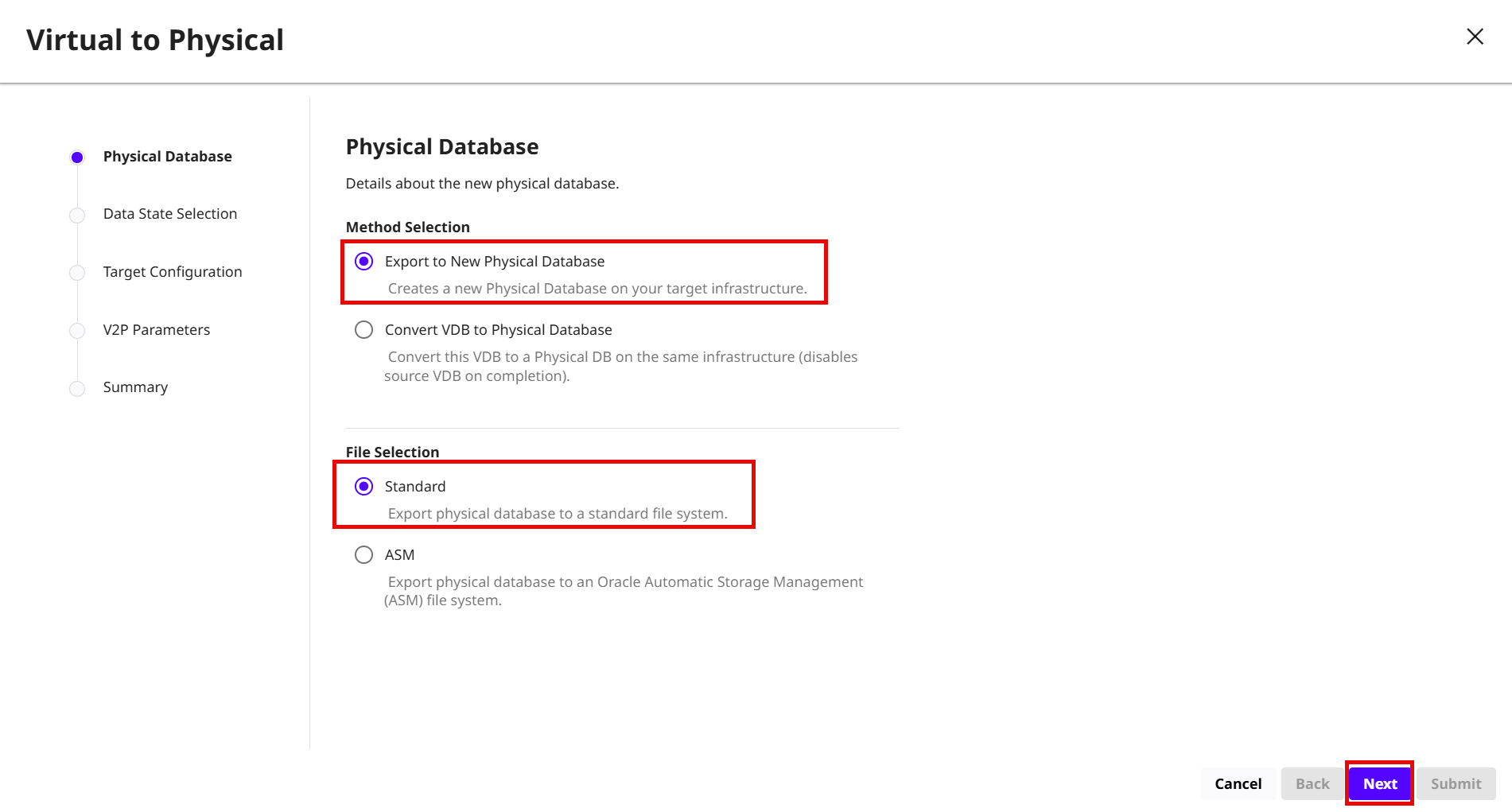
On the Virtual to Physical > Physical Database page, select the following options:
-
Method Selection
-
Export to New Physical Database: Select this option to create a new Physical Database on the target infrastructure.
-
-
File Selection: Select the Standard option to export physical database to a standard file system.
-
Click Next.
-
-
On the Data State Selection page, select a Provision Point option and click Next.
-
On the Target Configuration page, enter the following configuration details:
- Environment: Name of the environment.
-
User: User name for the environment.
-
Installation Home: The Oracle Installation path for your database.
-
Container Database: The existing CDB for your environment.
-
Pluggable Database Name: Enter the name of the PDB.
-
Mount Base: Enter the mount base path.
-
RMAN Channel Size: Enter the number of RMAN channel size. For example, enter 1.
-
RMAN Section Size: Enter the RMAN Section Size. For example, enter 2.
-
Configure V2P Parameters: Select this check box to enter the V2P parameters.
-
Select the TDE Keystore Config Type to choose the following options:
-
Unset
-
File
-
HSM
-
OKV
-
OCI Vault
Additional parameters are visible based on the selection of the TDE Keystore config Type. For more information, read the Provision Oracle VDBs in DCT page.
-
-
Click Next.
-
On the V2P Configure Parameters page, click the + icon to add the Parameter Name and Value and click Next.
-
On the V2P Parameters page, enter the Target Data Directory path and click Next.
-
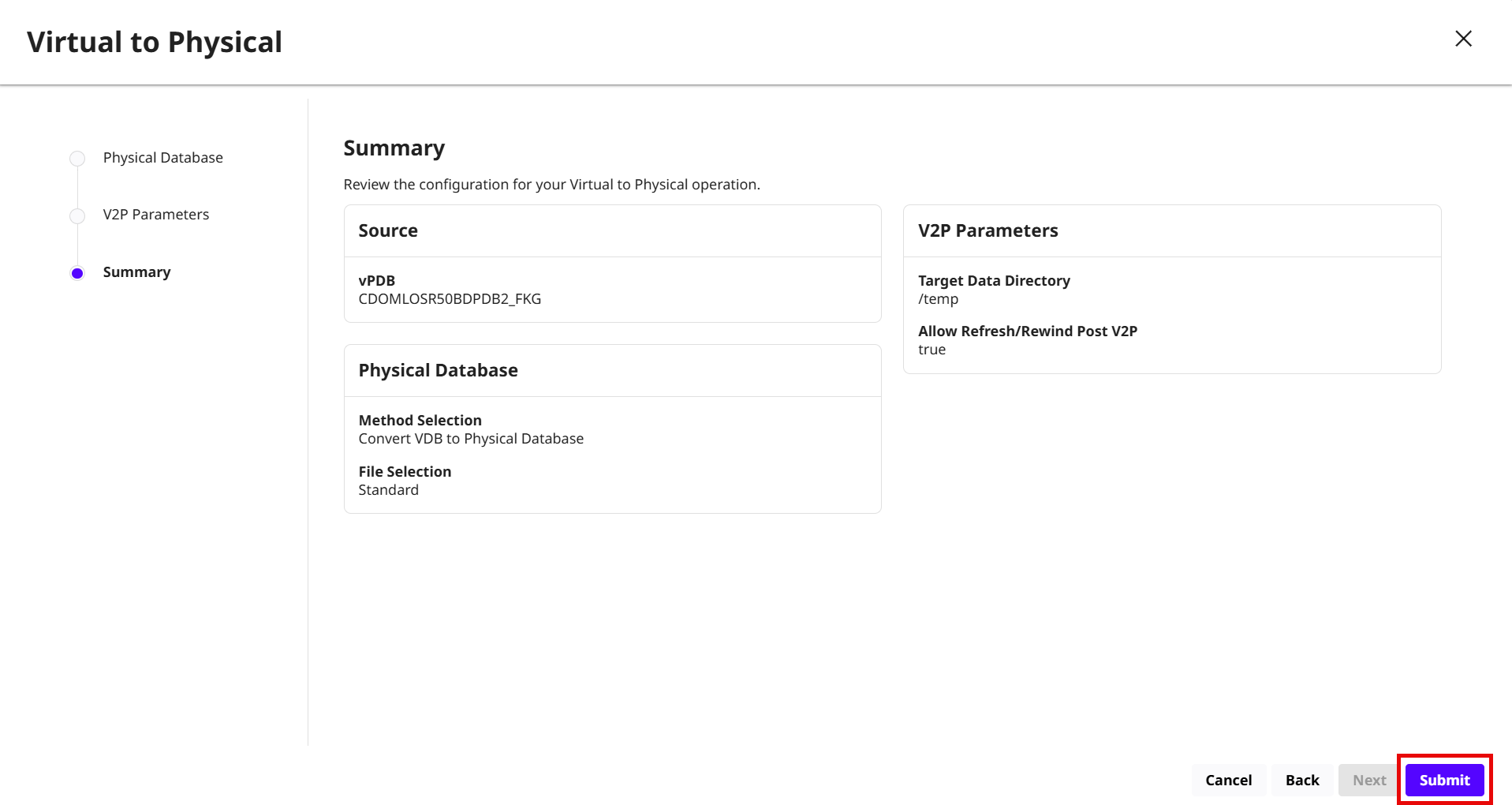
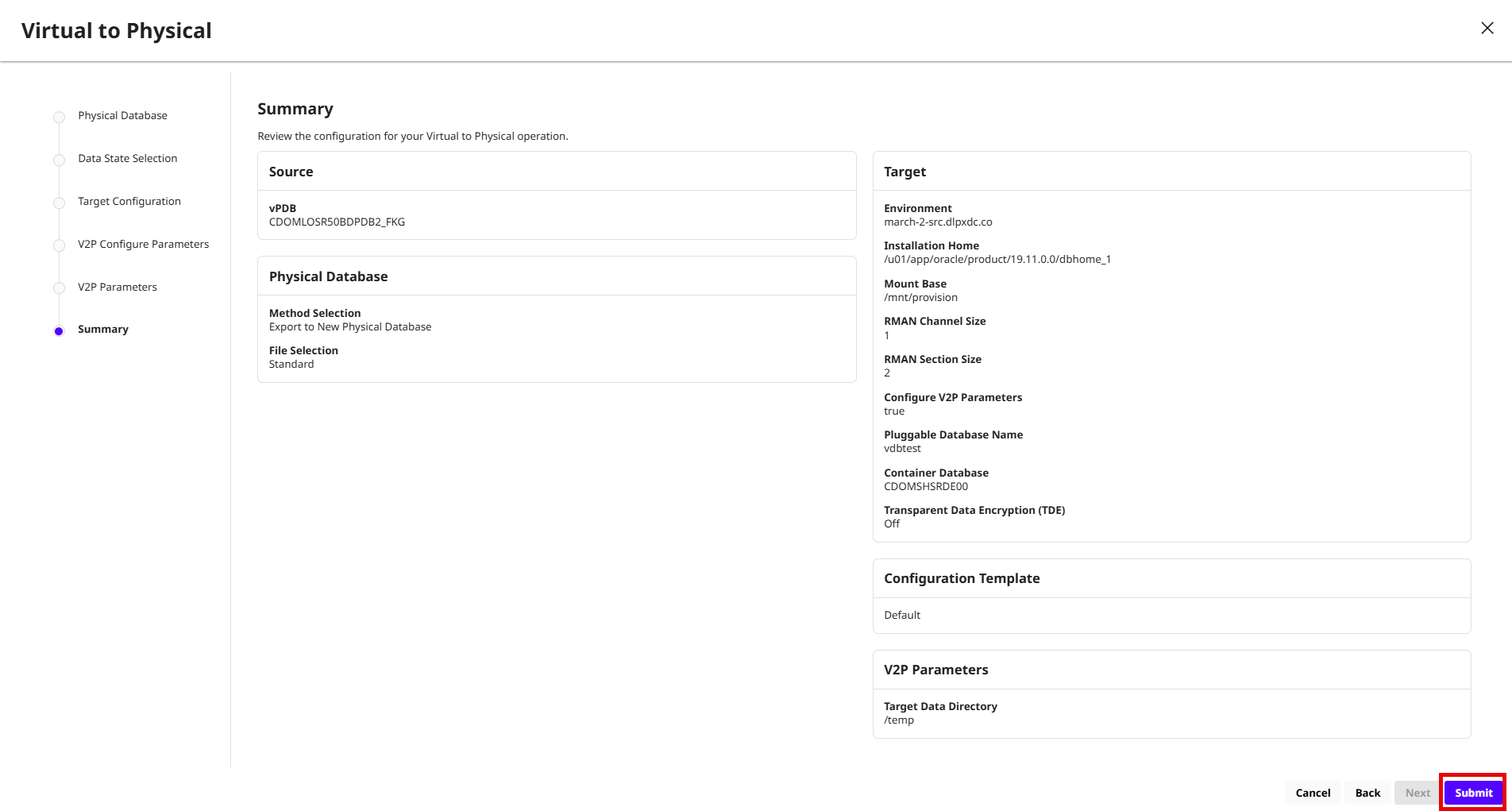
Review the V2P operation summary details and click Submit.
Perform V2P operation with the Convert VDB to Physical database option
To perform V2P operation on Oracle VDB with the convert to physical database option, follow these steps:
-
Log in to the DCT instance.
-
Navigate to Data>VDBs and select any Oracle VDB and click View.
-
Click on the Actions menu and select the Virtual to Physical option.
-
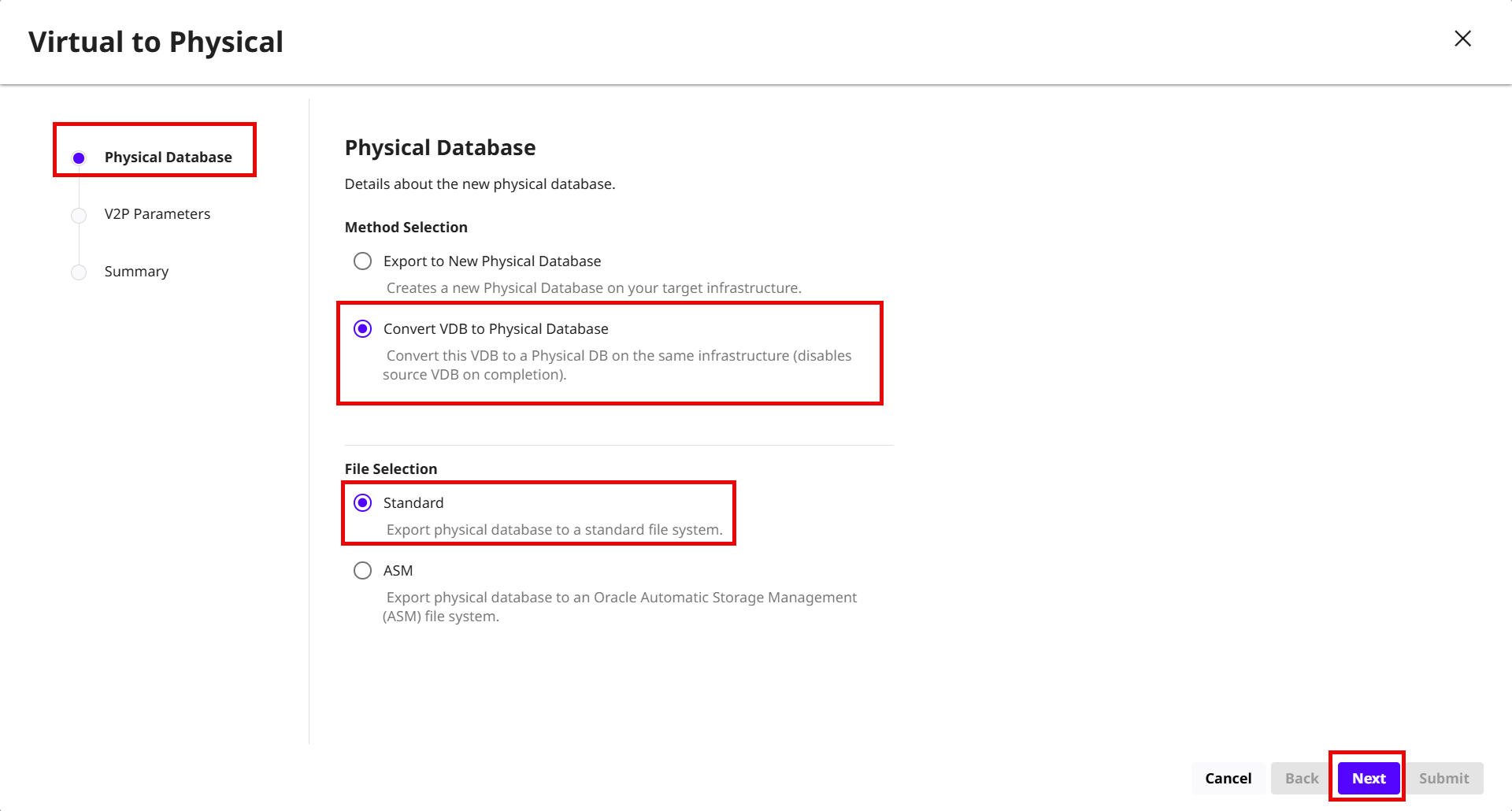
On the Virtual to Physical > Physical Database page, select the following options:
-
Method Selection
-
Convert VDB to Physical Database: Select this option to convert this VDB to a Physical Database on the same infrastructure.
This option disables the source VDB after completion.
-
-
File Selection: Select the Standard option to export physical database to a standard file system.
-
Click Next.
-
-
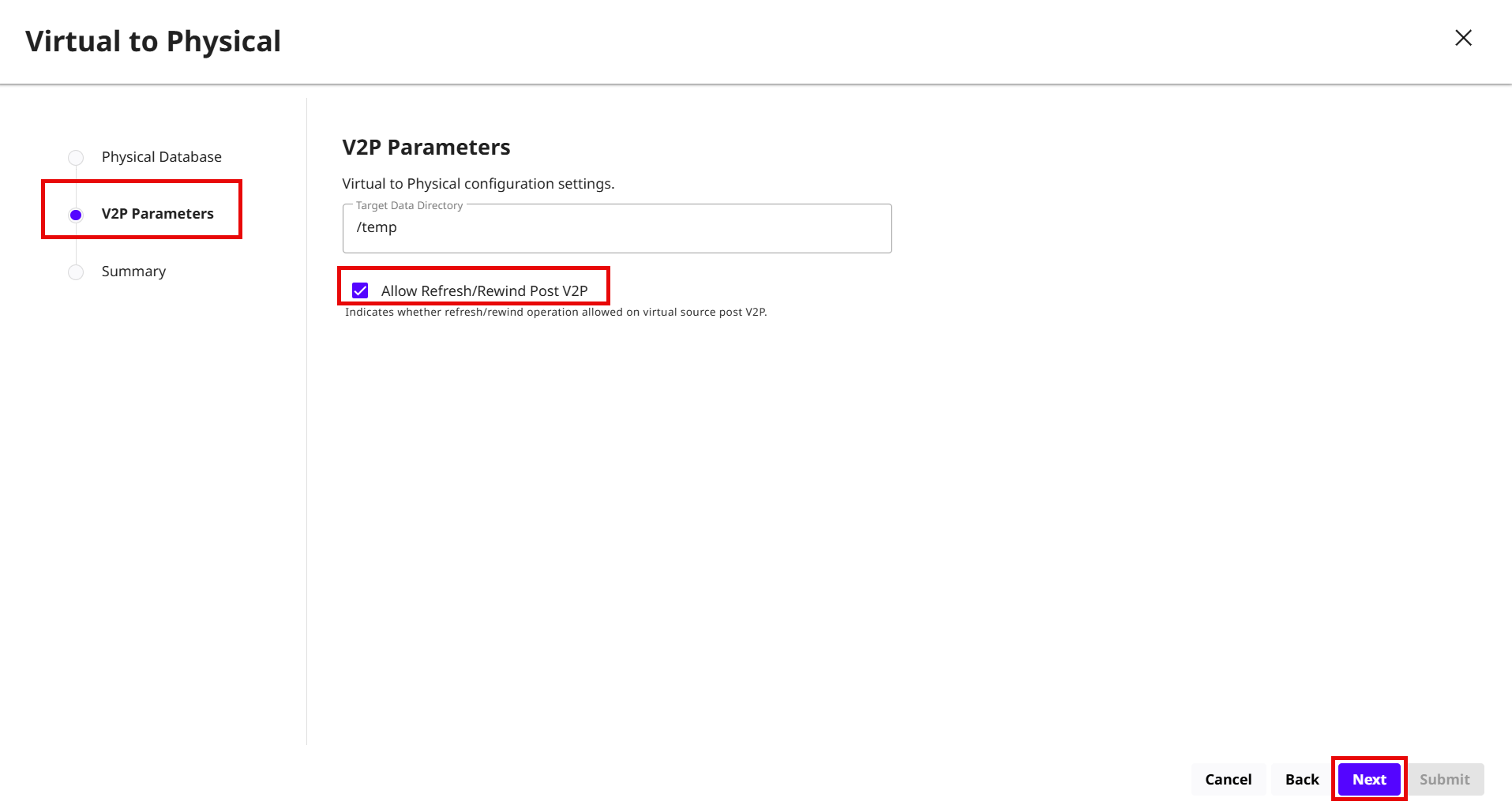
On the V2P Parameters page, enter the Target Data Disk Group path and select the Allow Refresh/Rewind post V2P check box to allow the Refresh and Rewind operation virtual source database after the V2P operation.
-
Click Next.
-
Review the V2P operation summary details and click Submit.