
Add the Delphix Engine to ingest data from your source databases in order to create dSources and Oracle environments. Once an environment is added, Delphix Engine will automatically ‘discover’ databases on it, which are compatible to ingest from, to create new dSources.
To add the Delphix Engine in the DCT, follow these steps:
-
Log in to the DCT instance. Use API key or Username and Password to log in to the DCT instance.
-
Click Authorize. The DCT Infrastructure Connections Wizard page appears.
-
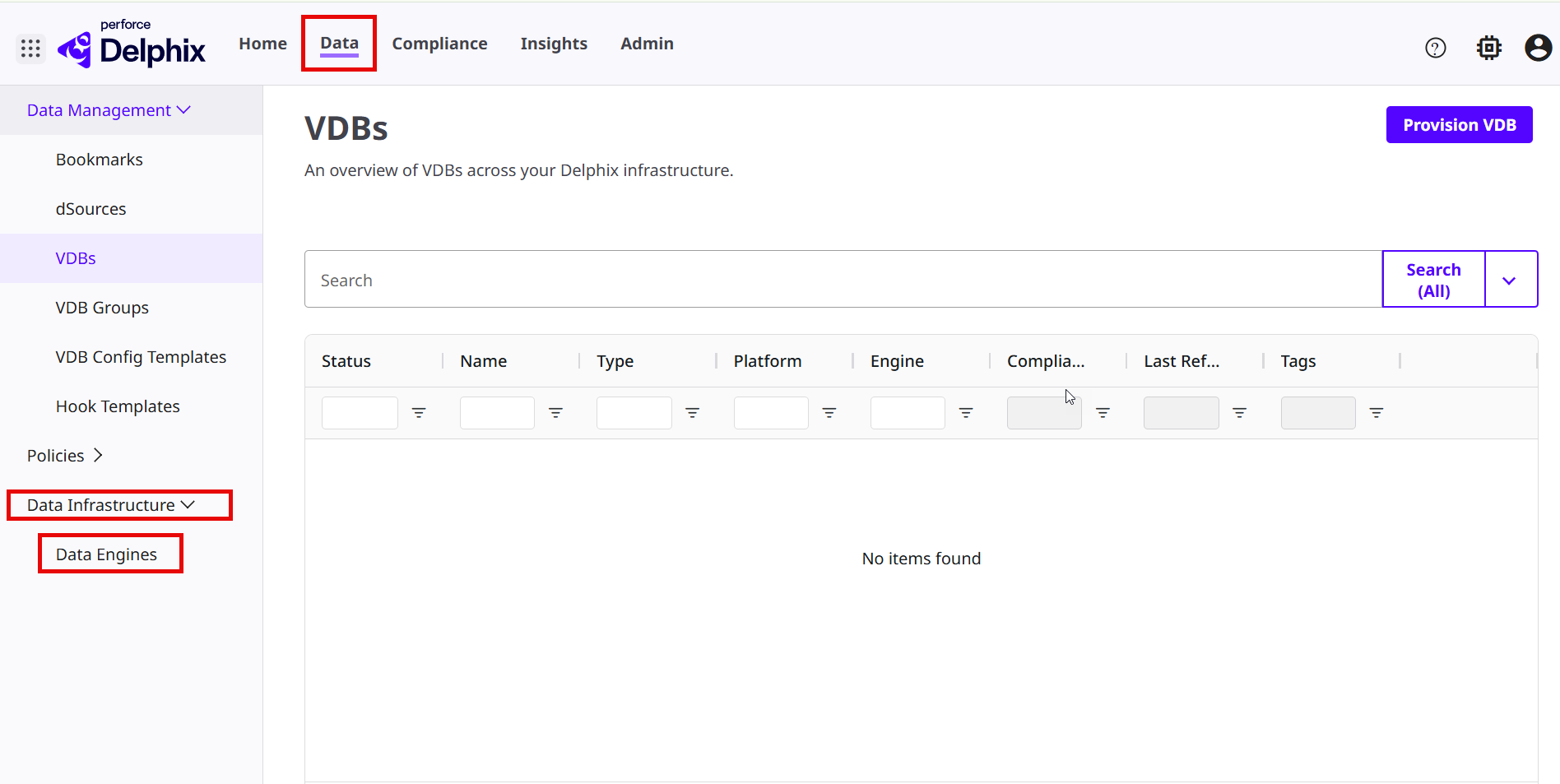
Select the Data tab and expand the Data Infrastructure.
-
On the Data Engines page, click Connect Engine to configure a new Delphix Engine.
-
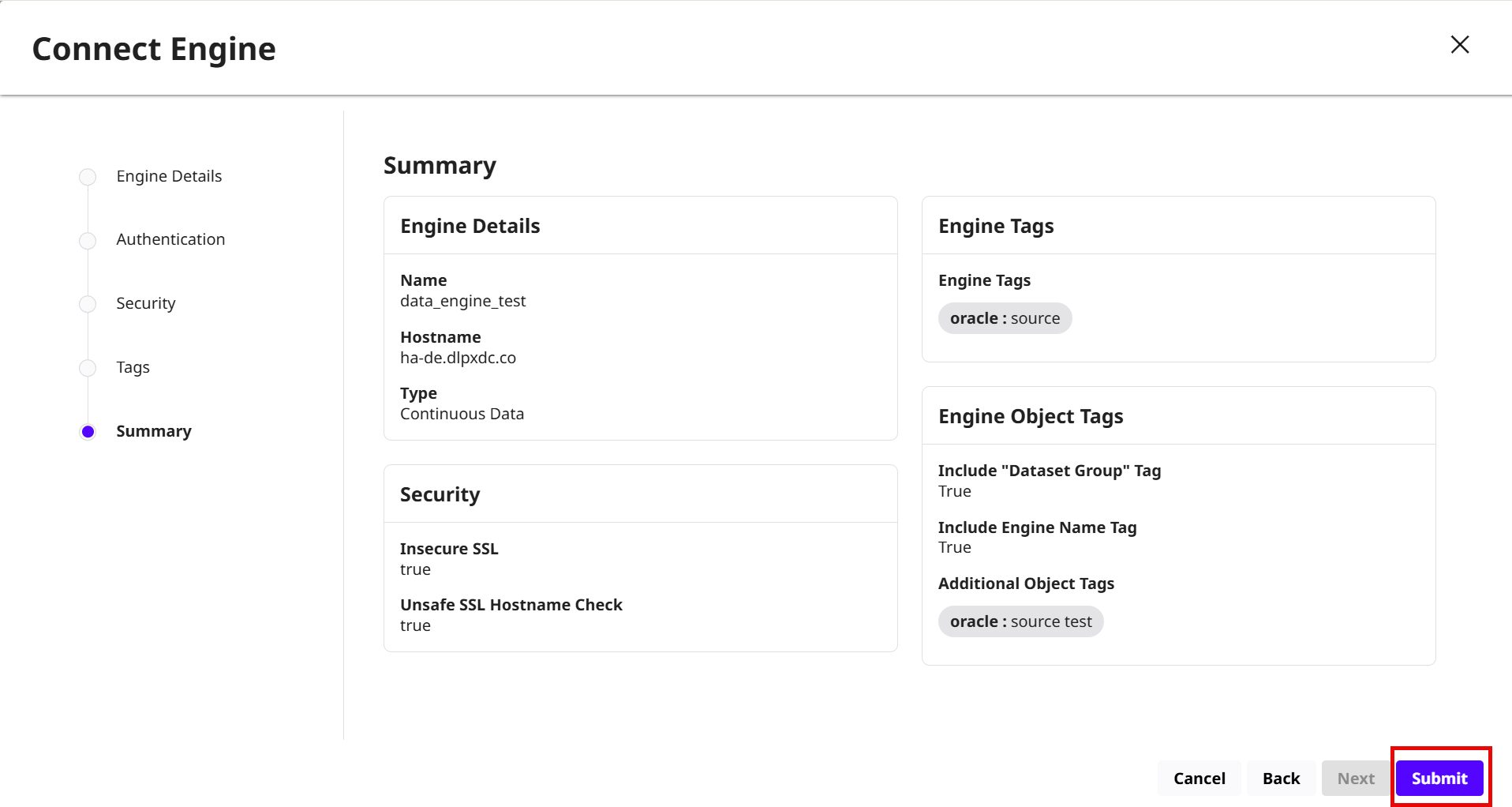
Enter the Delphix Engine details:
-
Name: Enter name of the source environment.
-
Hostname: Enter the source environment hostname IP address.
-
Choose Engine Type: Select the Continuous Data option for the Virtualization engine or select the Continuous Compliance option for the Masking engine.
-
Click Next.
-
-
Enter the Authentication details:
-
Select the Username and Password option to enter the Continuous Data Engine login credentials.
-
Select the Vault option to enter the Hashicorp Vault Password Command Arguments with Hashicorp Vault ID.
-
Click Next.
-
-
Select the following Security settings:
-
Insecure SSL:if checked, allow connections to the engine over HTTPs without validating the TLS certificate. Even though the connection to the engine might be performed over HTTPs, setting this property eliminates the protection against a man-in-the-middle attach for connections to this engine. Instead, consider configuring DCT with Certificate Authority certificates.
-
Unsafe Hostname Check:if checked, ignore validation of the name associated to the TLS certificate when connecting to the engine over HTTPs. Setting this value must only be done if the TLS certificate of the engine does not match the hostname, and the TLS configuration of the engine cannot be fixed. Setting this property reduces the protection against a man-in-the-middle attach for connections to this engine. This is ignored if Insecure SSL is set.
-
-
Enter the Tags to configure DCT so that it automatically creates predefined tags on discovered objects ingested from the engine.
-
Click Next.
-
Review the Delphix Engine details and click Submit.
-
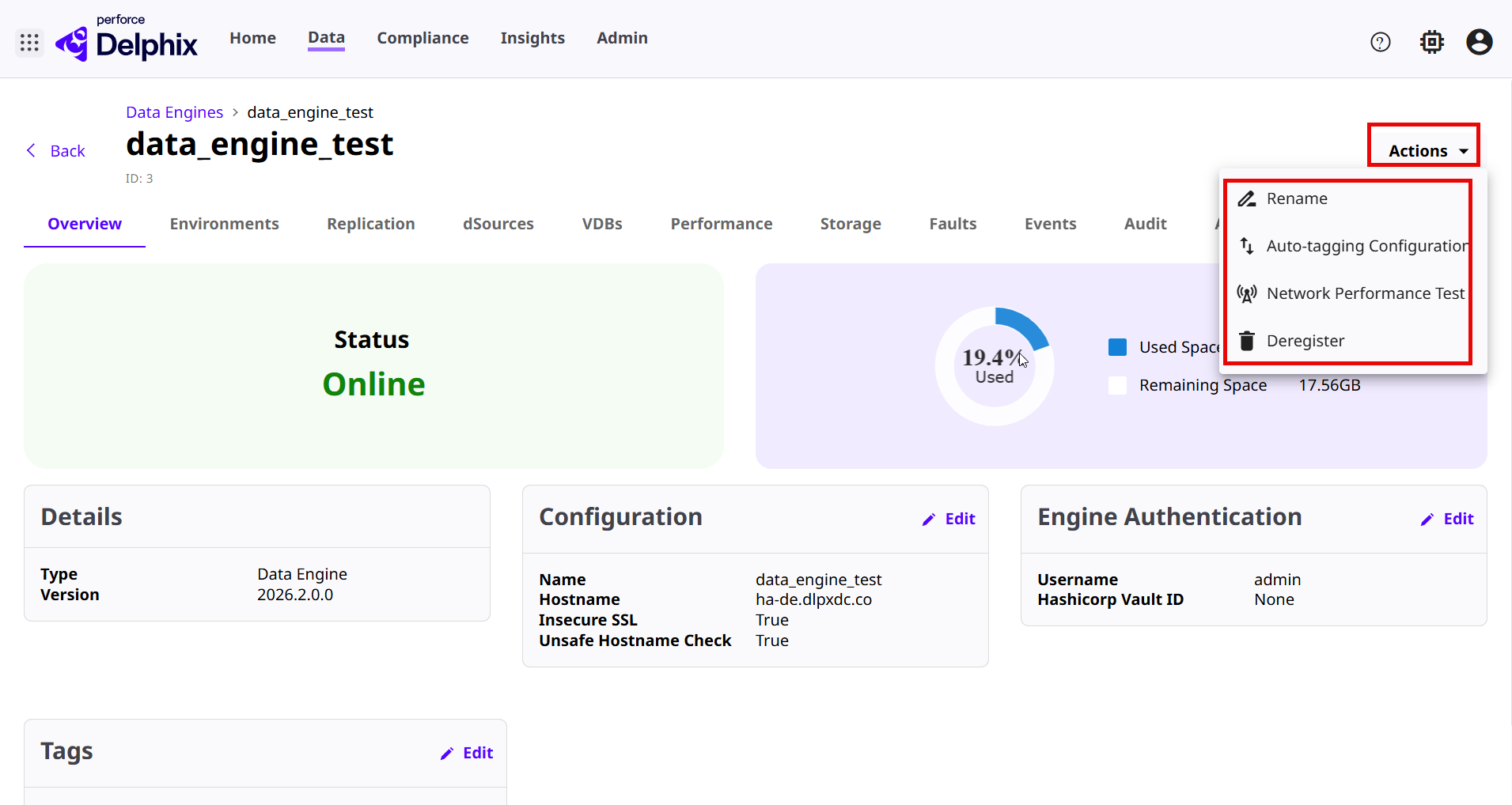
Once the connection to the Delphix Engine connection is established, click the Actions option on the top of the Delphix Engine to do the following:
-
Rename: Rename the engine name.
-
Auto-tagging configuration: Modify object access. Review permissions carefully after auto-tagging objects. All existing and new objects from then on will automatically get the configured tags, which are no different from ordinary tags that can be added to objects.
-
Network Performance Test: Run the network performance test for latency, throughput, and DSP.
For more information, read the Test with Network Performance Tool page.
-