
To add a Windows source environment in DCT, complete the following steps:
-
Log in to the DCT instance.
-
On the Home page, click + Infrastructure Connections to add a Windows source environment.
-
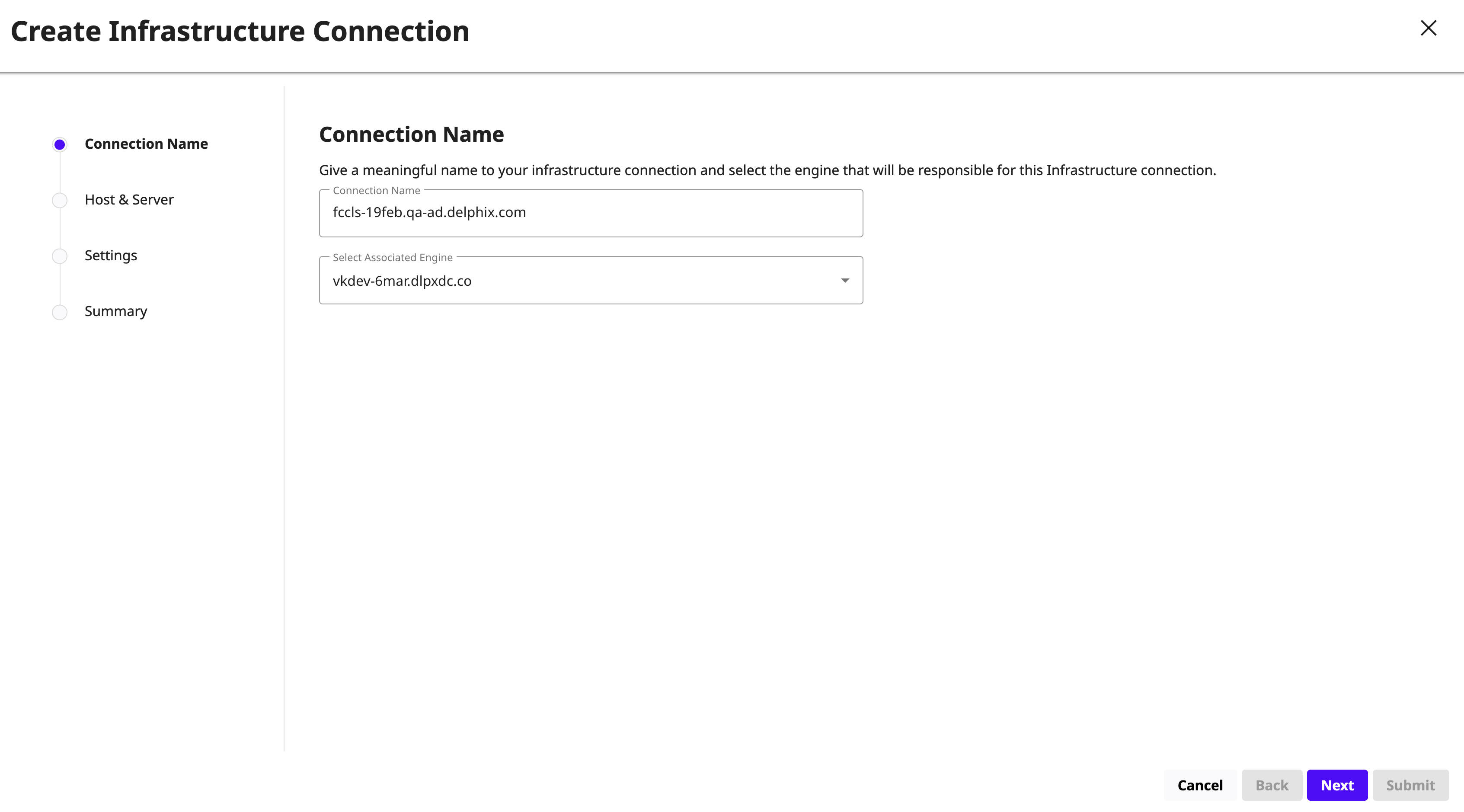
On the Create Infrastructure Connection page, select the previously added Continuous Data Engine.
-
Enter a name for the Windows source connection.
-
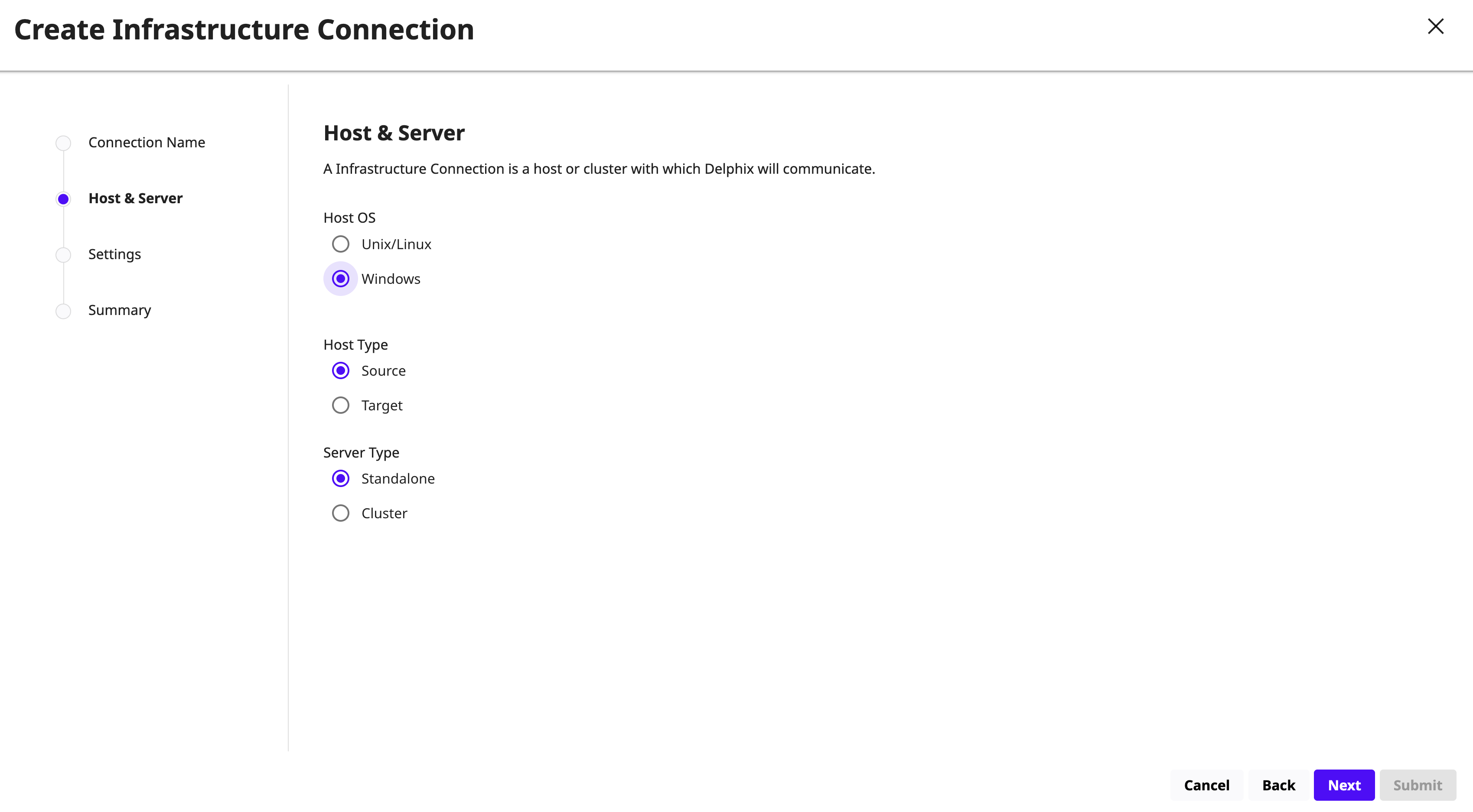
Click Next. On the Host and Server tab, select the following:
-
Host OS: Windows
-
Host Type: Source
-
Server Type:
-
When adding a Windows Server Failover Cluster (WSFC), select the environment type based on the WSFC feature used by the source databases. Failover Cluster Instances and AlwaysOn Availability Groups are sub points of Windows Server Failover Cluster (WSFC):
-
Failover Cluster Instances (FCI): Add the environment as a standalone source using the cluster name or address.
-
AlwaysOn Availability Groups (AG): Add the environment as a cluster source using the cluster name or address.
-
-
Otherwise, add the environment as a standalone source.
-
-
Click Next. Enter the Host Address, OS Username, and OS Password, and select a Connector Environment for the source environment.
Connector environments act as proxies for running discovery on the source. If no connector environments are available, set them up as described in Add a Windows Target Standalone Environment in DCT.
Connector environments must:
-
Have the Delphix Connector installed.
-
Be registered with the Delphix Engine from the host machine where they reside.
-
Review the Windows source environment details and click Submit. DCT discovers the Windows source standalone environment on the associated engine.