
To create or provision a virtual database, you will need either a linked dSource from a source host or another VDB and a compatible target environment, as described in the Requirements for SQL Server environments and SQL Server Matrix.
To provision a VDB in DCT:
-
Log in to DCT.
-
Navigate to Data > Data Management > VDB and click Provision VDB. For more information, refer to Provisioning a SQL Server VDB.
-
Select a SQL Server source under the dSources or VDB tab to provision and click Next.
-
On the Provision Point page, choose any of the following options:
-
Select Provision Point: Select a provision point displayed on this page.
-
LSN Number Refresh (Slower): Enter the SQL Server Log scan (LSN) number range.
-
Bookmarks: Choose the bookmark from the list.
-
-
Select the target environment and repository.
-
On the Target Configuration page, choose the database recovery model and database name. Select the checkbox Configure VDB Parameters. Optionally, modify other advanced settings and click Next.
-
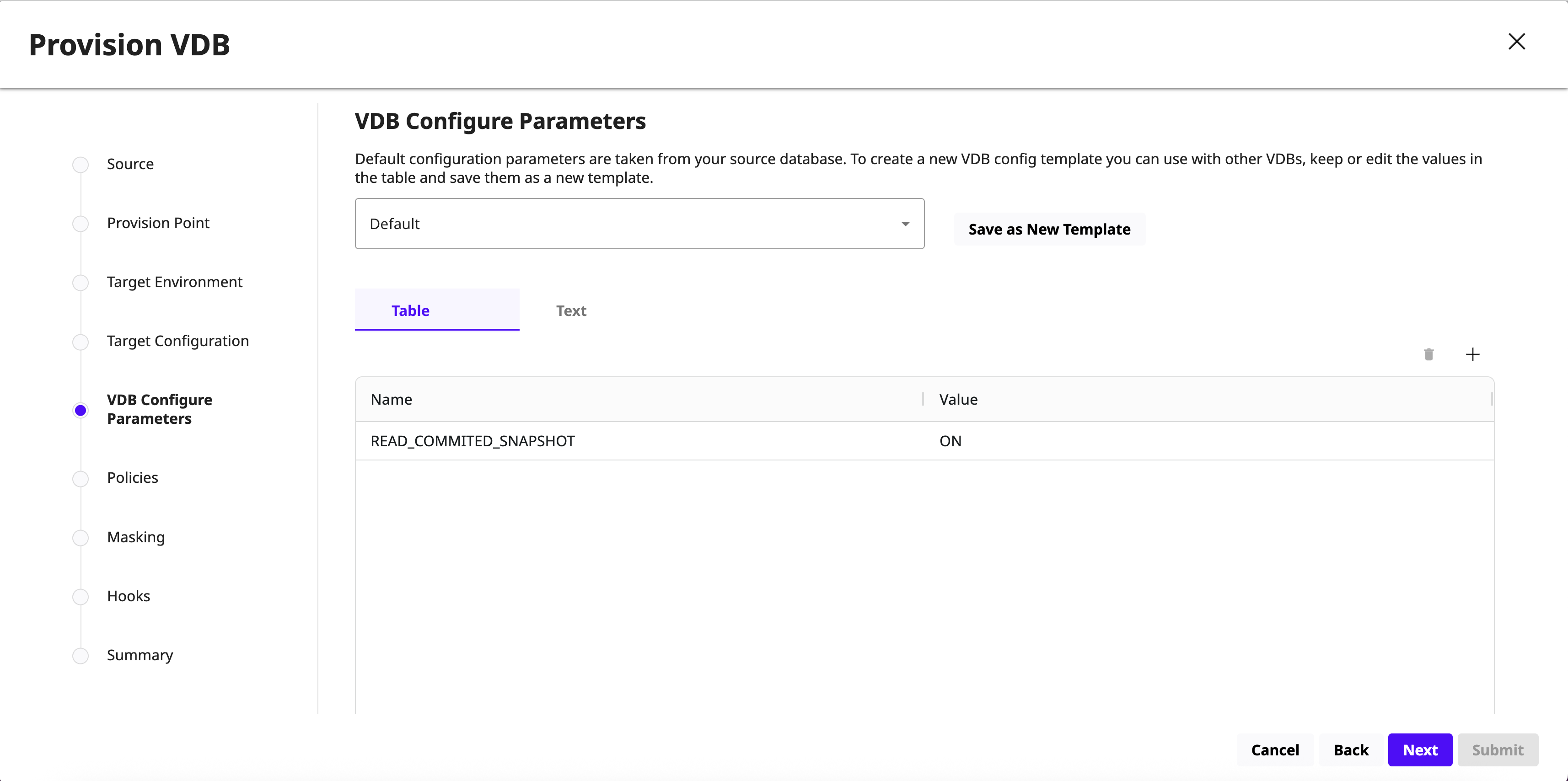
On the VDB Configure Parameters page, choose any of the following options:
-
Select an existing VDB config template from the dropdown list.
-
Add a new VDB Configuration parameter mapping by clicking on the + icon. By default, mappings are shown under the Table tab. If you want to add or edit multiple mappings, you can make use of the Text tab.
-
In the Name column, put the name of the configuration parameter
-
In the Value column, put the value of the configuration parameter
-
Optionally, you can save the newly added configuration parameters to a new VDB config template by clicking on Save as New Template.
-
-
-
On the Policies page, select the default DCT Snapshot and DCT Retention policies and click Next.
-
(Optional) On the Masking page, select the Mask this VDB and click Next.
-
(Optional) On the Hooks page, configure provisioning hooks and click Next. For more information, refer to Hook operations list and SQL Server hook operations.
-
Review the VDB summary details and click Submit.