
A staging push dSource allows the backup and restore process to be managed by the administrator. When using staging push, Delphix will provide an NFS location for the database to be restored to prior to each snapshot.
To link an Oracle dSource in the DCT instance, follow these steps:
-
Log in to the DCT instance.
-
Navigate to Data > dSources and click +dSource.
-
On the Add dSource page, select the Oracle Staging Push and select the Continuous Data Engine to link from the Select Associated Engine drop down and then click Next.
-
On the dSource Configuration page, enter the following details:
-
dSource Name: Enter the name of the dSource.
-
Target Group: Select the target group from the drop-down menu.
-
Database Type: choose the following options:
-
Non Multi Tenant: Select this option to link the dSource is an object that the Continuous Data Engine uses to create and update virtual copies of your database. As a virtualized representation of your source data, it cannot be managed, manipulated, or examined by database tools. For more information, read the linking an Oracle non multitenant staging push dSource page.
-
CDB: Select this option to link a container database (CDB) dSource using the staging push mechanism. For more information, read the Linking a CDB staging push dSource page.
-
PDB: Select this option to link a PDB dSource using the staging push mechanism. For more information, read the Linking a PDB staging push dSource page.
-
-
-
In this task, select the Non Multi Tenant option and enter the following required details:
-
Staging Environment: Select the source environment from the drop-down menu.
-
User: Enter the username of the source environment.
-
Repository: Select the repository location of the source environment.
-
Database Name: Enter the database name for the production environment on which the data backup will be restored using the Staging Push mechanism.
The maximum number of characters for the database name is limited to 8 characters. -
Database Unique Name: Enter the unique name for the database.
-
SID: Enter the SID for the database.
-
Mount: Enter the Mount Path to restore the staging database from the Production environment. For example, enter
/mnt/provision.
-
-
Click Next to add the Staging Database Parameters if this check box was selected in the previous step.
-
Click + icon to add the parameter name and value. For example, enter name as memory_target and 1073741824 as the value. The value should be more than 2MB.
-
On the Data Management page, select the LogSync checkbox to enable the logsync for Staging Push dSource. For more information on LogSync, read the Enabling Point in time (PIT) provisioning for Staging Push dSources page.
-
Click Next.
-
On the Policies page, accept the DCT Default Retention or DCT Default SnapSync policies. Click the Change Policy link to modify the policies if needed.
-
Click Next.
-
On the Hooks page, select the any of the following option and click + Hook to configure bash hook operation:
-
Pre Sync: Executes before the SnapSync operation of a dSource.
-
Pre LogSync: Executes before the LogSync operation of a dSource.
-
Post Sync: Executes after the SnapSync operation of a dSource.
For more information, read the Hook operations list and Oracle Hook operations page.
-
-
Click Next.
-
Review the dSource details and click Submit to link the dSource.
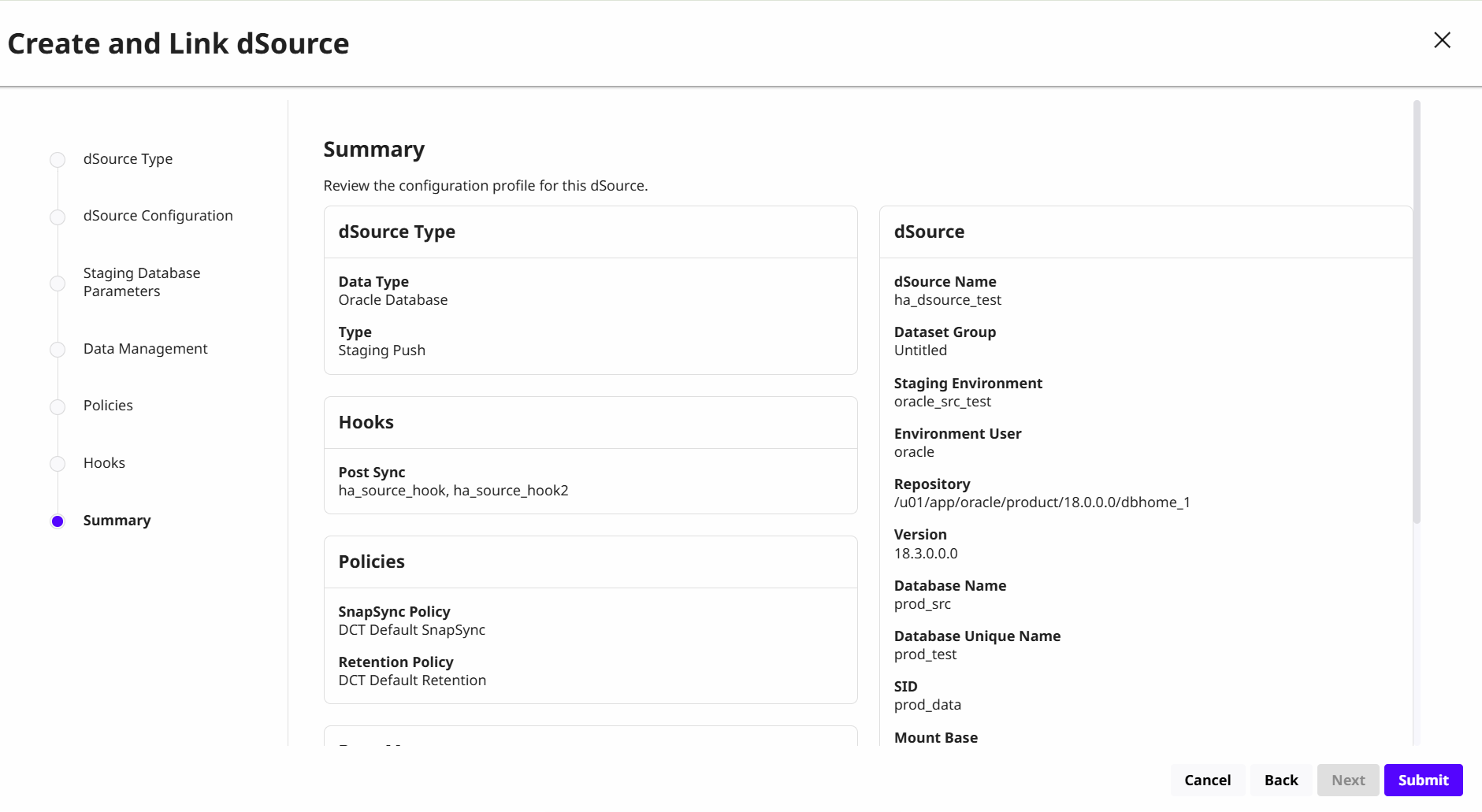
An Oracle Staging Push dSource is linked in the source environment with snapshot history and configuration options.