
The error messages are intended to provide meaningful and actionable information, if this is not the case, please report to Delphix.
Detailed debug logs from the MSSQL Linux plugin are included in a standard set of support logs from the Delphix engine.
Common Issues
Unusable Staging Database
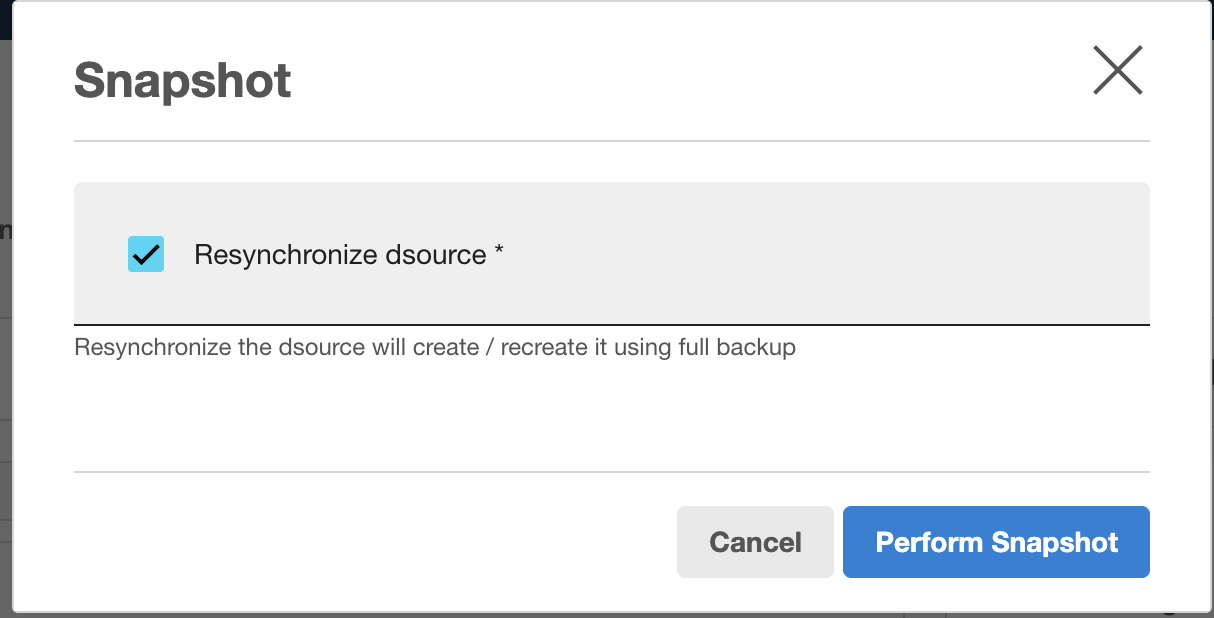
If the staging database used by a dsource becomes unusable, ensure there is a full backup in the backup location and use the snapshot with params option with the resync checked to recreate the staging database using the full backup.
Force Delete Dataset Consequences
Only use force delete when necessary, as these operations will not run any plugin code so will leave stale NFS mounts and databases inside the MSSQL instance. These will need to be tidied up manually. Below is an example:
$ df -kh
df: ‘/mnt/provision/testdb’: Stale file handle  #stale mount path
Filesystem      Size  Used Avail Use% Mounted on
/dev/xvda3       20G  9.4G   11G  47% /
or
$ df -kh
Filesystem      Size  Used Avail Use% Mounted on
/dev/xvda3       20G  9.4G   11G  47% /
??????? 		3.9G     0   3.9G  0% /mnt/provision/testdb   #stale mount path
To clean up:
-
Unmount the stale mount path using the following command:
$ sudo umount <stale_mount_path>
-
Drop the staging database if it exists.
$ sqlcmd -S localhost -U sa -P <password>
> USE master;
> DROP DATABASE <database_name>;
> GO
Operating System Interruptions
When unexpected OS shutdowns or restarts occur during Delphix operations, database objects can be left in inconsistent states requiring manual intervention.
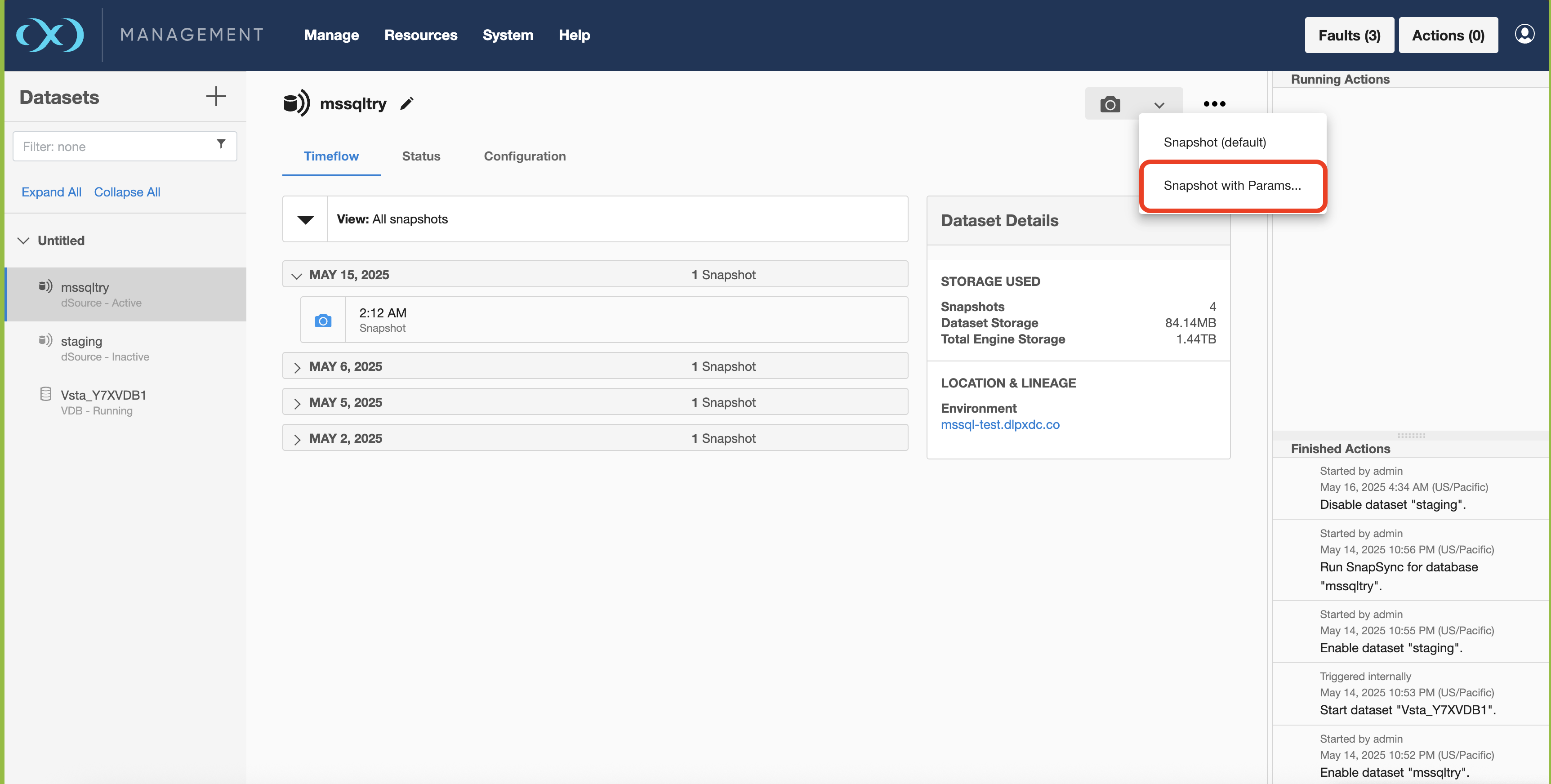
OS Interruption during RESYNC
Issue Indicators: RESYNC halts and the database stays in RECOVERY state.
Resolution:
-
Run DROP DATABASE command in master to remove the orphaned entry.
>$ sqlcmd -S localhost -U sa -P <password>
> USE master;
> DROP DATABASE <database_name>;
> GO
- Re-run RESYNC operation, ensuring the host remains online until completion:
# Through the Delphix GUI interface: Navigate to Manage > Datasets > [select dSource] > Actions > Snapshot > Resync.
OS Interruption during SnapSync
Issue Indicators: Enable operation fails; lingering entry exists in master.
Resolution: Execute DROP DATABASE command in master:
$ sqlcmd -S localhost -U sa -P <password>
> USE master;
> DROP DATABASE <database_name>;
> GO
Run Enable to roll back to the last consistent snapshot:
# Through the Delphix GUI interface:Navigate to Manage > Datasets > [select dSource] > Actions > Enable.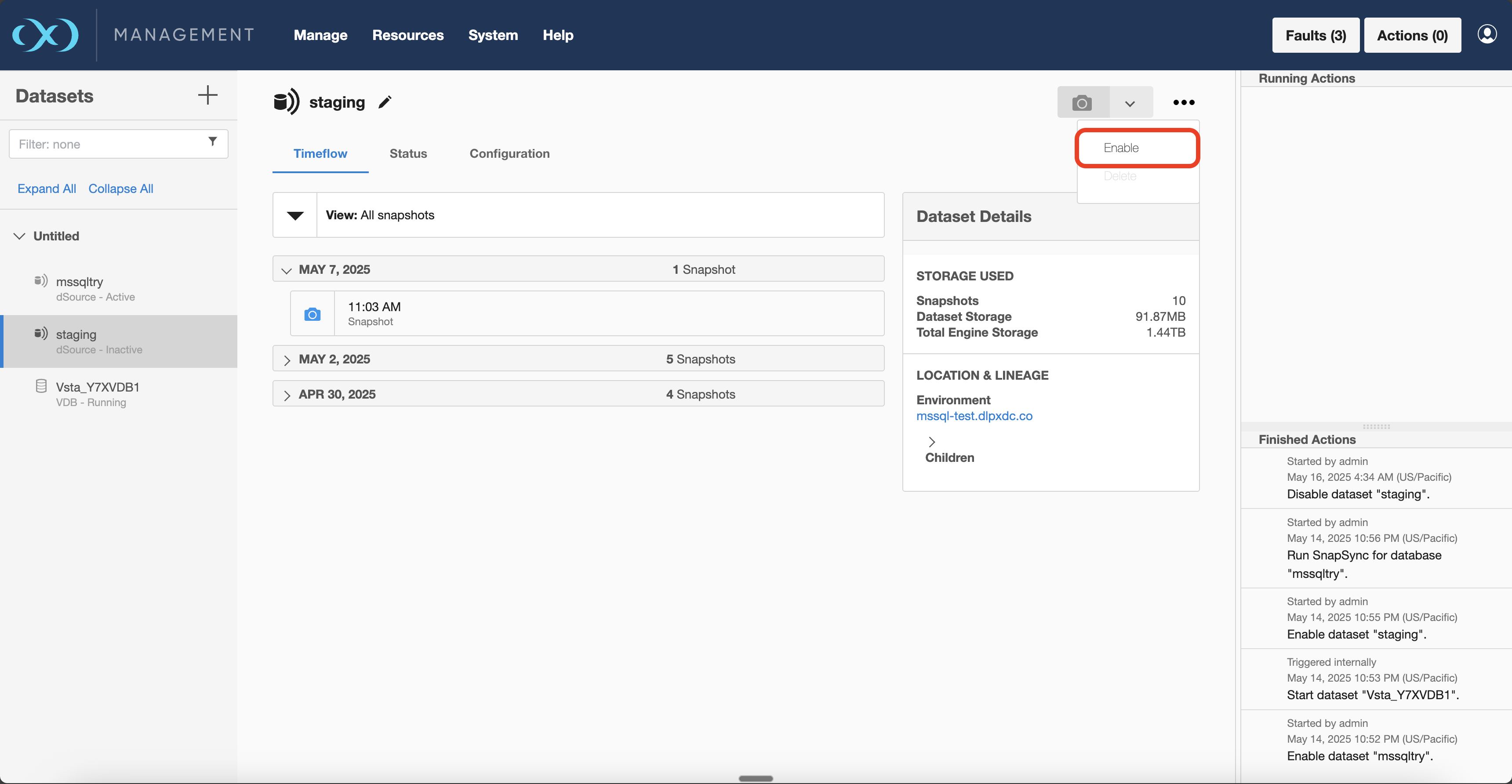
Identifying and Resolving Interruption Issues
DB SYNC Recovery Problems
Diagnostic steps
Check database state in master:
$ sqlcmd -S localhost -U sa -P <password>
> SELECT name, state_desc FROM sys.databases WHERE name = '<database_name>';
> GO
Examine Delphix operation logs in the Help > Support Logs > Plugin Logs> Download folder.
Common Error Messages:
-
Cannot open database requested in the login -
Database is in a state that cannot be used for provisioning
If the database is stuck in RECOVERY state, follow the resolution steps in the "OS Interruption during RESYNC" section above.
SnapSync Interruption Recovery
Diagnostic Steps
Verify presence of orphaned database entries:
$ sqlcmd -S localhost -U sa -P <password>
> SELECT name, state_desc FROM sys.databases;
> GO
Check for database files that cannot be accessed:
$ sqlcmd -S localhost -U sa -P <password>
> SELECT physical_name FROM master.sys.master_files WHERE database_id = DB_ID('<database_name>');
> GO
Resolution Process: If the Enable operation fails due to system interruption during SnapSync, follow the steps in the OS Interruption during SnapSync section above.
Power off/on & power outage
In case of power off/on or you have experienced a power outage with staging or target servers this section will help you overcome the situation.
-
For Dsource :
-
The status of dsource after the power off.
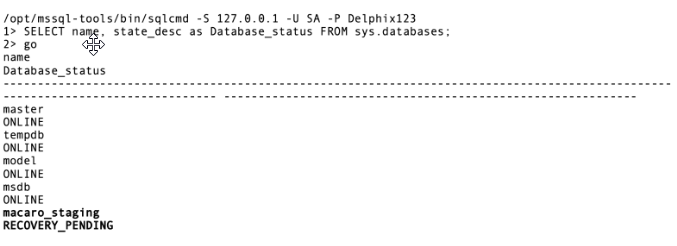
-
Force disable and enable dsource to fix the situation.
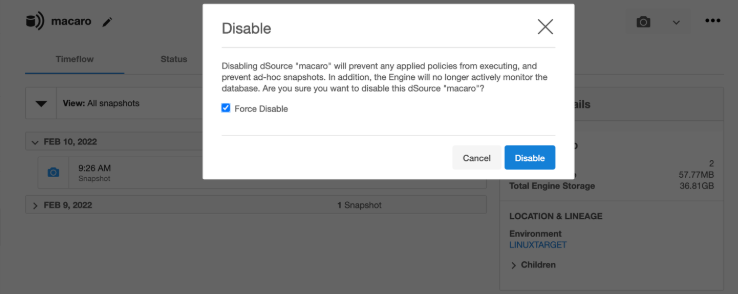
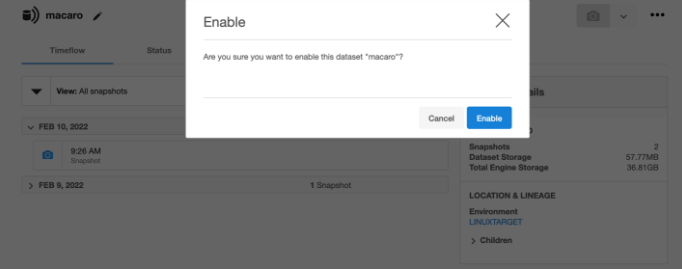
-
-
For VDB:
-
The status of VDB after the power off.
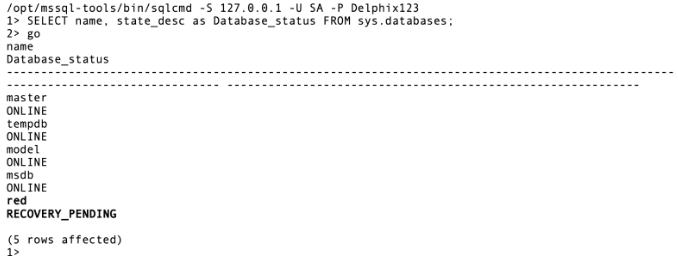
-
Simply trigger VDB start operation to fix the situation.
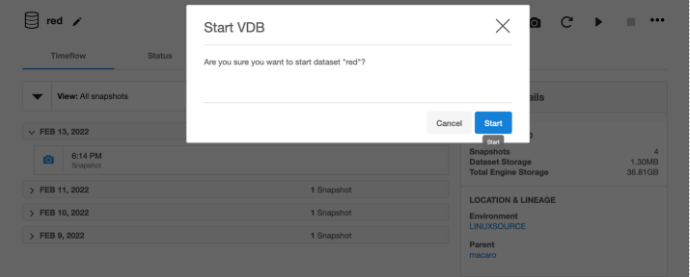
Logging
Download the Plugin logs using the following methods using GUI
Help --> Supports Logs --> Plugin Logs --> Download
Plugin logs contain valuable information for troubleshooting. Always include these logs when contacting Delphix Support for assistance with MSSQL Linux issues. -
Handling of SQL Server replication metadata in backups
Issue
Disabling or migrating an MSSQL on Linux dSource fails with an error similar to:
Cannot drop the database '_staging' because it is being used for replication.
This occurs when the staging database contains SQL Server replication metadata, even if the database is not actively participating in replication.
Cause
The replication metadata is embedded in the backup used to create or resync the dSource. This commonly happens when:
-
The source database was previously part of a replication topology, or
-
The backup was taken from an environment where replication was configured and later removed.
When the backup is restored on the staging server in standby / continuous recovery mode, SQL Server prevents any modification of system tables. As a result:
-
Replication metadata cannot be removed
-
The database cannot be brought online
-
A normal dSource disable operation fails
Solution
Restoring the database WITH RECOVERY would allow metadata removal but would permanently prevent applying future backups, making it unsuitable for a staging dSource.
How to identify replication metadata
Run the following query on the SQL Server staging instance:
SELECT name, is_published, is_subscribed, is_merge_published
FROM sys.databases
WHERE name = '<dSource>_staging';
If any of the flags return 1, replication metadata is present.
Resolution: Force Disable and Migrate the dSource
When replication metadata cannot be removed, use the Force Disable workflow to migrate the dSource.
Force Disable the dSource
-
In the Delphix UI, navigate to the dSource
-
Select Disable.
-
Choose Force Disable
Force Disable does not execute SQL commands. It only unmounts the Delphix filesystem and bypasses SQL-level checks.
Clean Up the Old Staging Host
On the old staging SQL Server host, manually clean up any remaining artifacts.
SQL cleanup:
ALTER DATABASE [<dSource>_staging] SET OFFLINE WITH ROLLBACK IMMEDIATE;
EXEC sp_detach_db '<dSource>_staging';
DROP DATABASE [<dSource>_staging';
Linux cleanup:
sudo umount -f /mnt/provision/<path>
sudo rm -rf /mnt/provision/<path>
Re-enable the dSource
-
In the Delphix UI, select Enable.
-
Choose the new (or same) staging environment.
-
Complete the enable workflow.
The dSource should now be successfully migrated.