
Refreshing a VDB will re-provision it from another source. As with the normal provisioning process, you can choose to refresh the VDB from a snapshot or a specific point in time.
To create a physical database from a VDB in DCT
-
Log in to the DCT instance.
-
Navigate to Data > Data Management > VDBs and select a VDB from the list and click View.
-
On the VDB page, click Actions > Virtual to Physical
-
On the Data State Selection page, choose any of the following options:
-
Select Provision Point: Select a provision point displayed on this page.
-
Select Exact Time (Slower): Choose the exact date and time using the calendar.
-
LSN Number Refresh (Slower): Enter the SQL Server Log scan (LSN) number range.
-
Bookmarks: Choose the bookmark from the list.
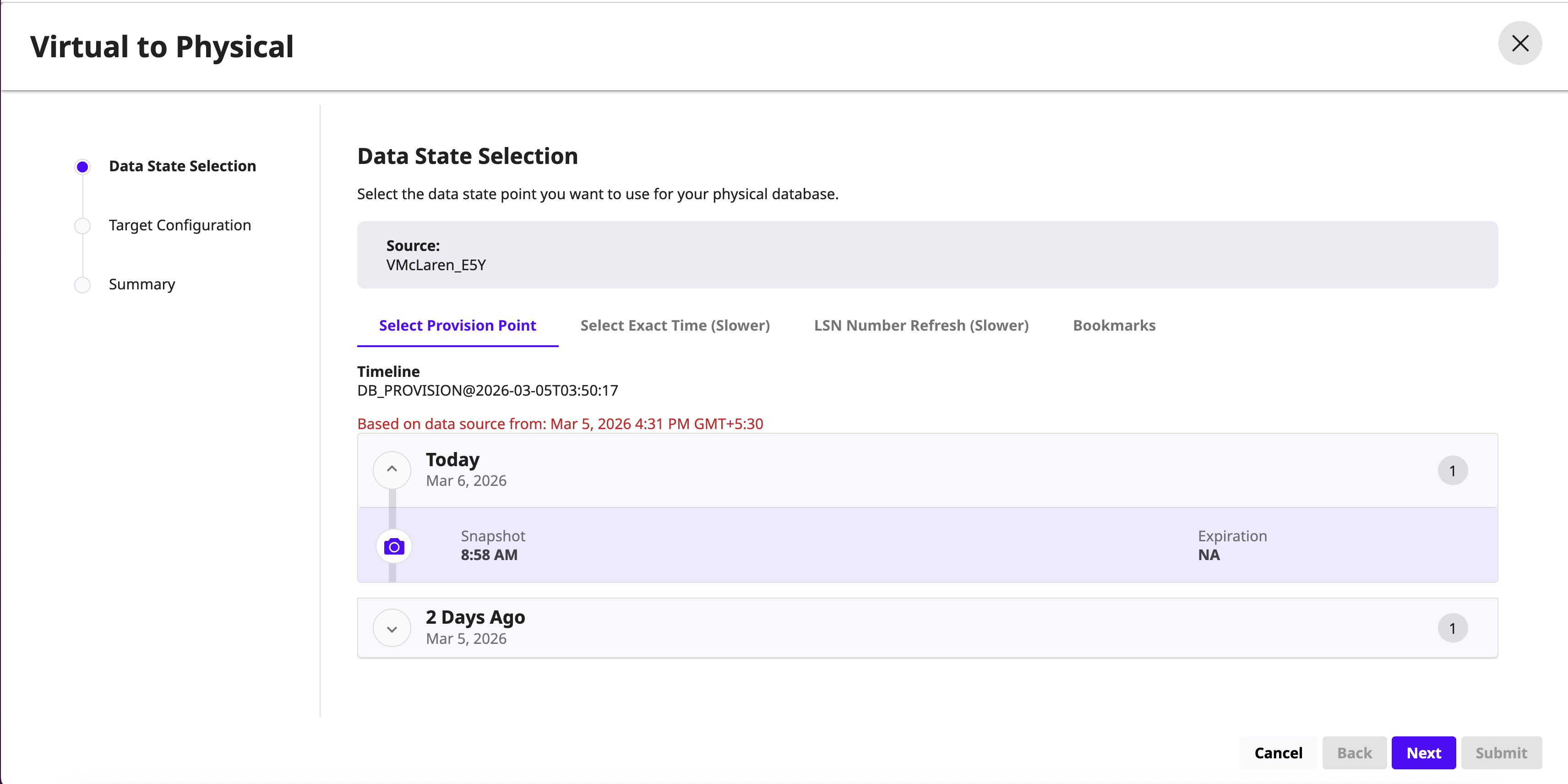
-
-
On the Target Configuration page, choose the target environment and instance. Additionally, provide physical database name, target directory and the recovery model of the physical database. Optionally, provide the following options:
-
Open Database After Recovery – Selected by default. Uncheck this option to recover the database files without attaching them to a database.
-
(Advanced Option) Change Data Capture – Select this option to track changes in physical database
-
(Advanced Option) Data Directory – Data directory path relative to target directory
-
(Advanced Option) Archive Directory – Archive directory path relative to target directory
-
(Advanced Option) External Directory – External directory path relative to target directory
-
(Advanced Option) Script Directory - Script directory path relative to target directory
-
(Advanced Option) Temp Directory - Temp directory path relative to target directory
-
-
Review the Virtual to Physical summary details and click Submit.