
dSource is the copy of a source database's persistent data layer that Delphix Engine uses to create and update virtual databases (VDBs). Based on the ingestion model and data source type, the dSource could be exposed through a mount point and interacts with a Staging Database Instance, Database, or Files. For more information, read the dSource Management page.
This section outlines the process to manage dSources and the synchronization of data from your sources in DCT:
-
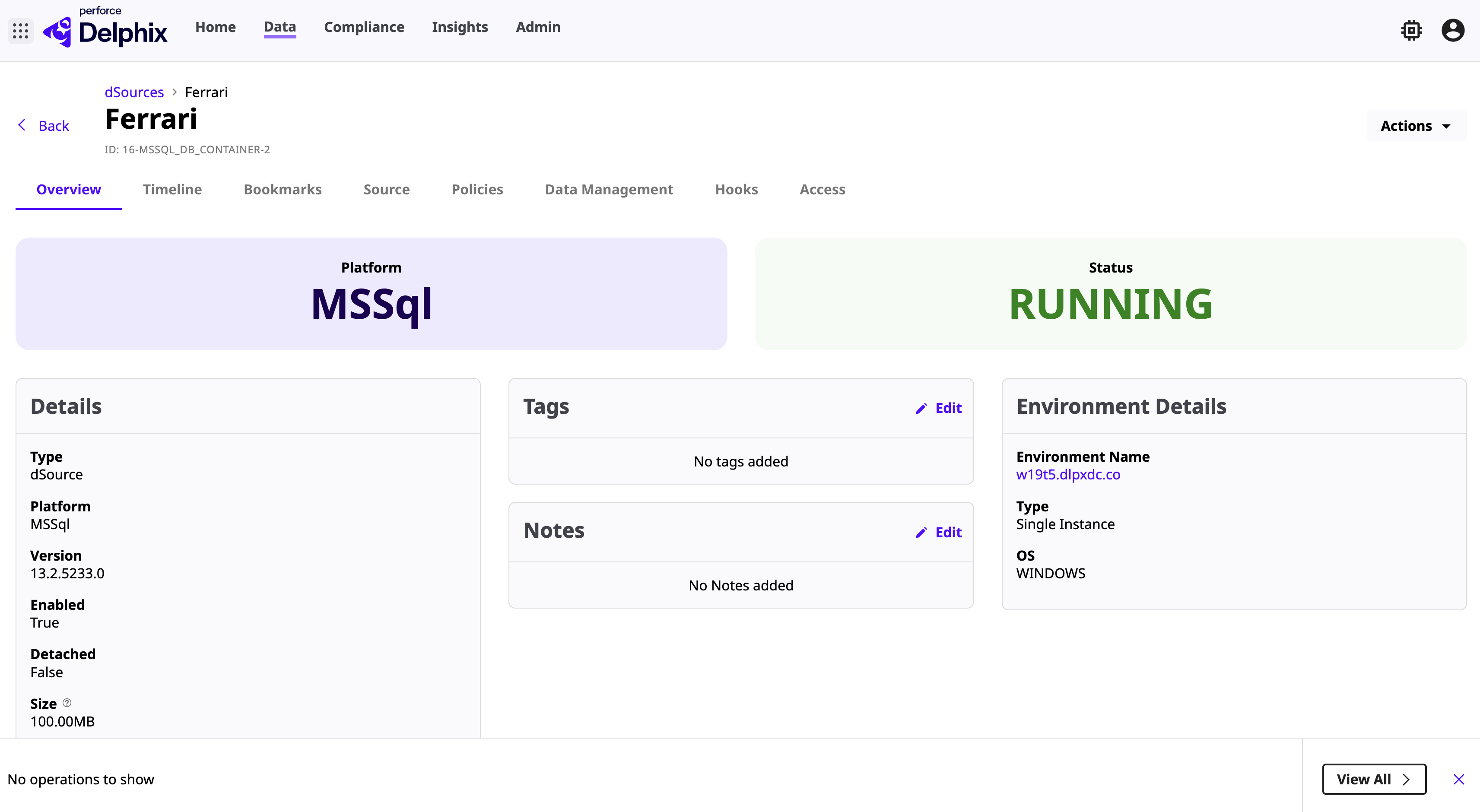
Overview: View dSource details and edit tags or notes.
-
Timeline: Shows the data timeline history for a virtual database or dSource.
-
Bookmarks: Review the bookmarks associated to your dSource.
-
Source: View source database and environment details.
-
Policies: View and edit default snapsync and retention policies.
-
Data Management: View and edit SnapSync and logging diagnosis configuration settings.
-
Hooks: View and edit hook operations associated with dSource.
-
Access: View the user access details
-
Create Snapshots: Create snapshots of a dSource at specific moments.
-
Enable/Disable: Activate or deactivate a dSource.
-
Detach/Attach: Temporarily disconnecting and then reconnecting a dSource.
-
Rename: Rename the dSource.
-
Delete: Remove a dSource.
-
Upgrade/Downgrade: Update a dSource to a new version or downgrade to an existing version.
View dSource details
To view dSource details in the DCT instance, follow these steps:
-
Log in to the DCT instance.
-
Navigate to Data > dSources and select the dSource and click View.
-
On the Overview page, review the dSource details and click the Edit link to modify tags and notes.
View timeline history
To view data timeline history in the DCT instance, follow these steps:
-
Log in to the DCT instance.
-
Navigate to Data > dSources and select the dSource and click View.
-
Select the Timeline tab to review the data timeline history of the dSource.
-
Click the Actions menu on the timeline history, perform the following tasks:
-
Retention: Modify the retention policy duration for the timeline.
-
Create Bookmark: Create a bookmark for a timeline history.
-
Provision VDB: Provision a VDB from point in time snapshot in the timeline. For more information, read the Provision a VDB in DCT page.
-
Delete: Delete the selected timeline history.
View bookmarks
To view bookmarks in the DCT instance, follow these steps:
-
Log in to the DCT instance.
-
Navigate to Data > dSources and select the dSource and click View.
-
Select the Bookmarks tab to review the bookmarks associated to a dSource.
-
Click the Click the Actions menu on the bookmark, perform the following tasks:
-
Update Bookmark: Modify the bookmark details.
-
Delete: Delete the bookmark.
-
View source/staging details
To view source/staging details in the DCT instance, follow these steps:
-
Log in to the DCT instance.
-
Navigate to Data > dSources and select the dSource and click View.
-
Select the Source tab to review the source database and environment associated to a dSource.
-
Click the Edit link to modify the source database and source/staging environment details.
View and edit policies
To view policies in the DCT instance, follow these steps:
-
Log in to the DCT instance.
-
Navigate to Data > dSources and select the dSource and click View.
-
Select the Policies tab to review SnapSync and Retention policies associated to a dSource.
-
Click the Change Policy link to modify the policy details.
View and edit data management configuration
To view and modify data management settings in the DCT instance, follow these steps:
-
Log in to the DCT instance.
-
Navigate to Data > dSources and select the dSource and click View.
-
Select the Data Management tab to review the Data management settings associated to a dSource.
-
Click the Edit link to modify the Validated Sync Configuration settings.
View and edit hook operations
To view and modify hooks in the DCT instance, follow these steps:
-
Log in to the DCT instance.
-
Navigate to Data > dSources and select the dSource and click View.
-
Select the Hooks tab to review hook operations associated to a dSource.
-
Choose the PreSync, and PostSync hooks and click +New Hook to add an operation. For more information, read the SQL Server hook operation notes page.
View access details
To view access details in the DCT instance, follow these steps:
-
Log in to the DCT instance.
-
Navigate to Data > dSources and select the dSource and click View.
-
Select the Access tab to review the user access and associated permissions for a dSource.
-
Click the View link to review and modify user access details.
Enable and disable dSource
To enable and disable a dSource in the DCT instance, follow these steps:
-
Log in to the DCT instance.
-
Navigate to Data > dSources and select the dSource and click View.
-
Click the Actions menu and select the Enable option to enable a dSource..
-
Select the Disable option to disable a dSource.
-
(Optional) On the Disable screen, select the Attempt Cleanup check box to specify whether the system should attempt to disable the database and clean up its related resources in the environment before removing the mount point.
-
Click Disable.