
Linking a dSource ingests data from the source‑based dSource object on the Delphix Continuous Data Engine.
To link a SQL Server dSource in the DCT instance, complete the following steps:
-
Log in to the DCT instance.
-
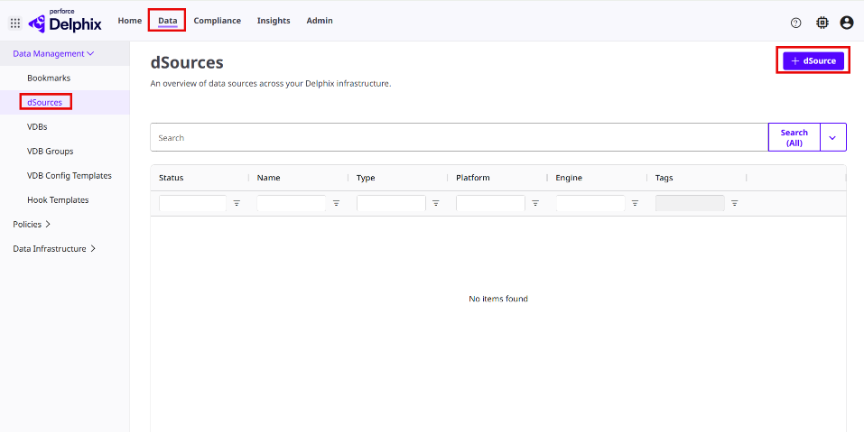
Navigate to Data > dSources and click + dSource.
-
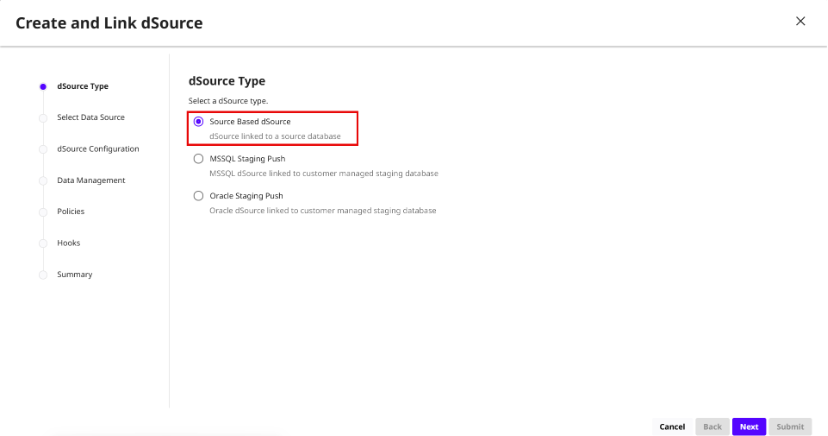
On the dSource Type page, select Source‑Based dSource and click Next.
-
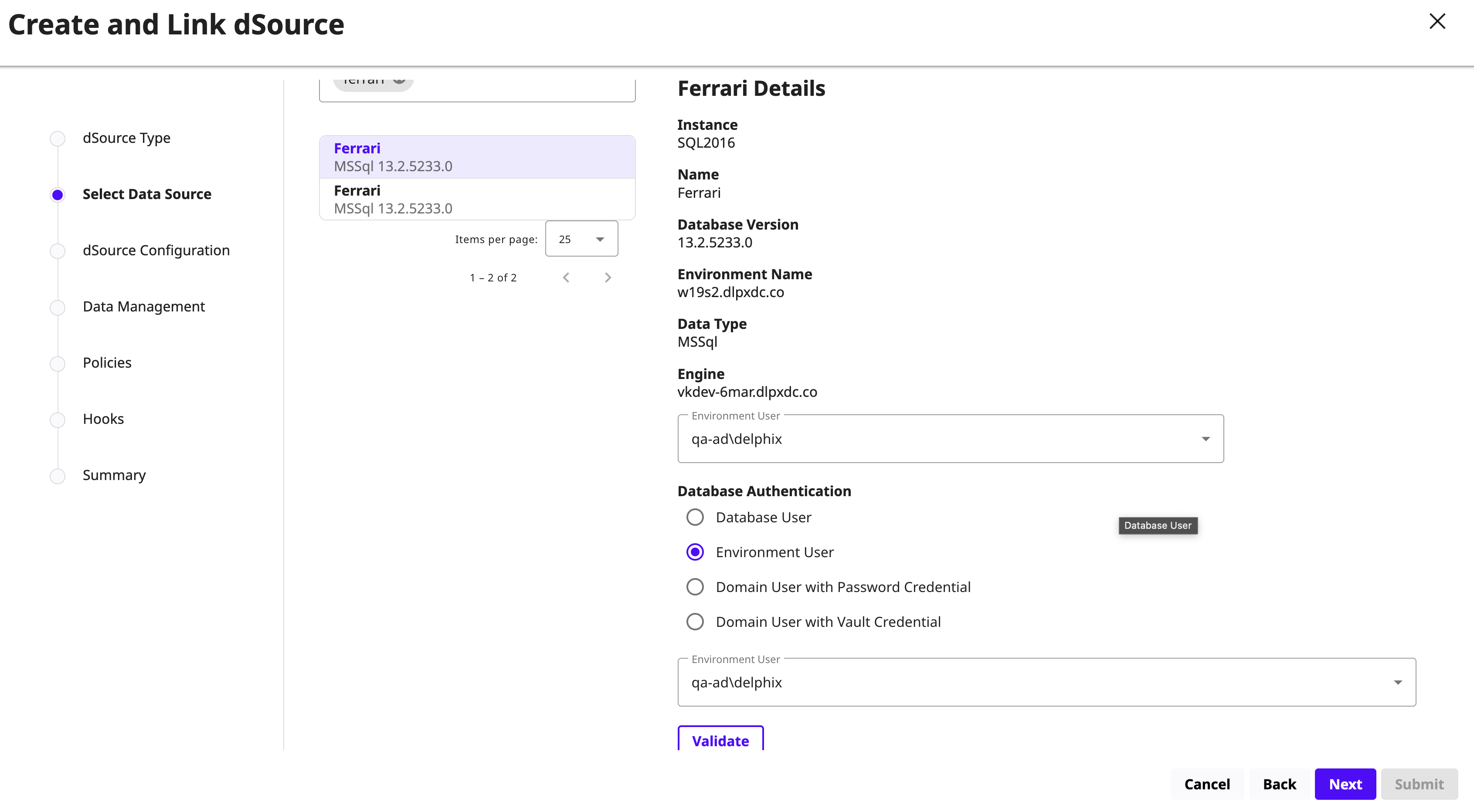
On the Select Data Source page, complete the following actions and click Next:
-
Select the required SQL Server source database with the correct environment user.
-
Select the authentication user type and enter the login credentials. Provide a username and password for Database User or Domain (Windows). For Environment User, select a source environment user from the drop‑down list.
-
-
On the dSource Configuration page, enter the following information:
-
dSource Name: Enter a name for the dSource.
-
Target Group: Select the target group from the drop‑down list.
-
Notes and Tags: Add any relevant notes or tags.
Click Next.
-
-
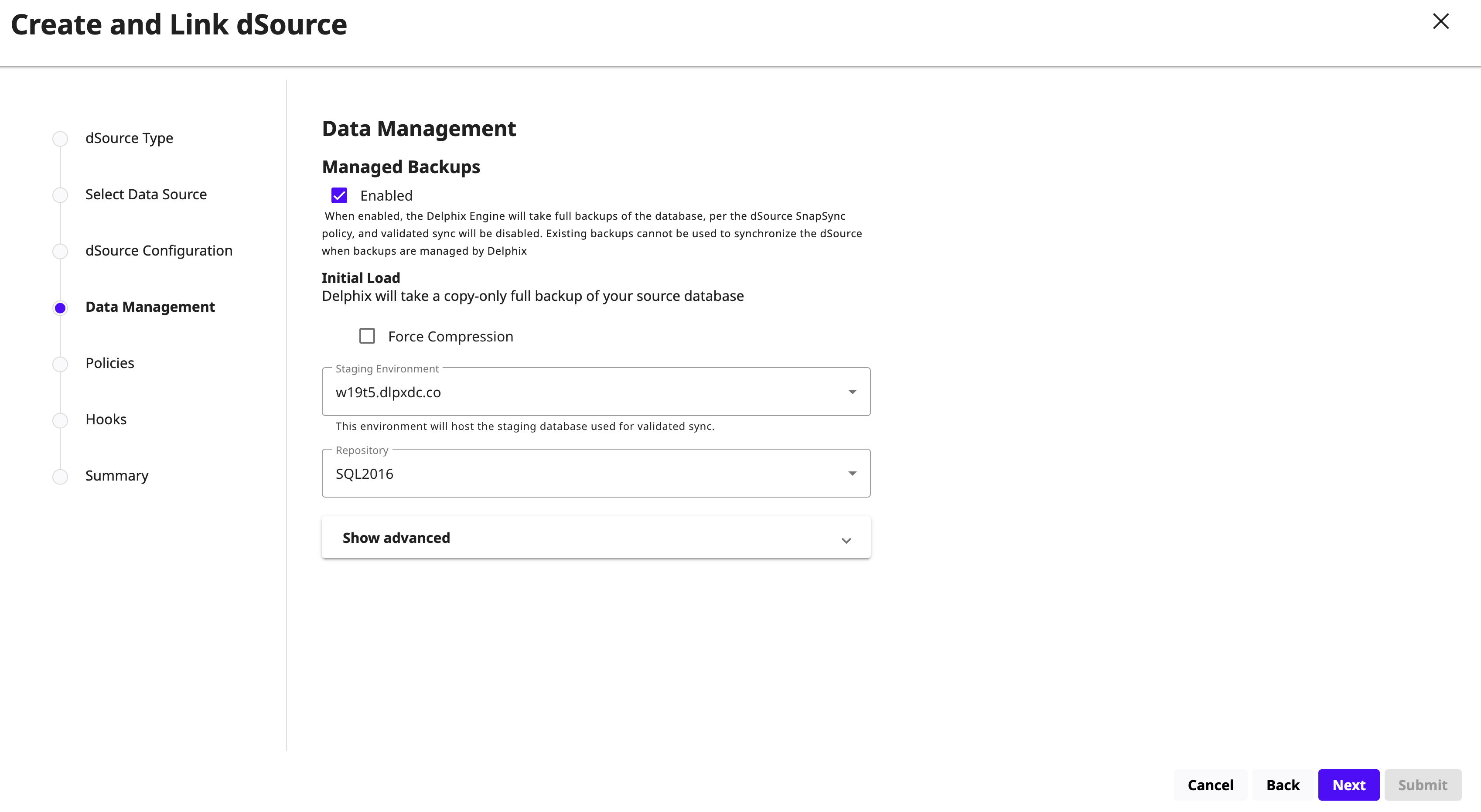
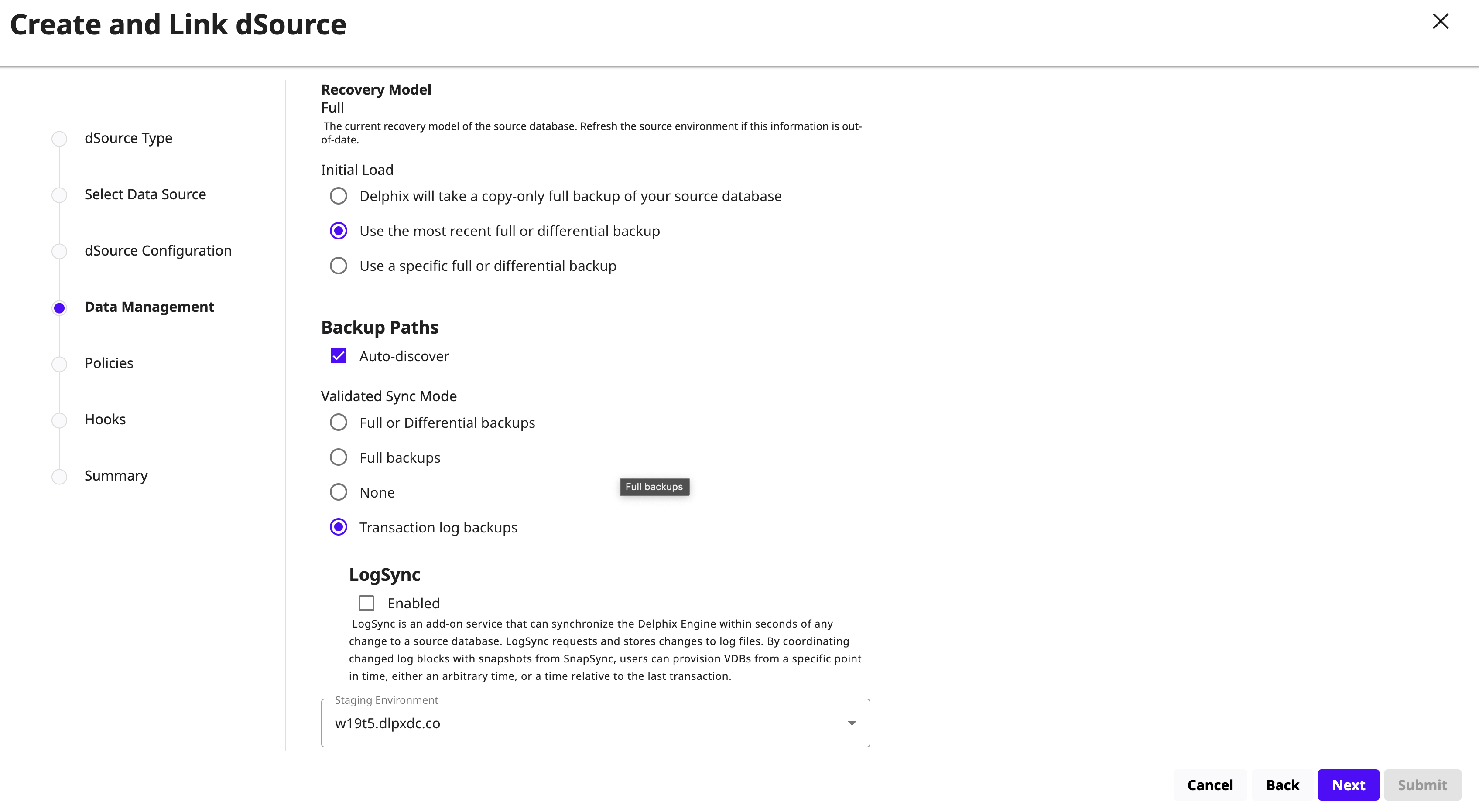
Select the required Data Management settings and click Next. For details, see Data Management Settings for SQL Server Data Sources.
Select the Staging environment and SQL instance used to manage the staging database for validated sync.
-
Managed Backups Enabled
-
Managed Backups Disabled
-
-
On the Policies page, accept the DCT Default Retention or DCT Default SnapSync policies. To modify the policies, click Change Policy.
-
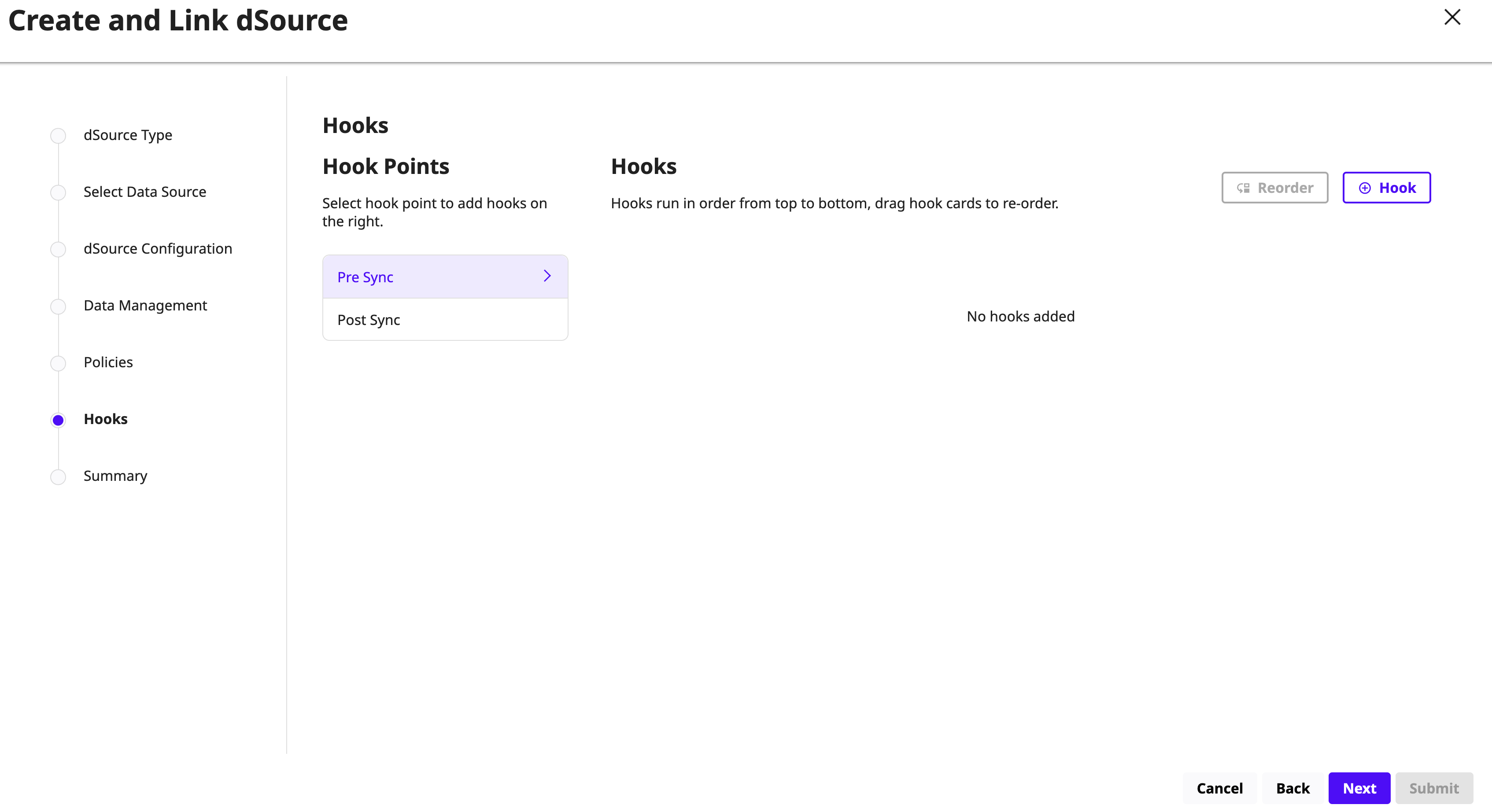
On the Hooks page, select one of the following options and click + Hook to configure a Bash hook operation:
-
Pre Sync: Executes before the SnapSync operation.
-
Post Sync: Executes after the SnapSync operation.
For more information, see the Hook Operations list and SQL Server Hook Operation Notes.
-
-
Click Next.
-
Review the dSource details and click Submit to link the dSource. The SQL Server source‑based dSource is linked with the selected data management settings and configurations.