
This topic describes how to manage the attributes of Oracle-specific environments such as RAC Cluster Users, Listeners, and RAC configurations.
To manage the Oracle specific attributes, follow these steps:
-
Log in to the DCT instance.
-
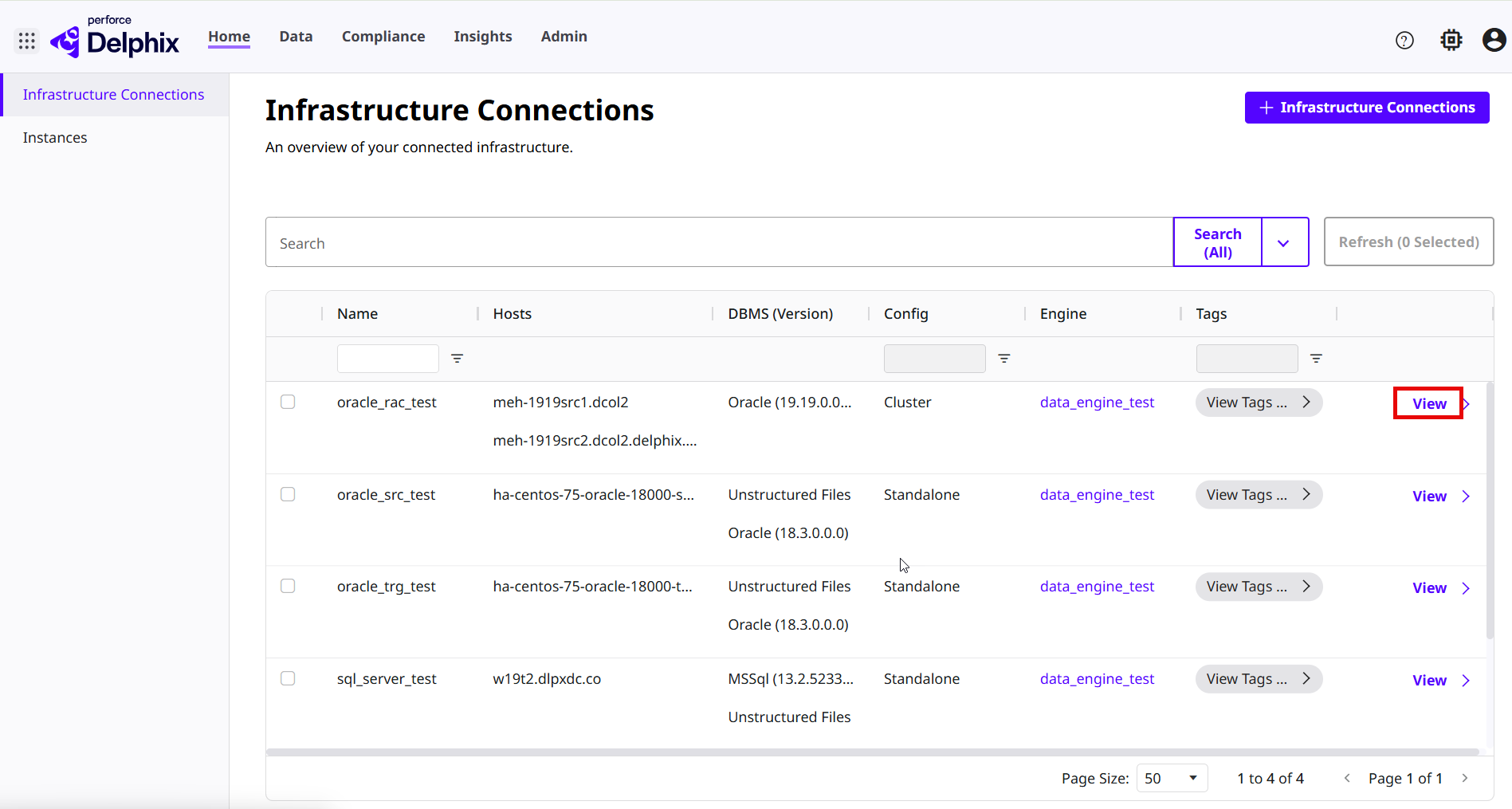
On the Home > Infrastructure Connections page, go to an Oracle environment and click the View link to view its attributes.
-
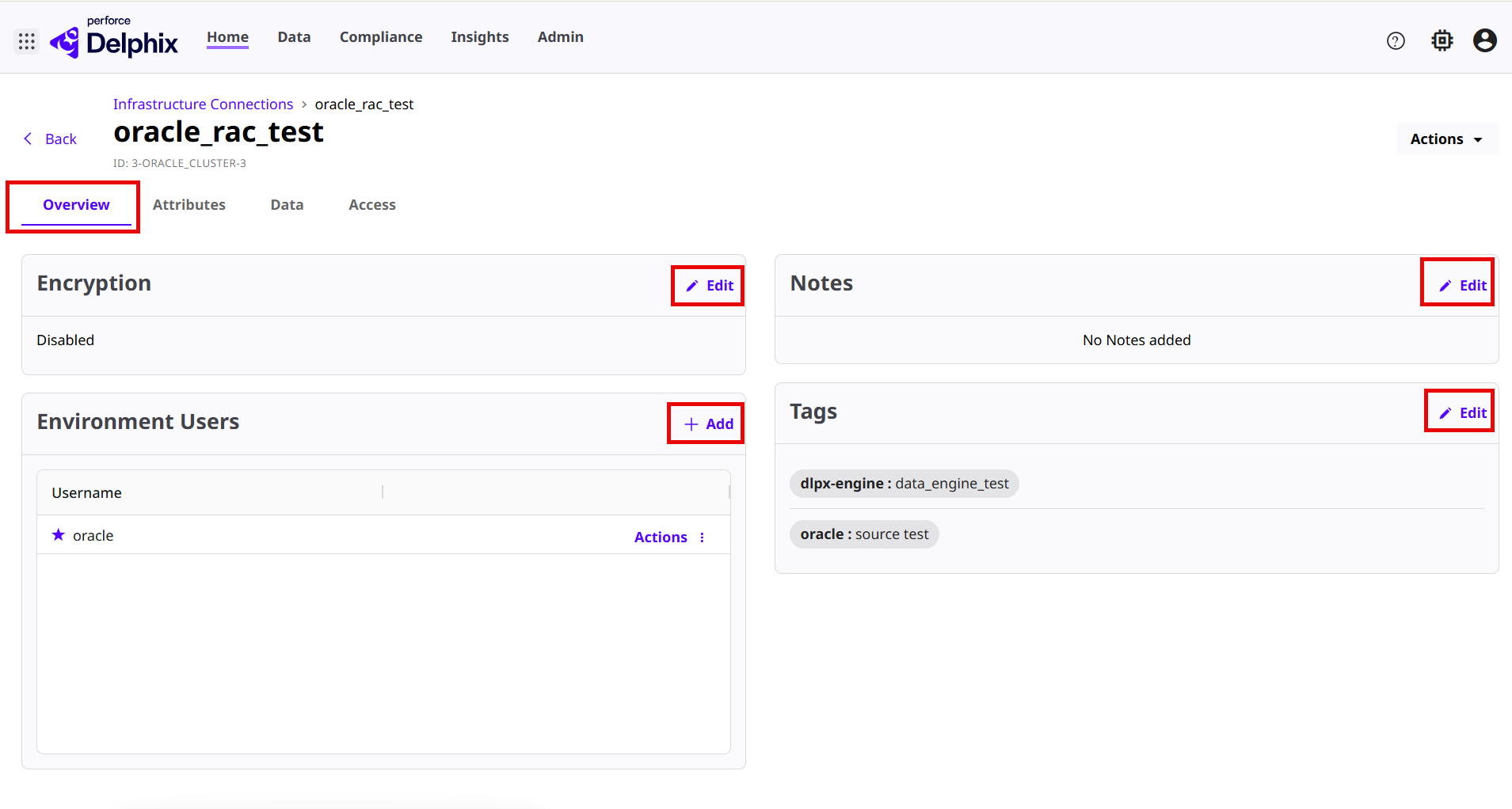
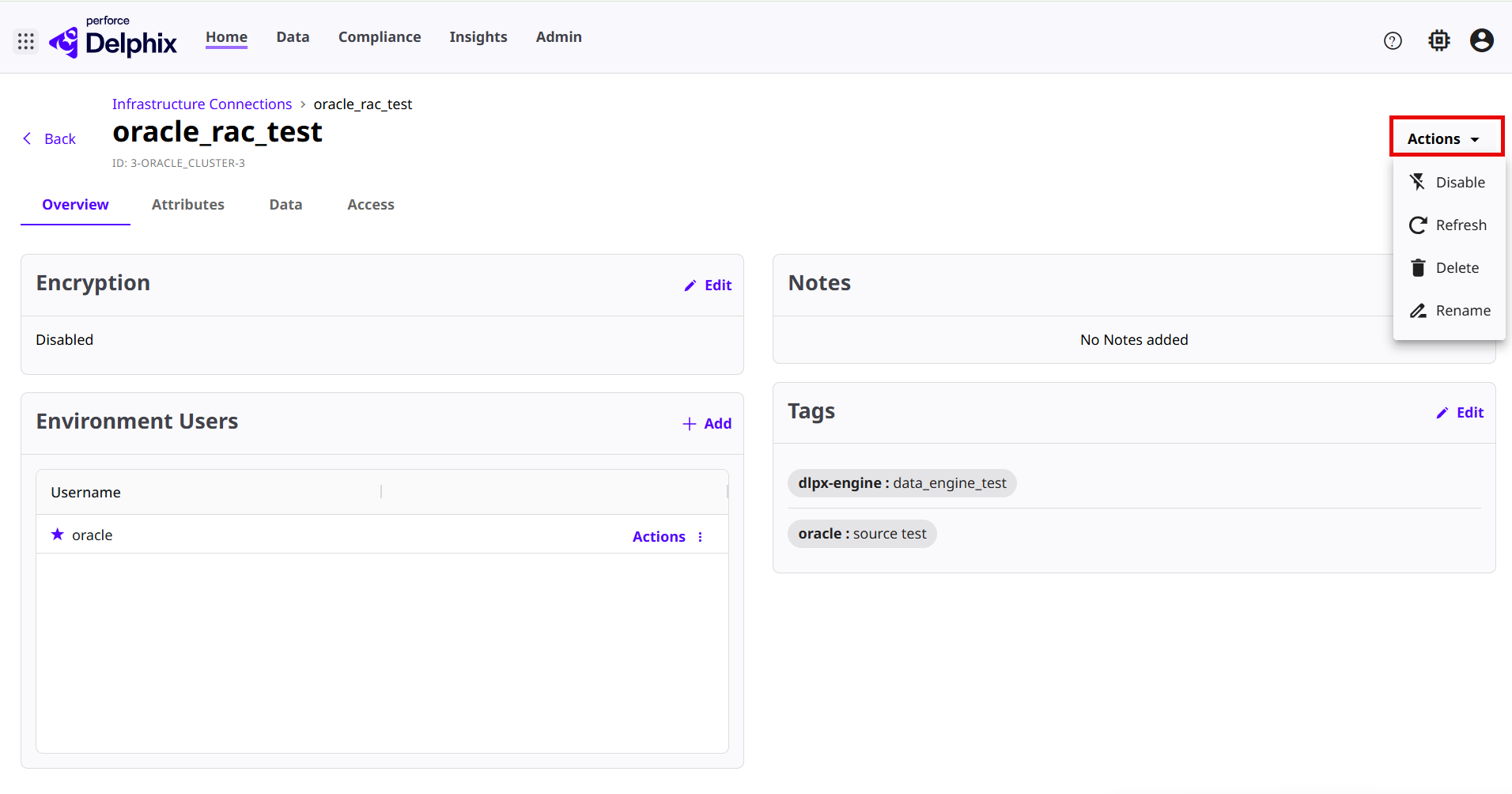
On the Environment page, select the Overview tab to add or modify the following details:
-
Encryption: Enable or disable the NFS encryption for Unix operating system.
-
Environment Users: Add a new environment user.
-
Notes: Add or edit notes for the environment.
-
Tags: Add or edit tags for the environment.
-
-
Select the Attributes tab to add or modify the following details:
-
Cluster Nodes: manage the cluster nodes with the following actions:
-
Click the +Add link to add new nodes.
-
Click the Disable link to disable the node.
-
Click the Delete link to delete the node.
-
-
Listeners: Review the listener details or click the +Listener link to add a new listener to connect incoming client requests to the database.
-
Cluster Configuration: Click the Edit link to modify the cluster configuration and Scan Listener details. For the detailed attribute definitions, read the Managing Oracle specific environment attributes page.
Add or edit OKV Clients if the environment has OKV TDE configured.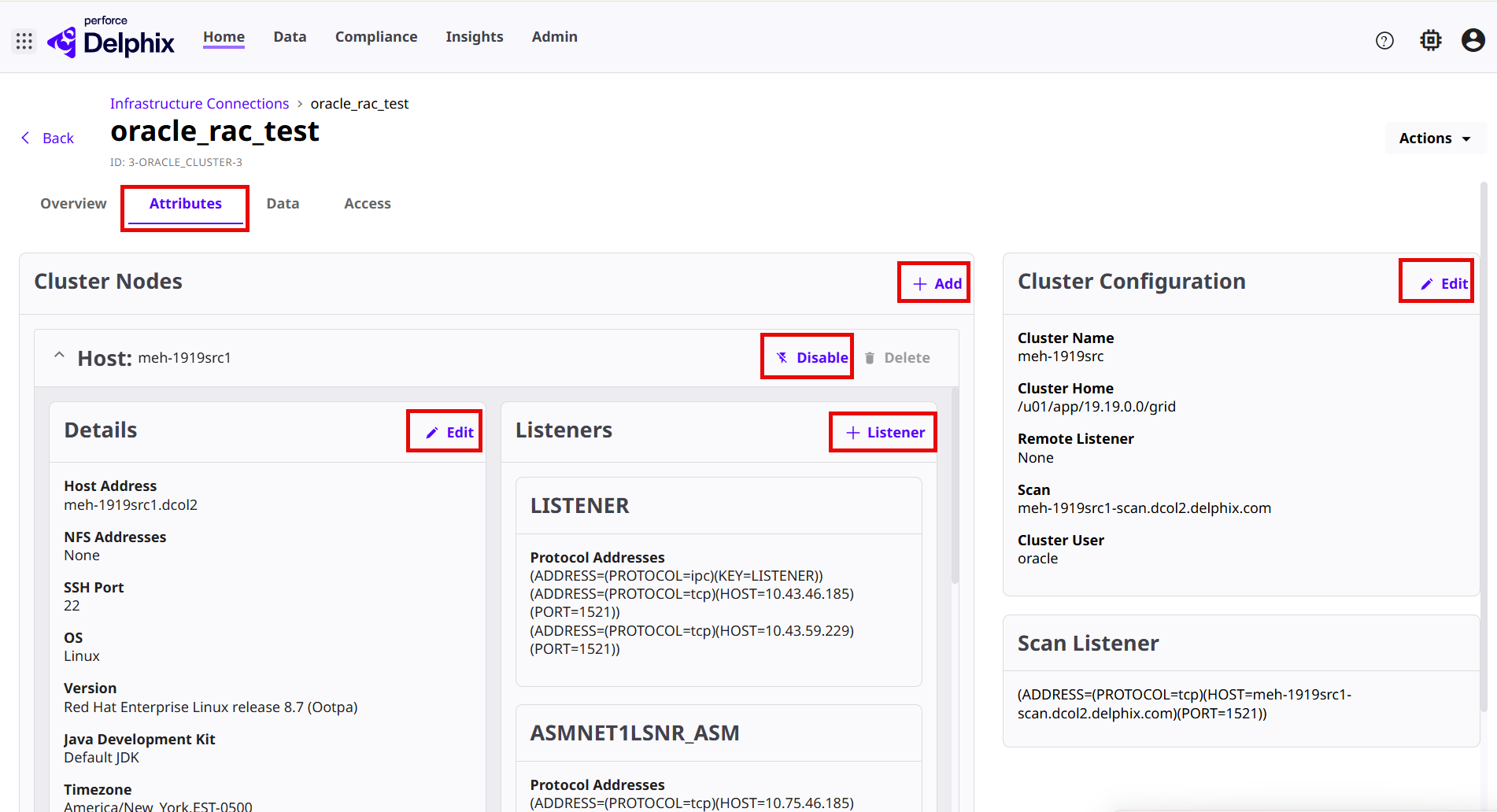
-
-
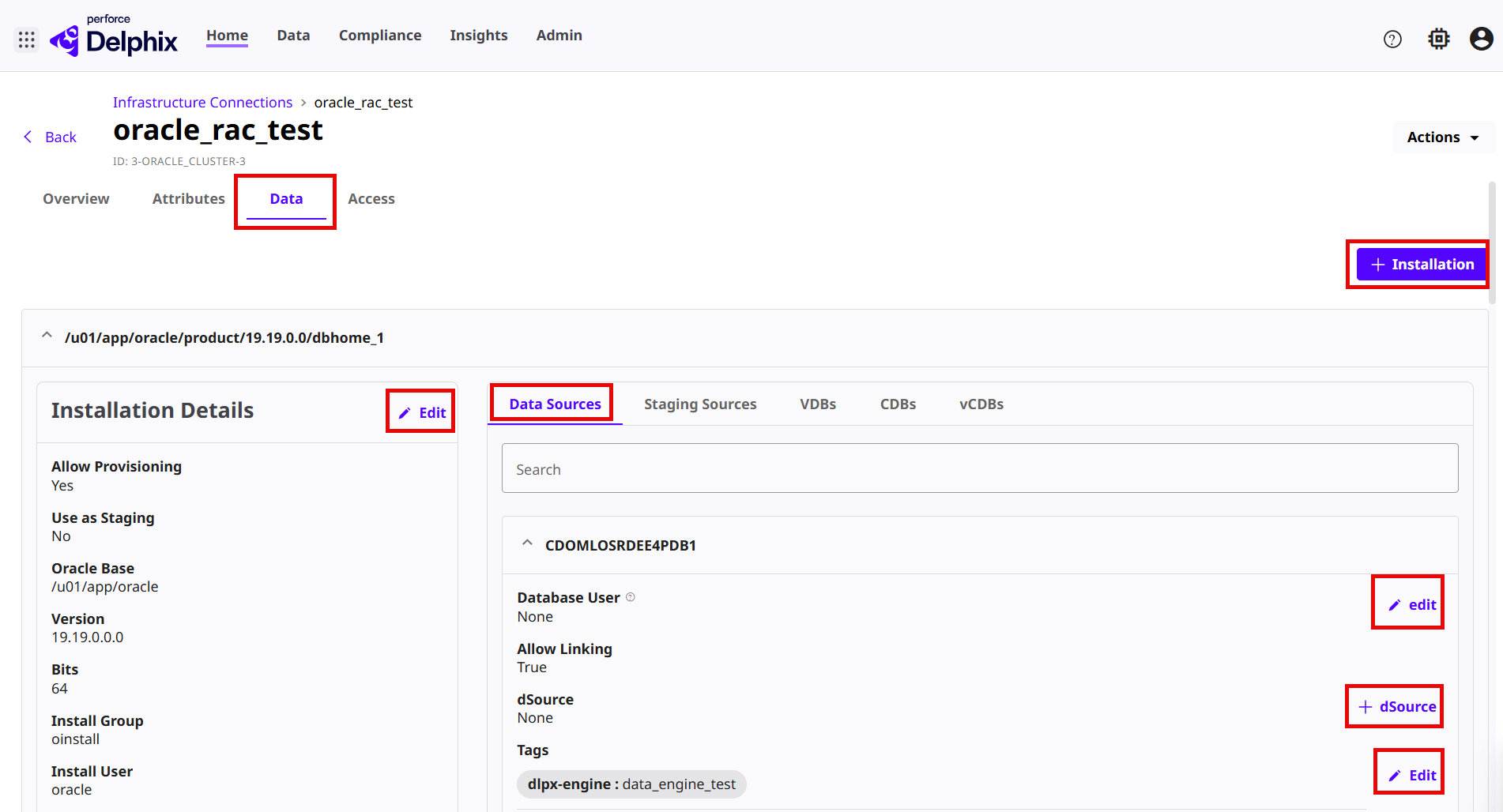
Select the Data tab to add or modify the following details:
-
Installation Details: Click the Edit link to edit the installation details or click the +Installation link to add a new installation path.
-
dSources: Select the dSource tab to modify the following details:
-
Database User: Edit the database username and password details and enable/disable to allow linking.
-
dSource: Click the +dSource link to add a new dSource. For more information, read the Link an Oracle dSource with Staging Push in the DCT infrastructure page
-
-
Staging Sources: View the staging sources associated to this environment.
- VDBs: View the VDBs associated to this environment.
- CDBs: View the CDBs associated to this environment.
- vCDBs: View the vCDBs associated to this environment.
-
Click +Connection String to add SID or Service connection string type details.
-
Scroll down to the bottom and click +Source Database to add the Oracle Source database for this environment.
-
-
Select the Access tab to view the user access, access groups and permission details.
-
Click the Actions drop-down to perform the following operations:
-
Disable: Disable the environment.
-
Enable: Enable the environment.
-
Refresh: Refresh the environment.
-
Delete: Delete the environment.
-
Rename: Rename the environment.
-