
Overview
The Instances page is a new section under the Home tab in the DCT UI that provides a central place to view and manage Oracle container datasets. All three container types (listed below) now appear in a consolidated list, and each container has a dedicated detail page with tabs for source configuration, data management, and child datasets.
-
Container databases (CDBs)
-
Virtual container databases (vCDBs)
-
Staging container databases (Staging CDBs)
Pre-requisites
To utilize the Instances page, the following pre-requisites must be met.
-
You must have at least one compatible Oracle dSource configured to provide CDB, vCDB, or Staging CDB datasets.
-
Your user role should allow you to view and manage the datasets you intend to work with in the Instances page.
-
If the Instances page does not show any containers, verify that the dSource is healthy and that your user role has access to the project.
-
Instances page in the UI
Login to DCT, which will default to the Home page (indicated in the top navigation bar). On the left side, select Instances.
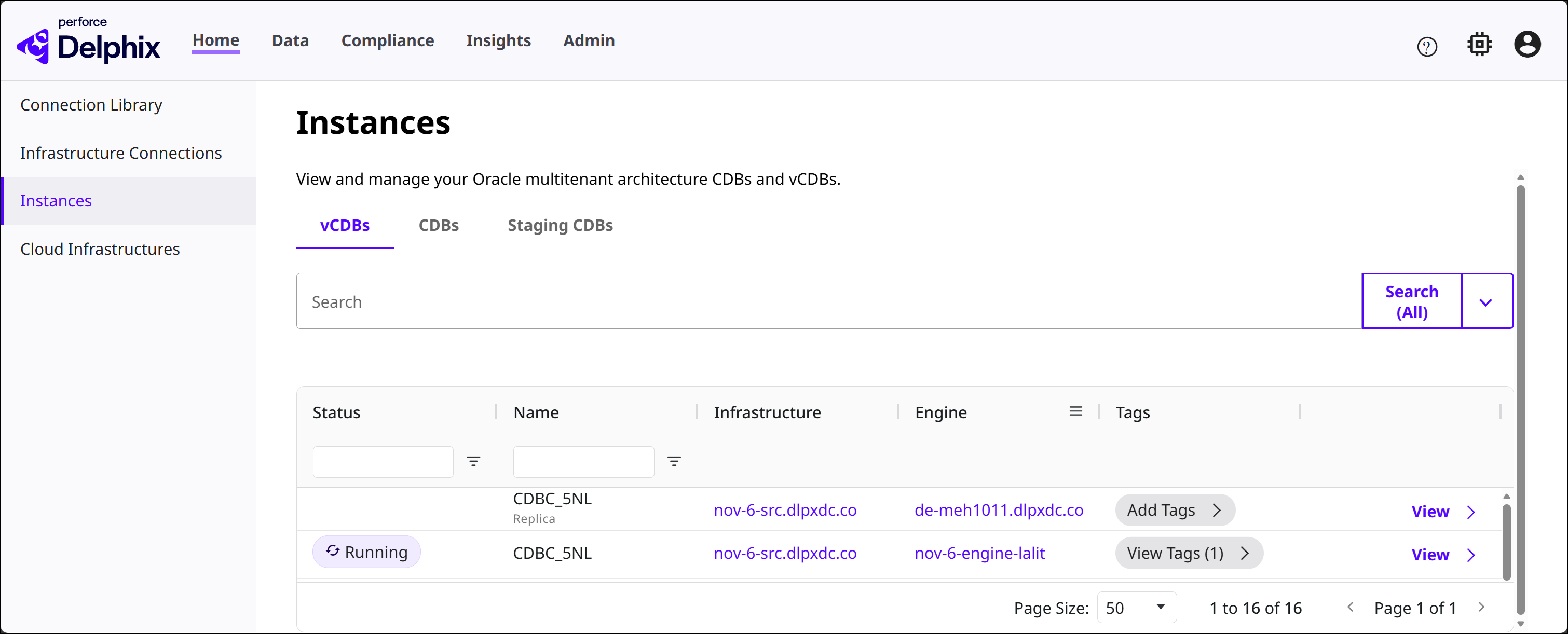
Three tabs are shown in the page: vCDBs, CDBs, and Staging CDBs.
Each tab shows a table that lists containers of the corresponding type. Use the search field to find containers by name or other indexed attributes. Sorting options are available for column headers.
Columns in the table for each tab include Status, Name, Infrastructure, Engine, and Tags. There is also a View button, which redirects to the Instance detail page.
-
Clicking an Infrastructure address will take you to the detail page for that Infrastructure Connection.
-
Clicking an Engine address will take you to the detail page for that Data Engine.
Instance detail page
Each Instance detail page includes an Overview, Source, and Datasets tab. In addition, CDBs and Staging CDBs have access to the Data Management tab. The tabs in the Instance detail page are related to the specific instance that was selected.
Overview tab
This tab provides a high level summary of the selected instance. Two tiles at the top of the page show the Oracle Version and Status (running, inactive, unknown, etc.). An Actions menu in the top-right corner of the page contains operations that can be initiated when available.
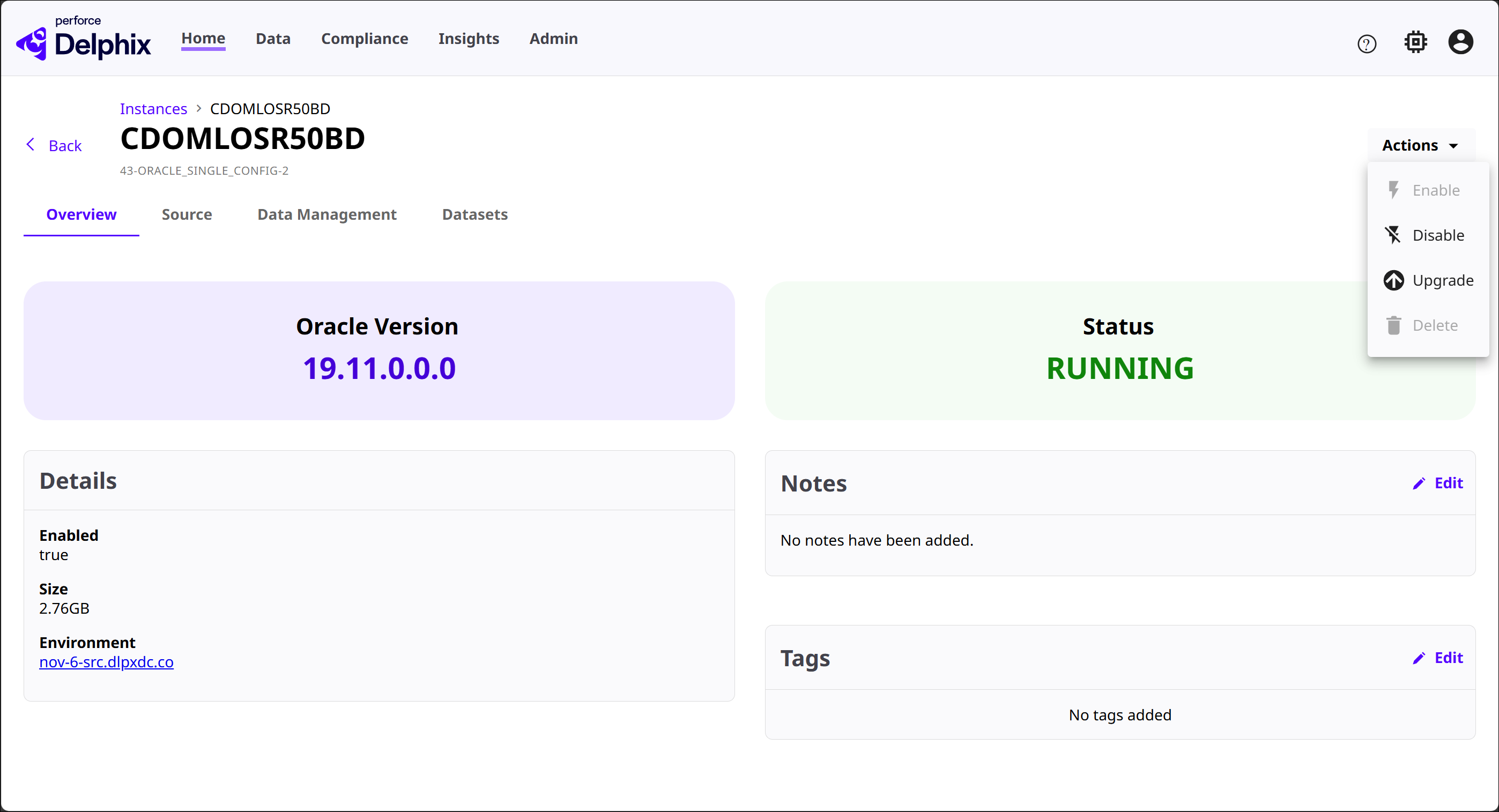
Panels below the top tiles contain additional information and customization fields. These panels are consistent in the Overview tab of all three container types.
-
Details: Shows whether or not the instance is Enabled (indicated by a true or false value), its current Size, and the associated Environment.
-
Notes: Click Edit to add custom text-based notes to the instance.
-
Tags: Click Edit to add or remove custom tags.
Source tab
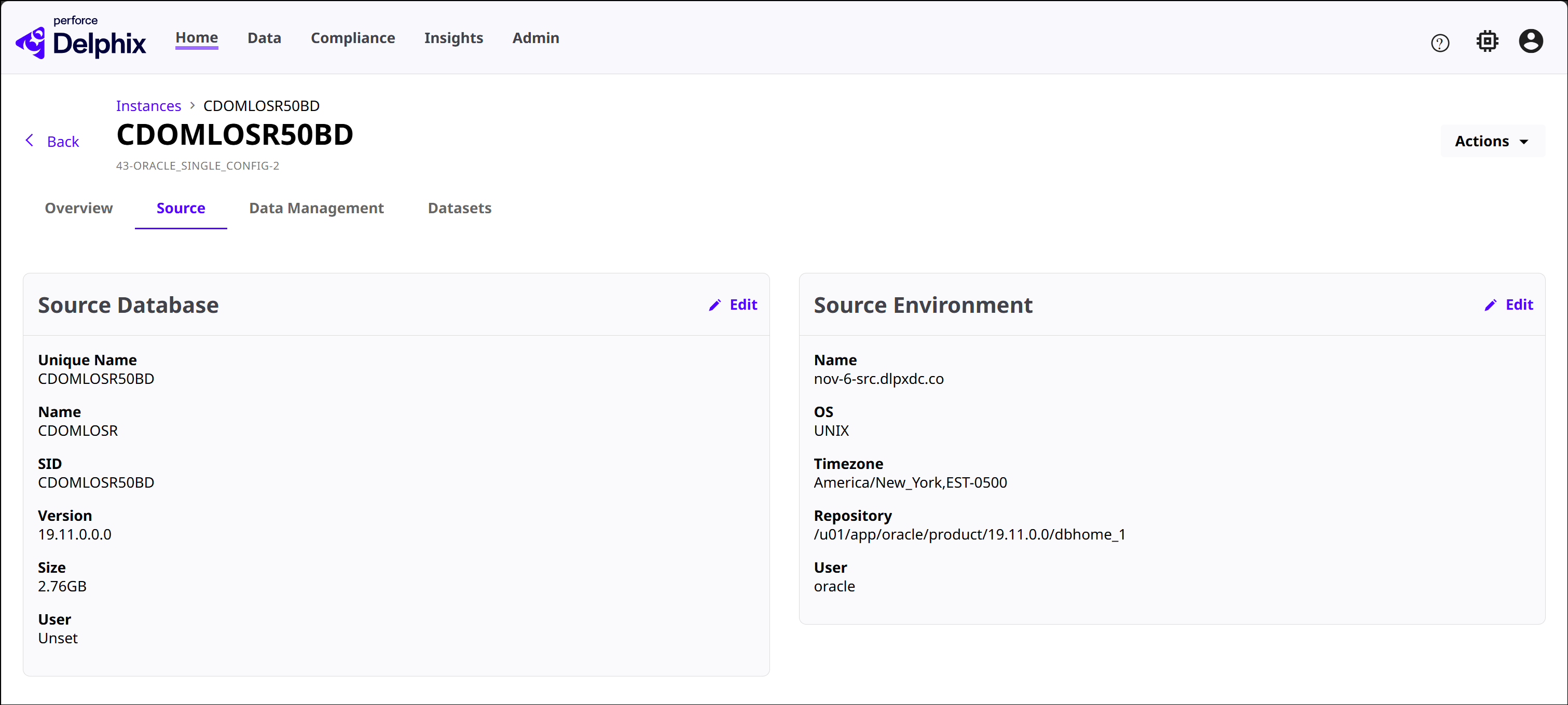
This tab shows the configuration of the databases and environments backing the instance. The fields in each panel will be different based on the container type selected.
The screenshot below shows an example of a CDB instance Source tab. The bullet list below it breaks down which panels you can expect to find for each container type and the fields that populate them.
vCDB panels
-
Source Database: Shows unique name, name, SID, version, size, archivelog mode, online logs, auto vCDB restart, invoke datapatch, VDB config template, and user.
-
Source Environment: Shows name, OS, timezone, repository, and user.
-
Custom Environment Variables: Populates variable type, name, and value (if applicable).
CDB panels
-
Source Database: Shows unique name, name, SID, version, size, and user.
-
Source Environment: Shows name, OS, timezone, repository, and user.
Staging CDB panels
-
Staging Database: Shows unique name, name, SID, size, version, mount base, datafile mount path, archive mount path, auto staging push restart, staging push config template, physical standby, validate snapshot by opening database in read-only mode.
-
Staging Environment: Shows name, OS, timezone, repository, and user.
-
Custom Environment Variables: Populates variable type, name, and value (if applicable).
Data management tab
This tab is only present for CDBs and Staging CDBs. It lists the data protection and NOLOGGING diagnosis settings for the instance.
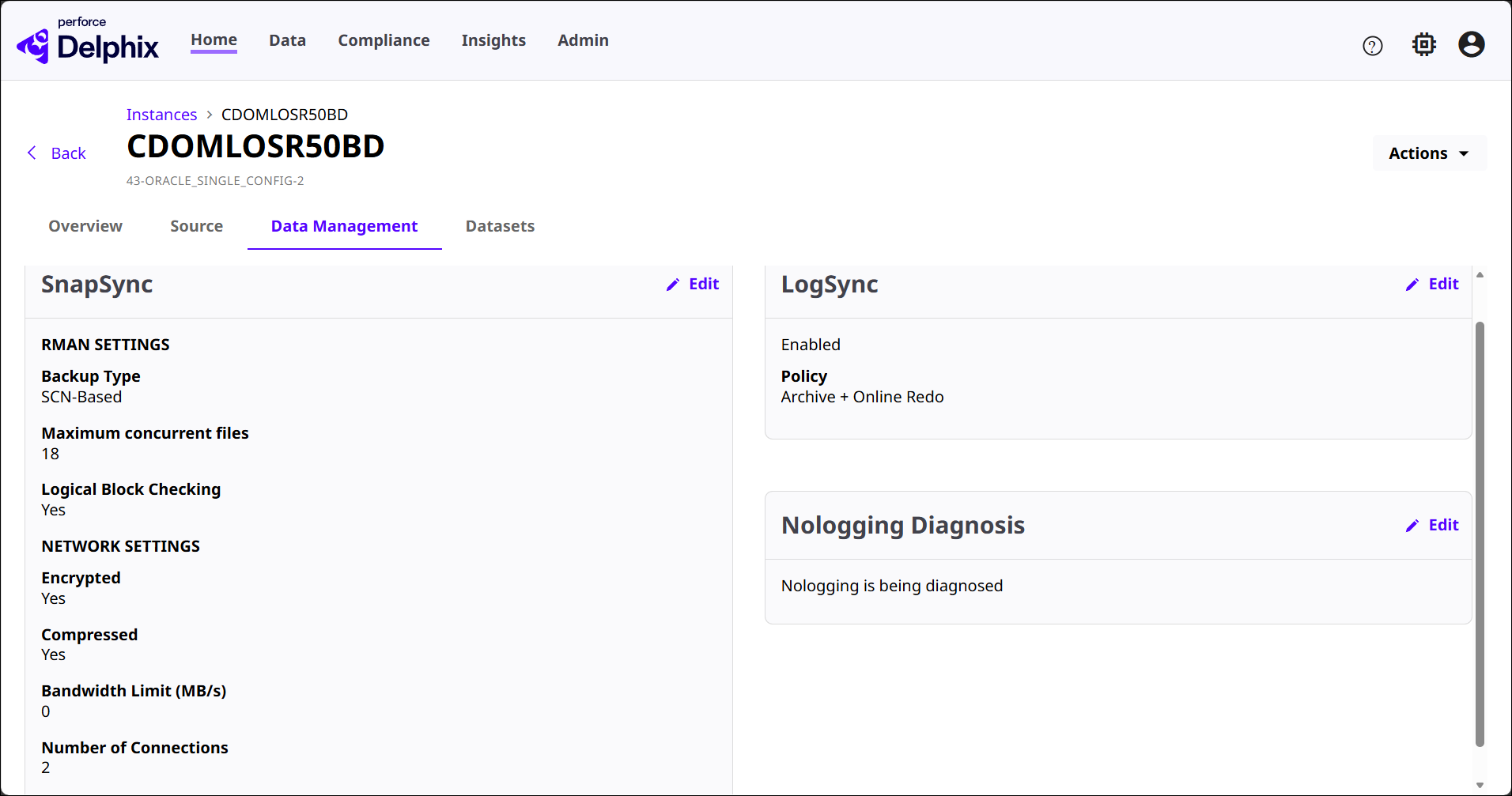
The following panels can be found in this tab:
-
SnapSync (CDB only): Shows backup type, maximum concurrent files, logical block checking, encrypted status, compressed status, bandwidth limit in MB/s, and number of connections.
-
LogSync: Shows LogSync enablement and the policy used to capture redo information.
-
Nologging Diagnosis (CDB only): Shows how NOLOGGING objects are handled and whether nologging is being diagnosed.
Datasets tab
This tab lists the child datasets that belong to the selected instance, which vary by container type:
-
vCDBs: Shows child virtual pluggable databases (vPDBs).
-
CDBs: Shows two sub-tabs:
-
PDBs: Lists physical pluggable databases
-
vPDBs: Lists virtual pluggable databases
-
-
Staging CDBs: Shows datasets associated with the staging container.
Each table row typically includes name, type, size, tags, and a View button.
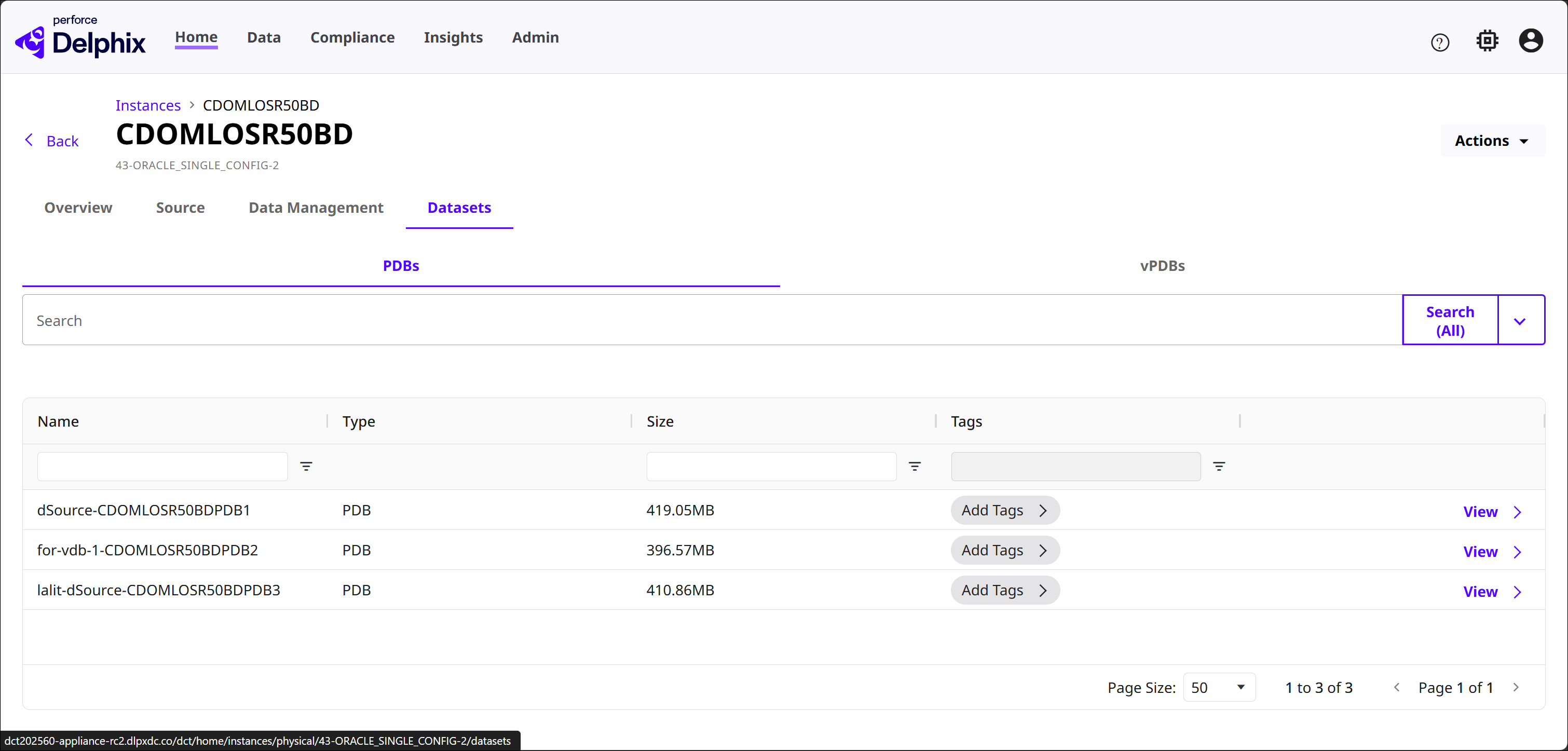
The Datasets tab is best used to validate that the expected PDBs or vPDBs are attached to the instance, and to manage metadata for those child datasets.