
Use this task to create a data format that defines the structure of a flat data file or a COBOL Copybook. Data formats are used when adding files or mainframe datasets to a rule set for discovery and masking.
Data formats are managed at Compliance > Resource Files on the Data Formats tab.
Steps
-
In the left navigation pane, click Compliance > Resource Files.
-
Select the Data Formats tab.
-
Click + Data Format.
-
In the Format Type step:
-
Enter a Name and, optionally, a Description.
-
(Optional) Add tags: enter a Tag Key and Tag Value, then click + Tag.
-
Select a Format Type: Delimited, Fixed Width, JSON, Parquet, XML, or Copybook.
-
-
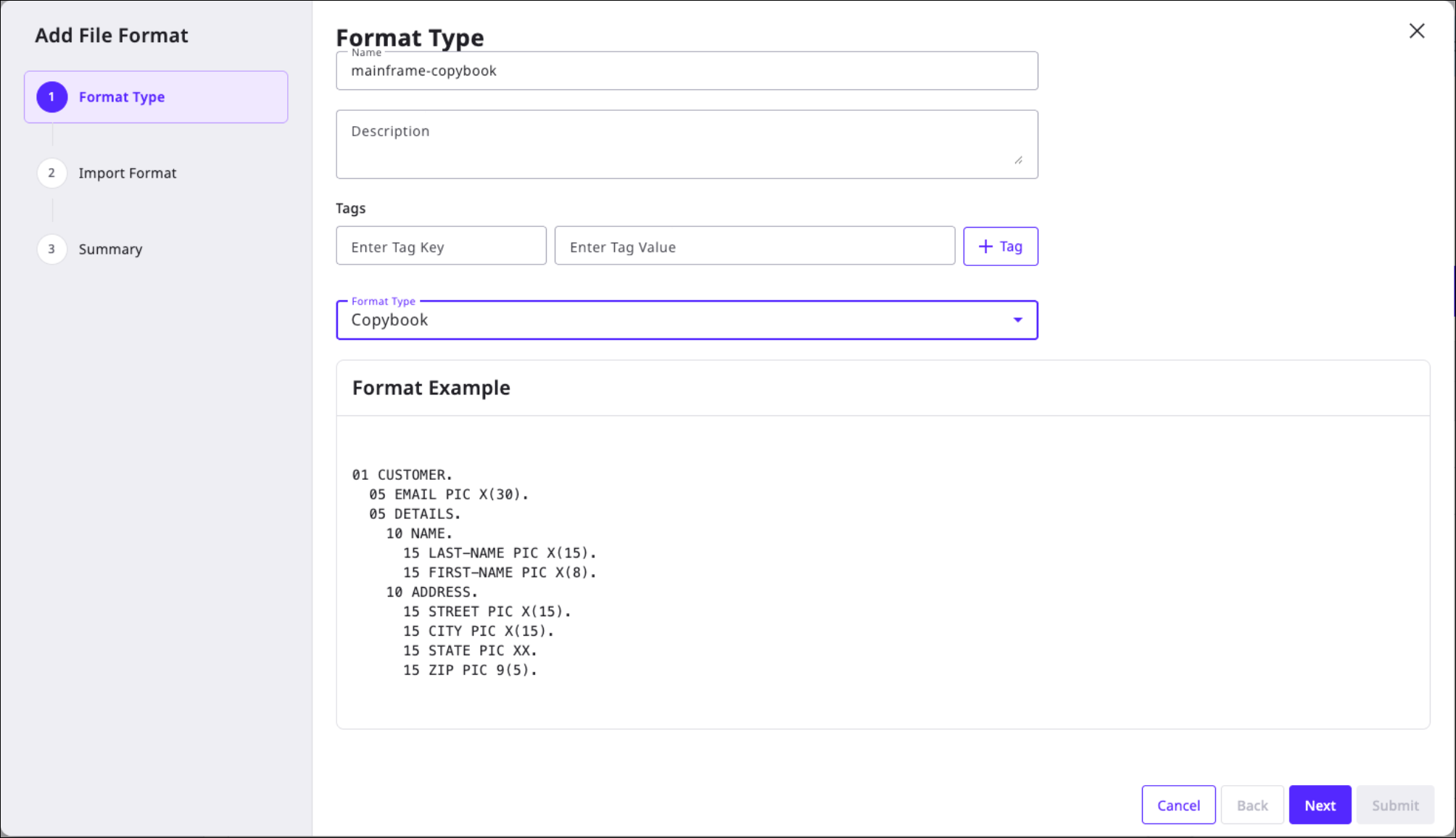
When you select Copybook, review the format example shown by the UI before uploading the file.
-
Click Next.
-
In the Import Format step, click Select File and upload the format definition file. For a Copybook format, select a .cpy or .cob COBOL copybook file.
-
Click Next.
-
For a Copybook format, review the parsed hierarchical field tree. The REDEFINED and REDEF labels identify fields in a COBOL REDEFINES construct. The REDEFINED field is the original field group, and the REDEF field is the alternative interpretation. To add or edit a redefine condition, find the REDEFINED or REDEF field, click its Actions button, and select Edit Redefine Condition. Enter the boolean expression in the Redefine Condition field and click Save.
Redefine conditions can be managed only on the Data Formats page, not on the Inventory page. For each REDEFINES group, exactly one condition must evaluate to true for each record. Use square brackets around field names, for example [CUST-TYPE]='P'. -
If the format type is Delimited, the Header & Footer step appears:
-
Enter the Number of Header Records (the number of rows at the top of the file to skip).
-
(Optional) Enter the Number of Footer Records (the number of rows at the bottom of the file to skip).
-
-
Click Next.
-
In the Summary step, review the format details. Click Back to make changes, or click Submit to create the data format.