
Overview
To see the dSources available in DCT, navigate to Data > Data Management > dSources. To create a new dSource, click + dSource in the top-right corner and follow the configuration steps in the following window.
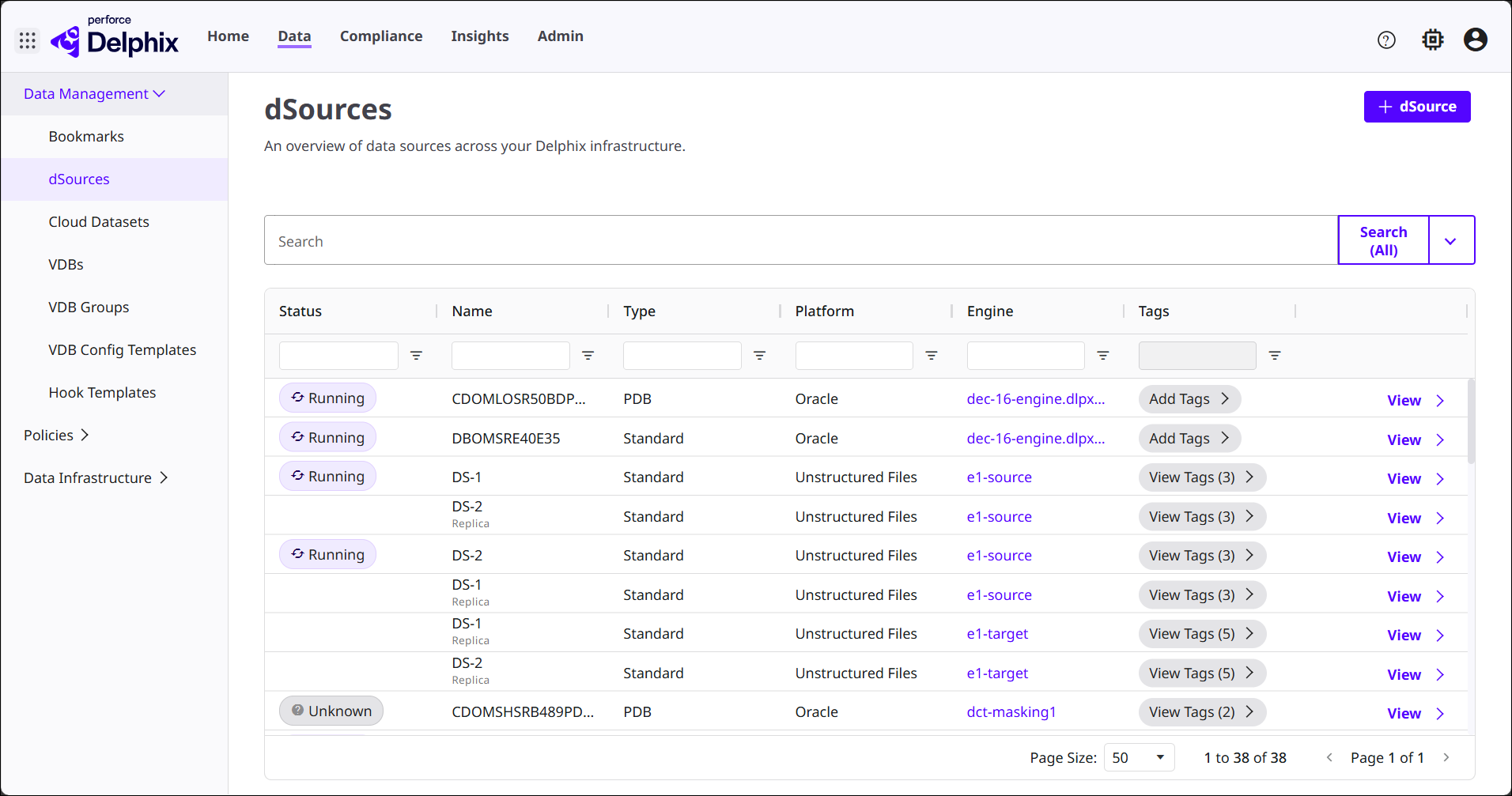
The Quick reference for supported datasets page covers all supported data source connectors. Click the Learn more button next to a connector type to see the documentation for it. Objects in DCT are a product of their connected infrastructure (i.e., a Continuous Data Engine).
Prerequisites
-
A Continuous Data Engine must be registered to the DCT instance.
-
You must have access to an eligible data source to create a new dSource from.
Using the wizard
The creation wizard will walk through the following steps:
-
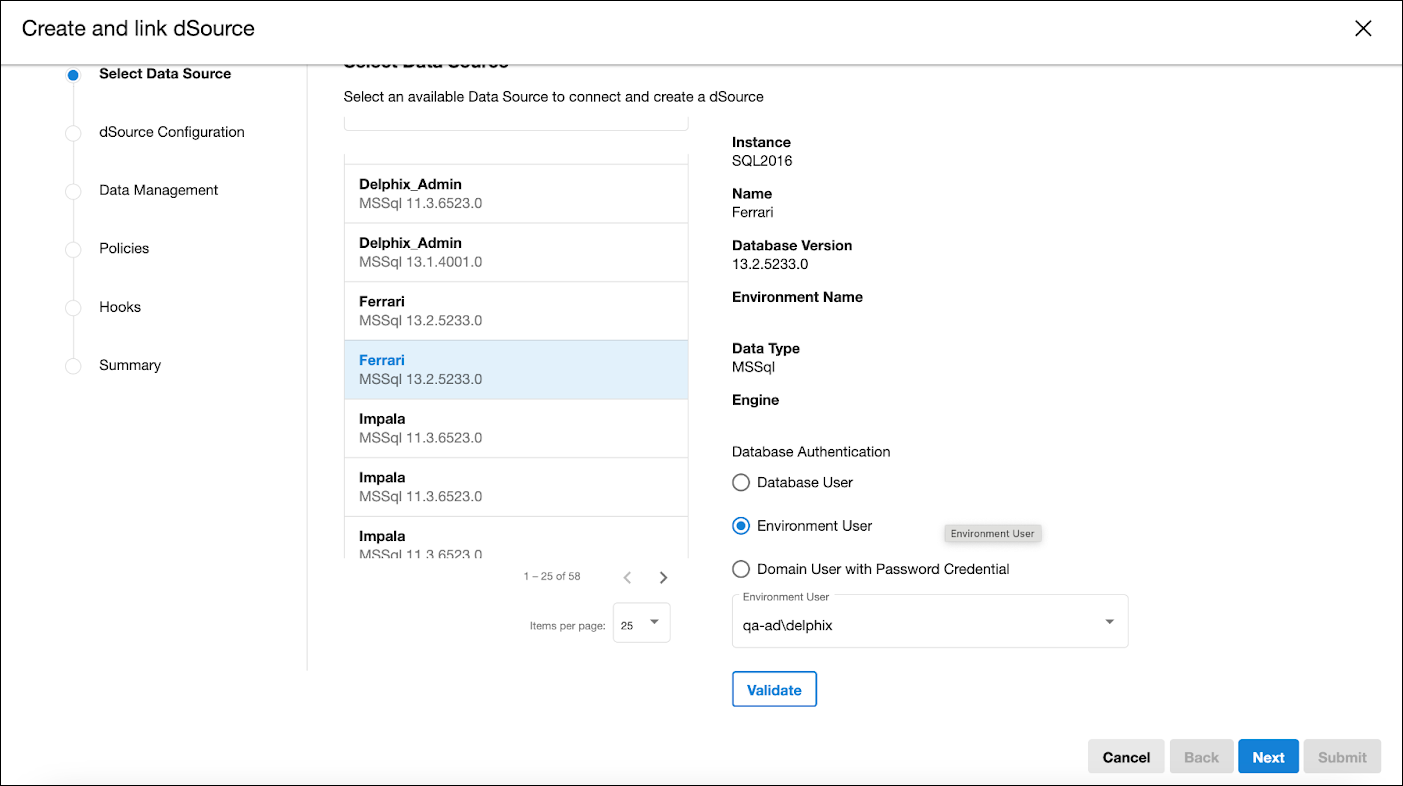
Select Data Source
Navigate an alphabetically sorted list of data sources or utilize the search function and pagination to locate, and choose the preferred source.
-
When a source is selected, essential details such as the Instance, Environment Name, and Engine Name are shown on the right side of the screen. Database Authentication will be required.
-
To that point, a crucial part of this step includes a database connectivity check. The Validate button verifies your connection, ensuring a secure and authenticated progression to the next stages.
-
-
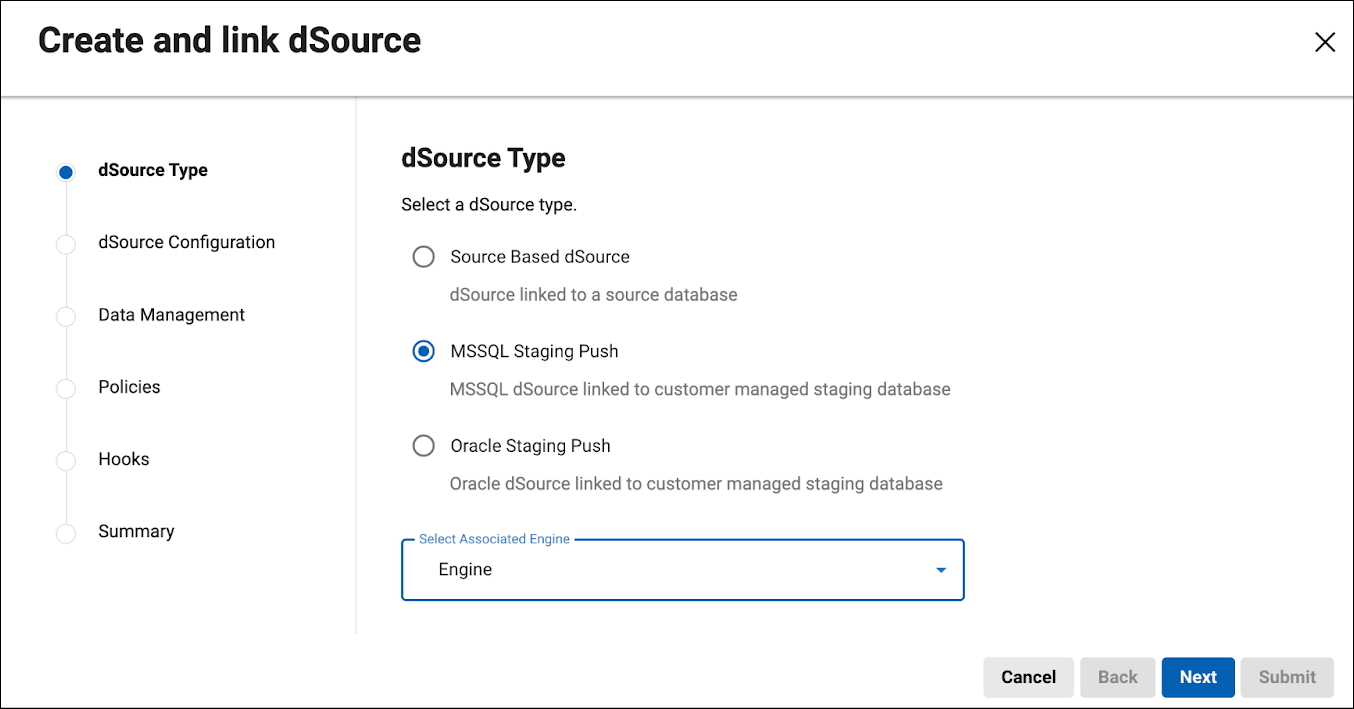
dSource Type
Select the type of dSource being linked. The options available include:
- Source Based dSource: linked directly to a source database.
-
Oracle Staging Push: linked to a user-managed Oracle staging database.
-
MSSQL Staging Push: linked to a user-managed MSSQL staging database.
After selecting dSource Type, choose the associated engine from the drop-down menu.
-
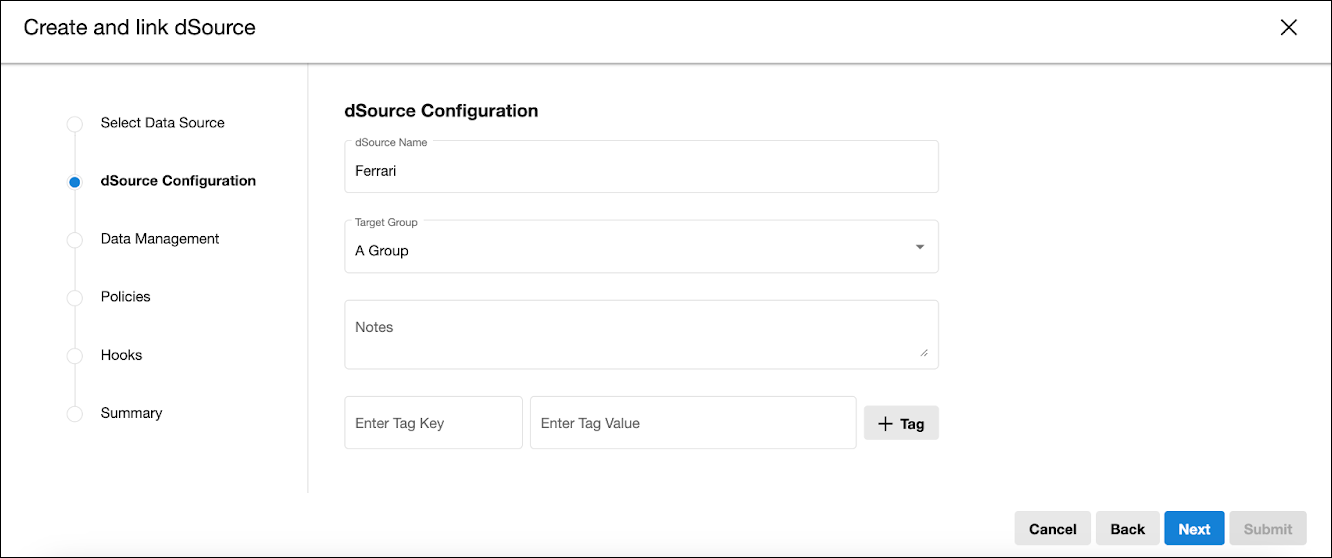
dSource Configuration
Name your dSource here. By default, the dSource name mirrors the name of the source, but it can be modified. Choose the Target Group within the engine to which the new dSource will be added. Add Notes, and a Tag Key and Tag Value pair, if needed. You must also configure any necessary settings required, based on the source.
-
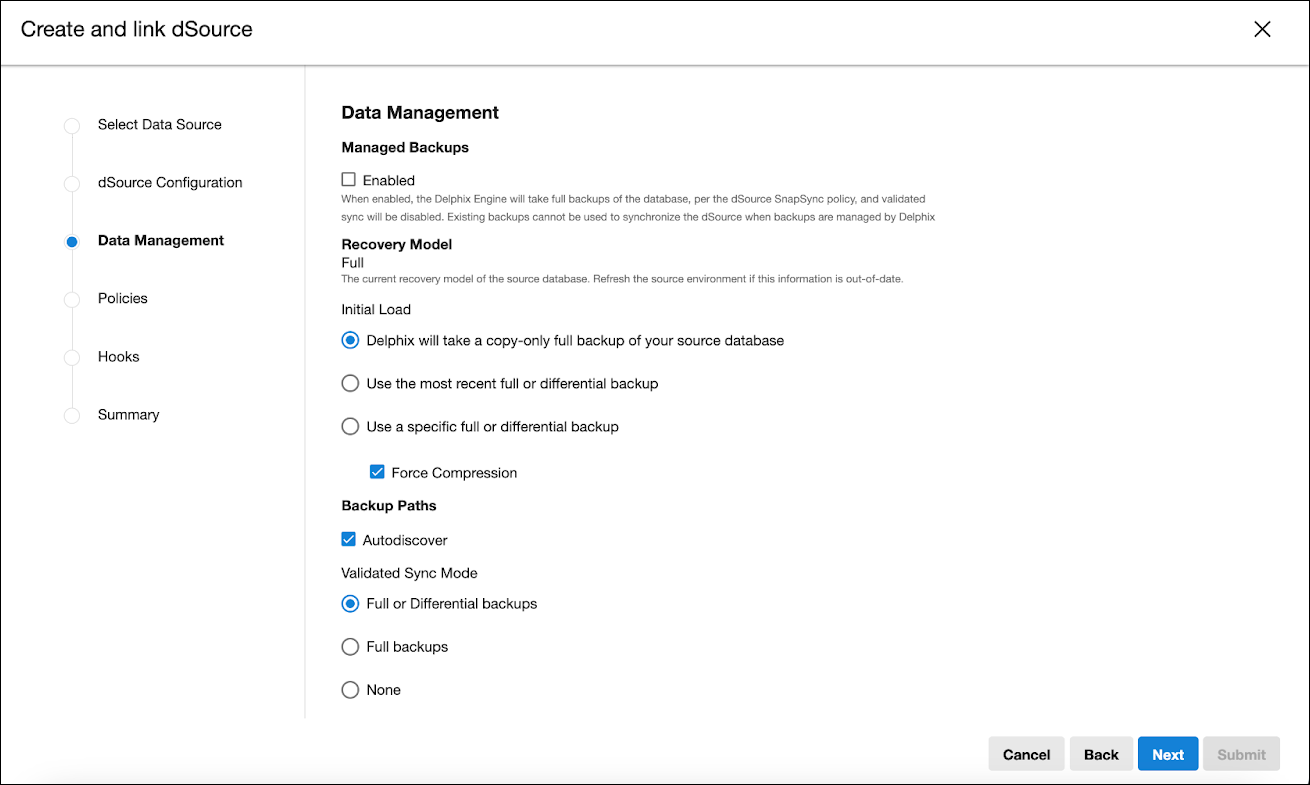
Data Management
Choose whether DCT should enable Managed backups for the dSource. Confirm the source's Recovery Model and select an Initial Load method (take a copy-only full backup, use the most recent full/differential backup, or select a specific backup). If selecting a specific backup, you can Force Compression and choose to Autodiscover backup paths. Finally, set the Validated Sync Mode to use full/differential, full only, or none.
-
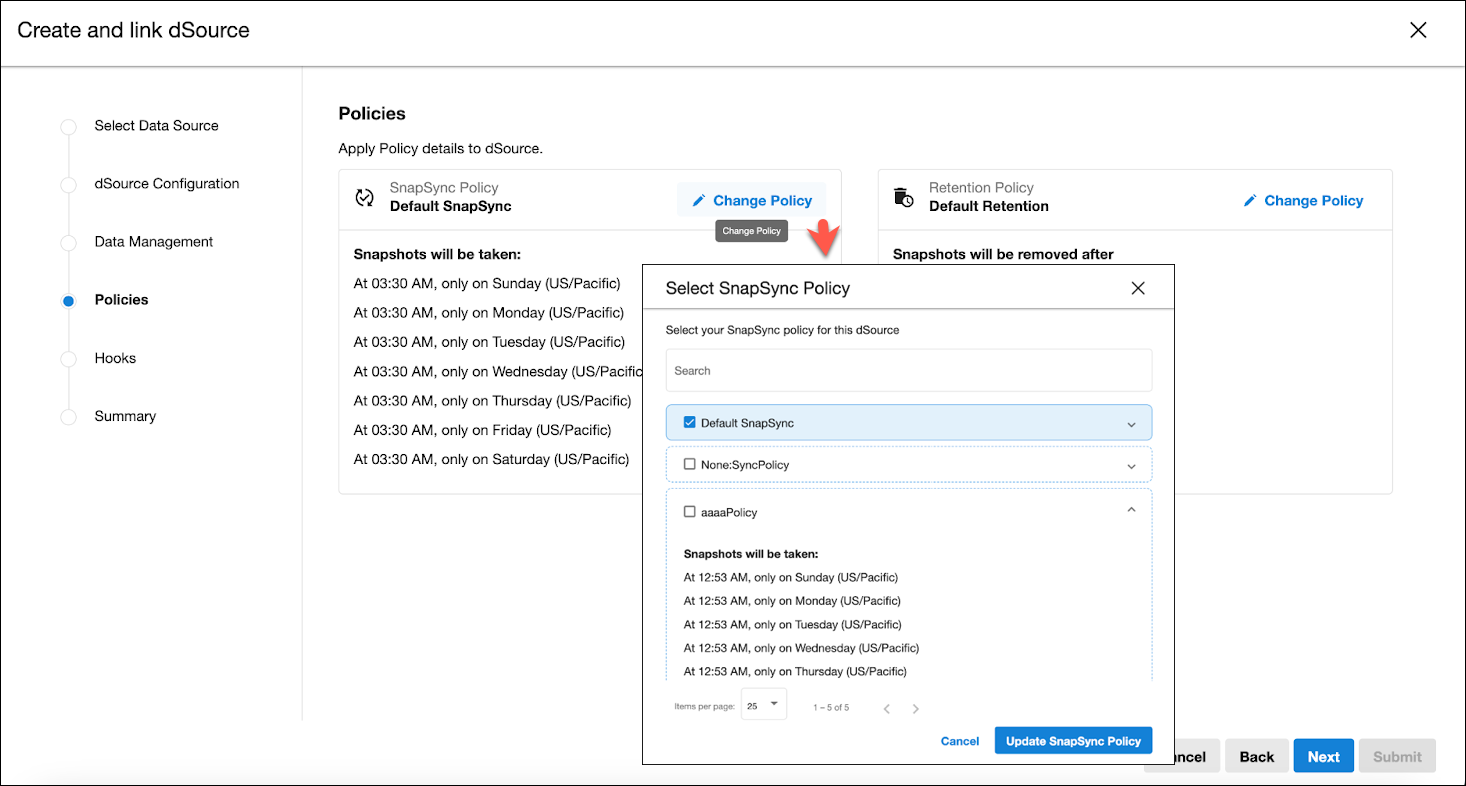
Policies
Tailor the Snapshot and Retention policies according to your requirements. Default policies are selected initially, but these settings can be modified through the Change Policy dialog. These and other dSource policies can be managed after provisioning.
-
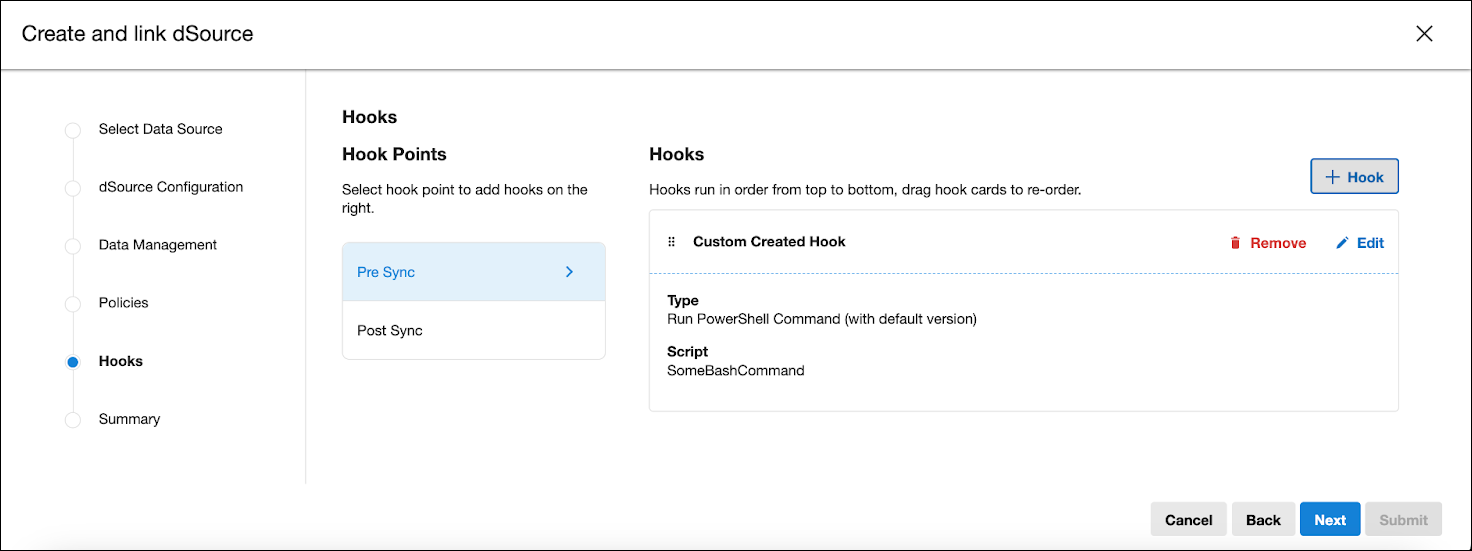
Hooks
Enhance the dSource with custom created Hooks. Use the + Hook button to define the scripts that will execute at various stages of the process, offering greater control and customization capabilities.
For Oracle dSources in the linking wizard, a Reorder button is available to rearrange hooks for different operations at various hook points. Additionally, you can add, edit, delete, and reorder hooks on the linked dSource via the dSource Details page under the Hooks tab. Importing hook templates from your engine in DCT is available in version 2025.3 and above.
-
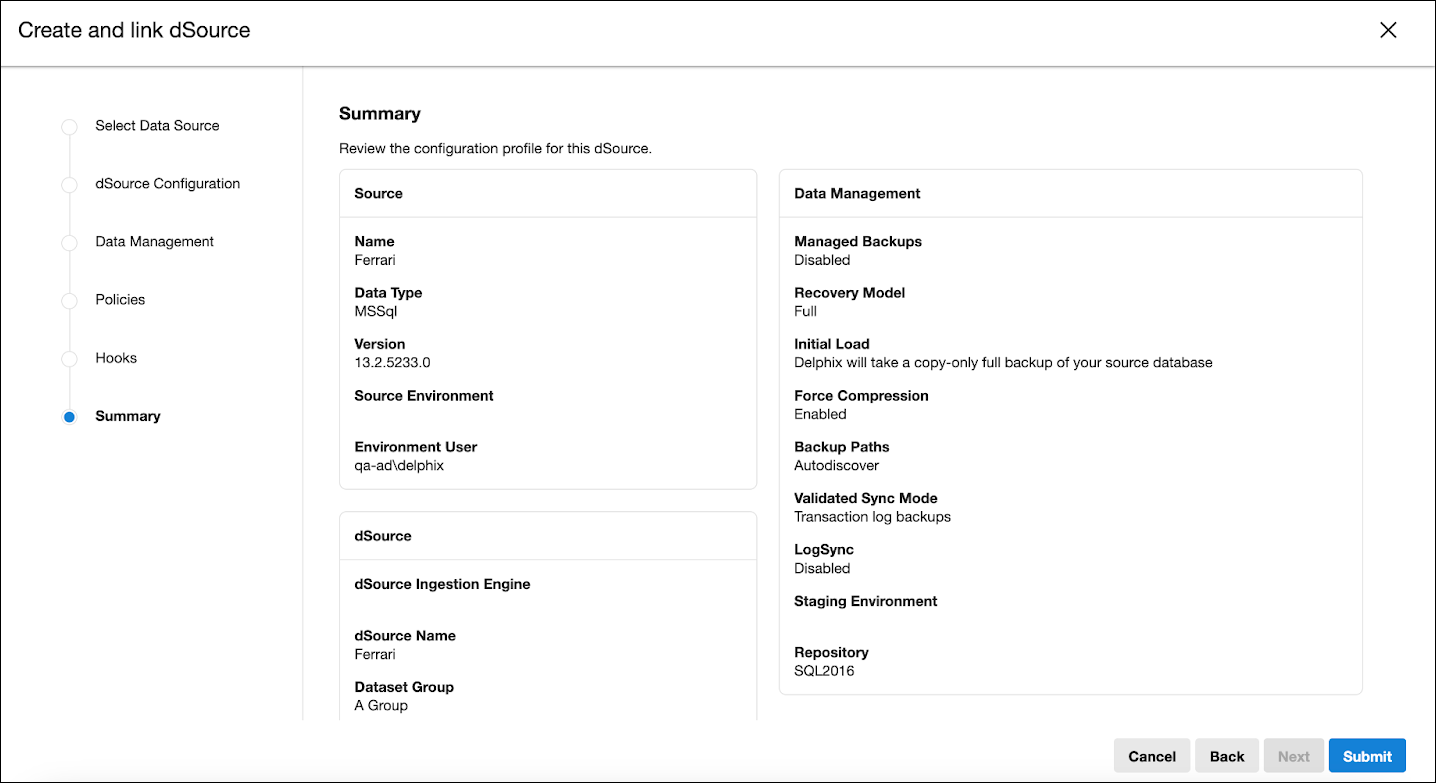
Summary
Before finalizing, a comprehensive summary of the configurations is shown. Review and confirm the details, assuring they align with the intended setup. Submit the configuration to finish linking your database.
dSource linking via API
DCT 10.0.0 introduces the feature to link a dSource using DCT APIs. With the new API parameters exposed from DCT, you can get the dSource linking defaults and use them to connect the dSource. The API parameters listed below can be found in the API references.
-
BaseDSourceLinkSourceParameters
-
OracleDSourceLinkSourceParameters
-
OracleStagingPushDSourceLinkSourceParameters
-
AppDataDSourceLinkSourceParameters
-
ASEDSourceLinkSourceParameters
-
LinkDSourceResponse
-
LinkDSourceDefaultRequest
-
MSSQLDSourceLinkSourceParameters
-
MSSQLDSourceStagingPushLinkSourceParameters
DCT supports APIs for linking all types of databases. DCT does not have a GUI flow for these APIs yet, which is why they are API only.
As a prerequisite, Continuous Data Engines should be registered in DCT and should have non-linked sources to be linked as a dSource.