
Overview
A Cloud Account is DCT's connection to a cloud provider account and region. It holds the credentials and configuration that DCT uses to discover PaaS resources, track their timelines, and perform operations such as provision, refresh, and snapshot. Every Continuous Data for PaaS workflow begins with creating a Cloud Account.
From the DCT home page, select Cloud Accounts in the left navigation panel. This page lists all configured Cloud Accounts and provides summary information.
Create a Cloud Account
-
Navigate to Home > Cloud Accounts.
-
Select + Create Cloud Account in the top right. The Cloud Account wizard opens.
-
Go through the sections and complete the configurations.
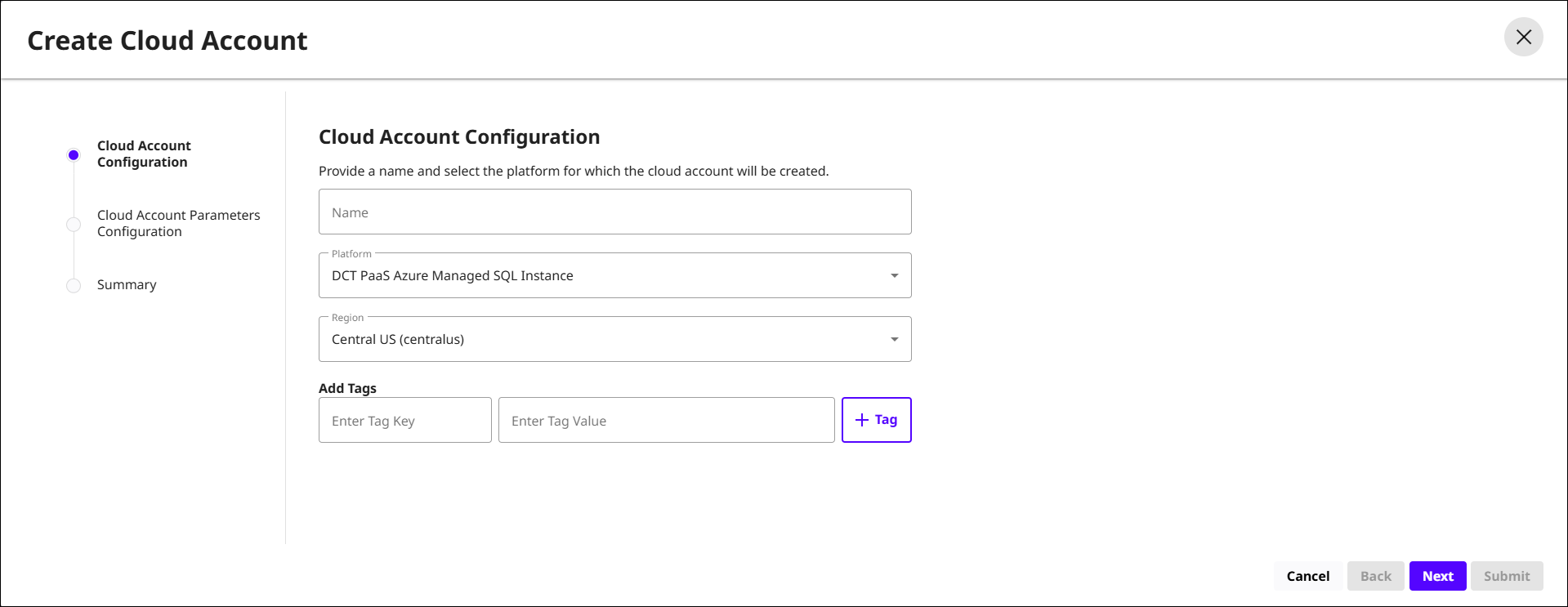
Select provider and region
On the first page of the wizard:
-
Select the PaaS Connector that corresponds to your target platform (for example, AWS Relational Database Service (RDS) or Azure SQL Managed Instance). See Requirements and architecture for the full list of supported connectors.
-
Enter the cloud region (e.g., us-east-1 for AWS, East US for Azure). All resources managed by this Cloud Account must be in this region.
The region value must exactly match the region where your PaaS instances reside. If the region does not match, discovery will not return results.
Provide credentials
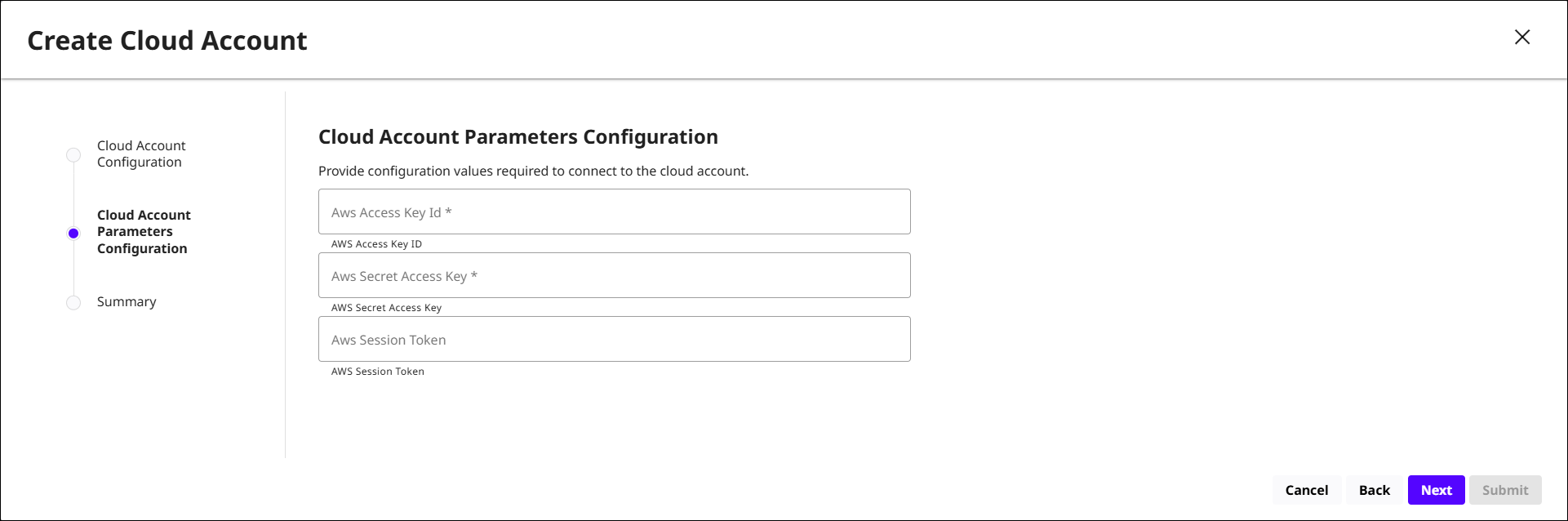
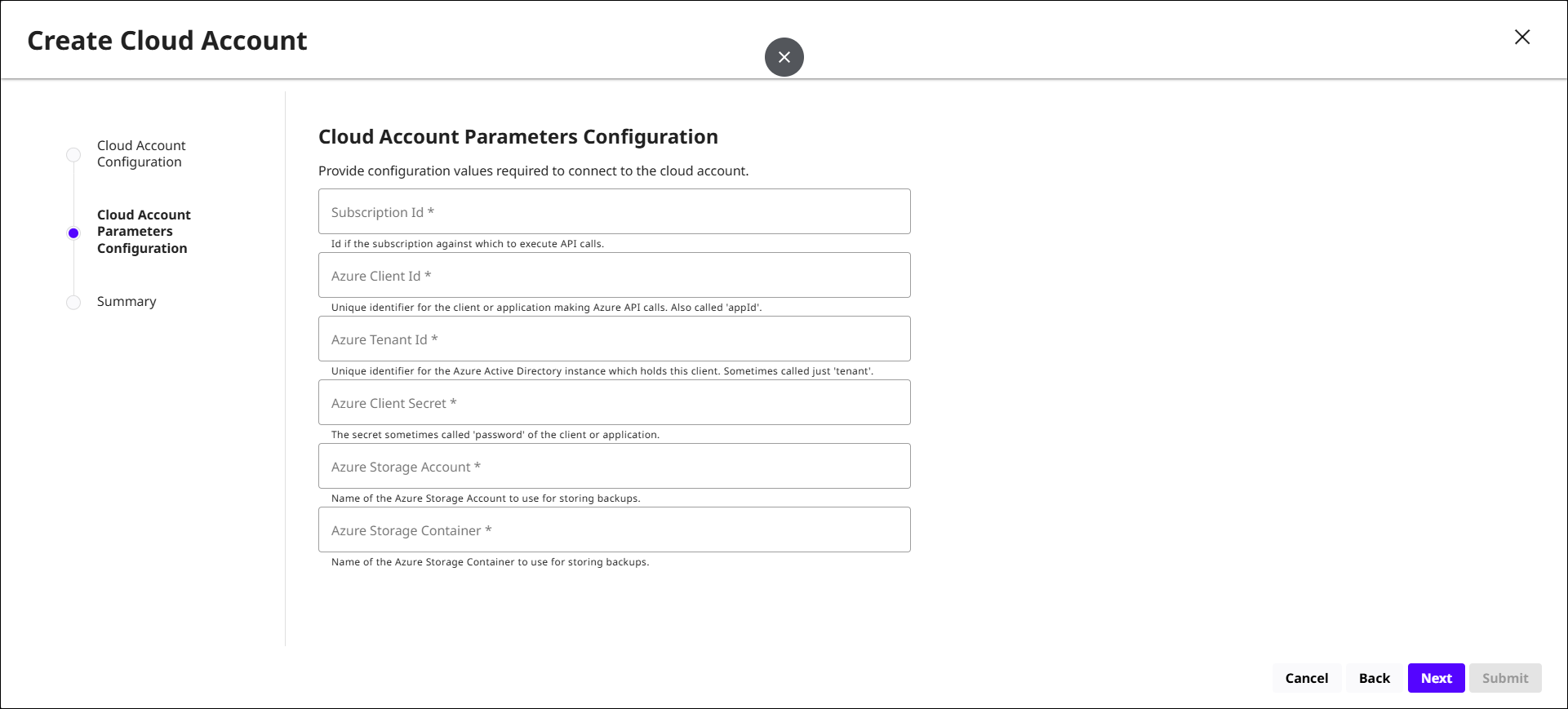
On the second page, provide the authentication credentials required by the selected PaaS Connector. The required fields vary by connector. For the full list of required credentials and permissions for each supported platform, refer to Requirements and Architecture.
If multiple groups of databases require different credentials, run the Cloud Account wizard multiple times — once per credential set.
The AWS session token field is intended for development and testing environments that use temporary STS credentials. For production deployments, leave this field empty and use long-lived IAM access keys instead.
AWS:
Azure:
Review and submit
Review the configuration and select Create. DCT will create the Cloud Account and immediately begin a background discovery process.
Discovery and auto-detection
After a Cloud Account is created, DCT automatically runs a discovery process in the background. Discovery identifies all PaaS Instances and PaaS DBs accessible with the provided credentials in the specified region. It also reconstructs a historical timeline from the cloud provider's existing automated backup history.
Discovery behavior:
-
Runs automatically when a Cloud Account is first created.
-
Runs periodically in the background to detect new or removed resources.
-
Results appear in the Cloud Account detail view under the PaaS Instances and PaaS DBs tabs.
Discovery runs in the background and may take up to a minute to complete. If no resources appear after one minute, verify that the credentials and region are correct and that the IAM user or Entra ID application has the required permissions.
Cloud Account connection status
Each Cloud Account reports a connection status that is updated at the end of every discovery cycle. This status reflects whether DCT was able to reach the cloud provider and whether the configured credentials are valid.
-
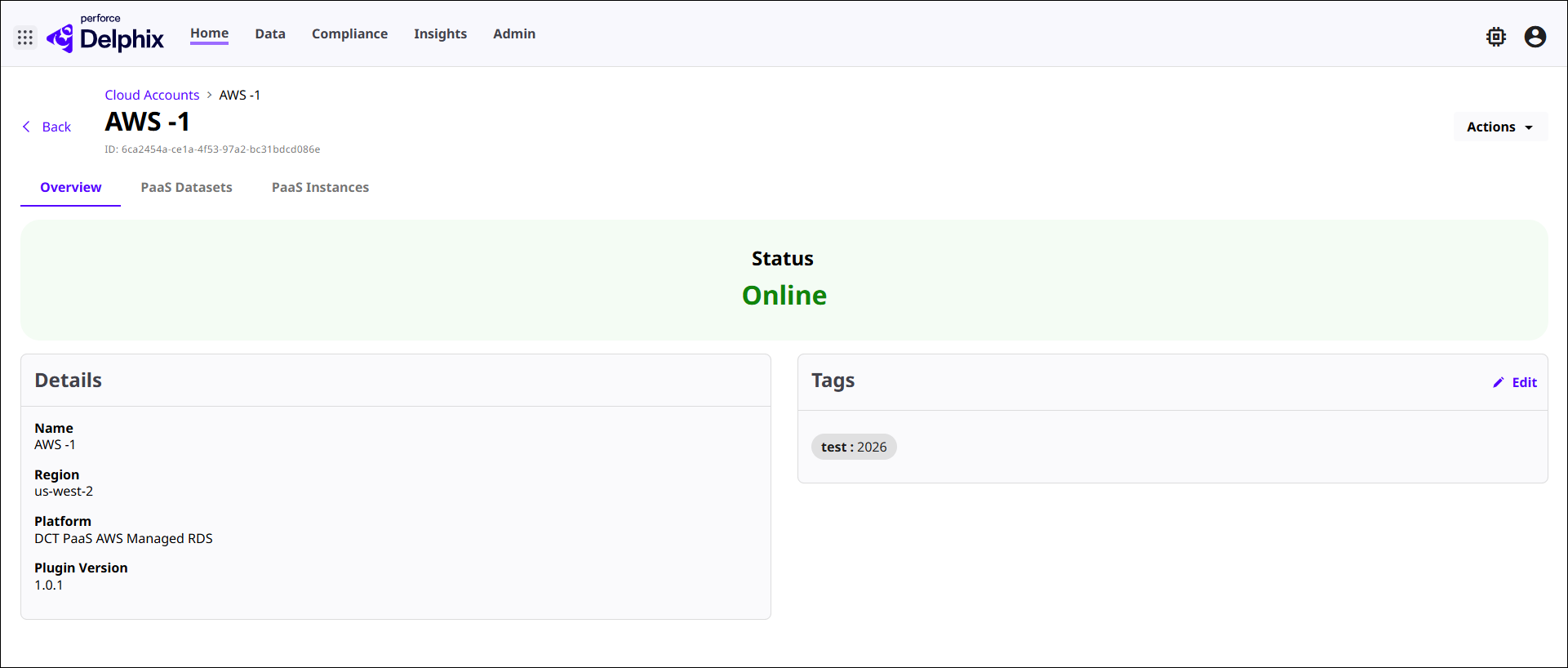
ONLINE: Discovery ran successfully. Credentials are valid and the cloud provider is reachable.
-
CONNECTION_ERROR: Discovery failed due to invalid credentials, network connectivity issues, or a cloud provider error. Verify credentials and outbound network access from DCT to the cloud provider API endpoints.
Cloud Account details page
Click View on any Cloud Account to open its details page. The details page includes:
Overview tab: General information about the Cloud Account: provider, region, connector version, last successful discovery timestamp, and Cloud Account tags.
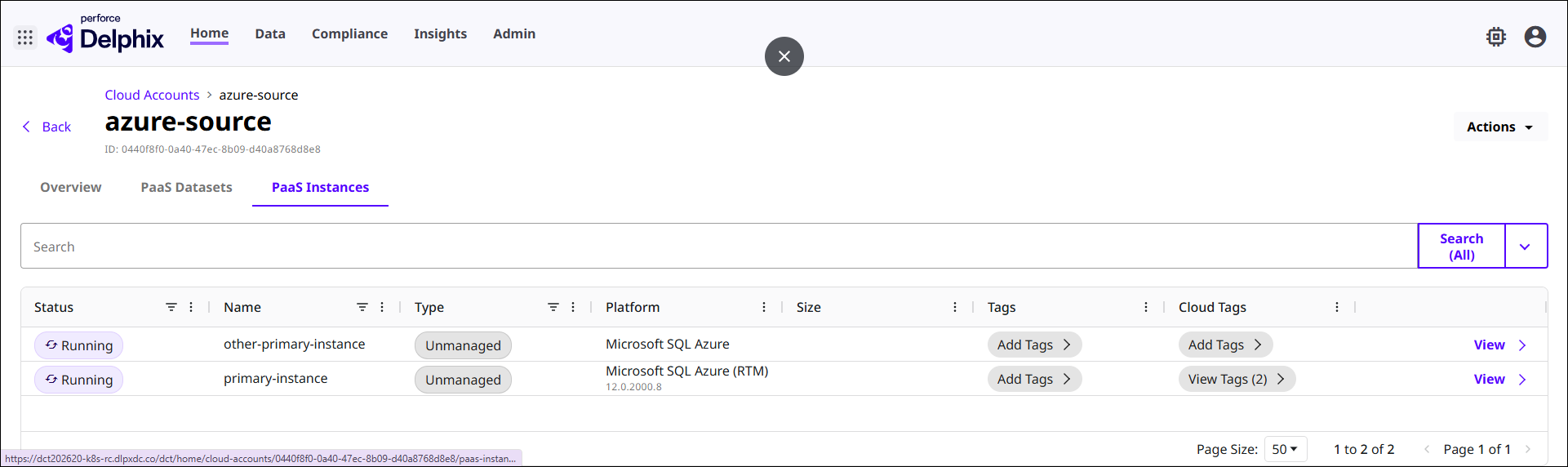
PaaS Instances tab: A list of all discovered PaaS Instances within this account and region. Click View on any instance to open its details page.
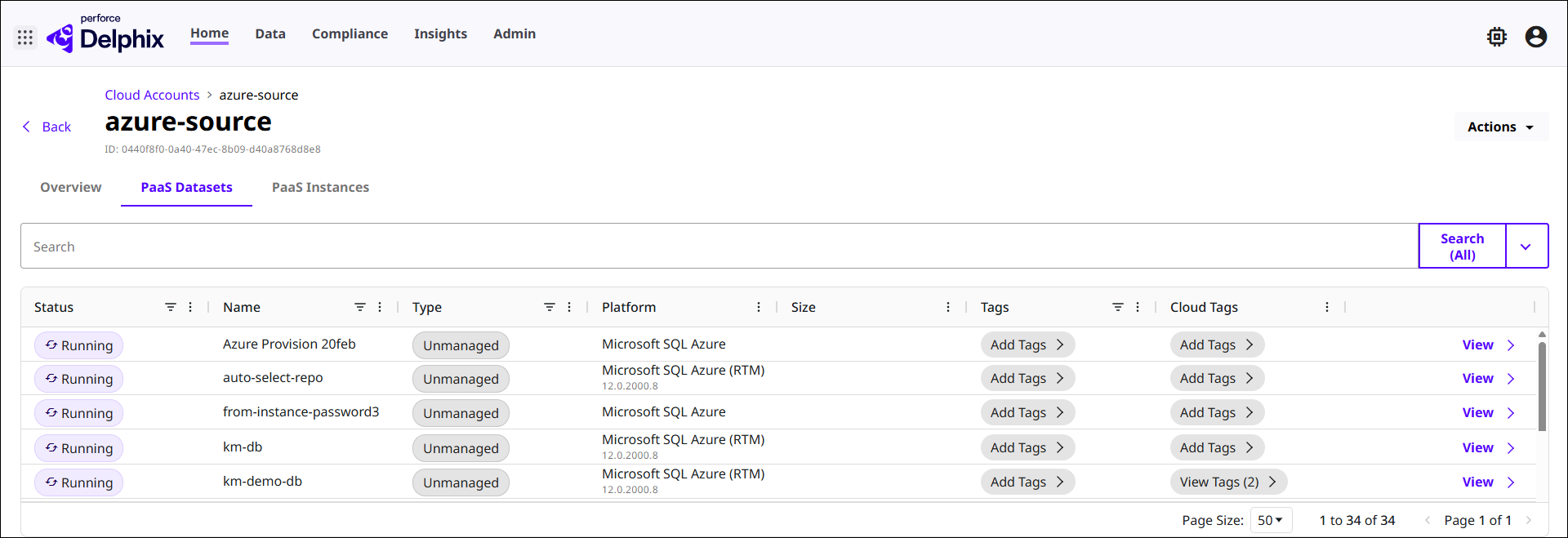
PaaS DBs tab: A list of all discovered and managed PaaS DBs within this account and region. Click View on any database to open its details page.
Viewing PaaS Instances and PaaS DBs
From the Cloud Account details page, use the PaaS Instances and PaaS DBs tabs to browse the discovered resources. Both tabs support filtering by name, status, platform, and tags.
Key information visible in the PaaS Instances list:
-
Name: The instance name as it appears in the cloud provider.
-
Status: Running, Stopped, or Deprovisioned.
-
Platform: The database engine and version (e.g., AWS RDS Oracle 19c).
-
Tags: DCT tags and cloud tags applied to the instance.
Key information visible in the PaaS Datasets list:
-
Name: The database name.
-
Type: Root Source or PaaS DB (managed).
-
Platform: The database platform.
-
Status: Running, Stopped, or Deprovisioned.
Editing and deleting a Cloud Account
To update credentials or region settings, open the Cloud Account details page and select Actions > Update Parameters. Updates take effect immediately.
To remove a Cloud Account, select Actions > Delete. Deleting a Cloud Account removes the account configuration and all associated discovery data from DCT. It does not delete resources in the cloud provider.