
API keys are the default method to authenticate with DCT. This is done by including the key in the HTTP Authorization request header with type apk.
API keys are long-live tokens and as a result, do not automatically expire in the future. They remain valid until they are deleted or destroyed from DCT.
Assume the following is a sample key:
1.0p9PMkZO4Hgy0ezwjhX0Fi4lEKrD4pflejgqjd0pfKtywlSWR9G0fIaWajuKcBT3
The cURL command example would appear as:
curl --header 'Authorization: apk 1.0p9PMkZO4Hgy0ezwjhX0Fi4lEKrD4pflejgqjd0pfKtywlSWR9G0fIaWajuKcBT3'
cURL (like web browsers and other HTTP clients) will not connect to DCT over HTTPS unless a valid TLS certificate has been configured for the Nginx server. If this configuration step has not been performed yet and the risk is comprehended, you may disable the check in the HTTP client. For instance, this can be done with cURL using the --insecure flag.
The cURL version must be 7.43 or higher.
The following examples use Unix shell syntax. If you run them in Windows Command Prompt, replace the single quotation marks with double quotation marks and use a caret (^) at the end of each line to continue the command.
Create and manage API Keys
You can create and manage API keys from the DCT UI as well as through the API. This is the recommended option when you need to create a new key for a user or rotate an existing key without using a script.
Create an API key in the UI
-
Sign in to DCT with a user that has permission to manage accounts.
-
Go to Admin > Accounts.
-
Create a new account or select an existing account.
-
Generate an API key for that user. If you are creating a new account, you can do this as part of the account creation flow. If you are updating an existing account, use the account's key management actions.
-
Copy the generated API key and save it in a secure location. Store the new key immediately because it might not be available again after the prompt closes.
To rotate a key for another user, go to Admin > Accounts, select the target account, and choose Regenerate API key. If prompted, enter the current key before the new key is issued.
To regenerate your own API key, click your account name in the top-right corner of the application, then choose Regenerate API key. Enter your current key when prompted, then save the new key and update any client configuration that relies on it.
The initial API key created should be used to create a new admin secure key. This is done by creating a new Account entity and setting the generate_api_key. The "username" attribute should be the desired name to uniquely identify the account.
curl --location --request POST 'https://<hostname>/docs/v2/management/accounts' \
--header 'Content-Type: application/json' \
--header 'Accept: application/json' \
--header 'Authorization: apk 1.0p9PMkZO4Hgy0ezwjhX0Fi4lEKrD4pflejgqjd0pfKtywlSWR9G0fIaWajuKcBT3' \
--data-raw '{
   "username": "secure-key",
   "generate_api_key": true
}'
If the cURL version being used is below 7.43, replace the --data-raw option with --data.
A response should be received similar to the lines below:
{
   "id": 2,
   "token": "2.vCfC0MnpySYZLshuxap2aZ7xqBKAnQvV7hFnobe7xuNlHS9AF2NQnV9XXw4UyET6"   "username":"secure-key"}
Now that the new and secure API key is created, the old one must be deleted for security reasons since the key appeared in the logs. To do this make the following request:
curl --location --request DELETE 'https://<hostname>/dct/v2/management/api-clients/<id>' \
--header 'Content-Type: application/json' \
--header 'Accept: application/json' \
--header 'Authorization: apk 2.vCfC0MnpySYZLshuxap2aZ7xqBKAnQvV7hFnobe7xuNlHS9AF2NQnV9XXw4UyET6'
The ID referenced above is the numeric ID of the Account. It is the integer before the period in the token. For example, the ID of 1.0p9PMkZO4... is 1.
Finally, to list all of the current Accounts, make the following request:
curl --location --request GET 'https://<hostname>/dct/v2/management/accounts/' \
--header 'Content-Type: application/json' \
--header 'Accept: application/json' \
--header 'Authorization: apk <your API key>'
API key regeneration
Non-admin user accounts now have support for regenerating the API key in DCT version 23.0.0. This can be accessed after clicking your account name in the top-right corner of the application.
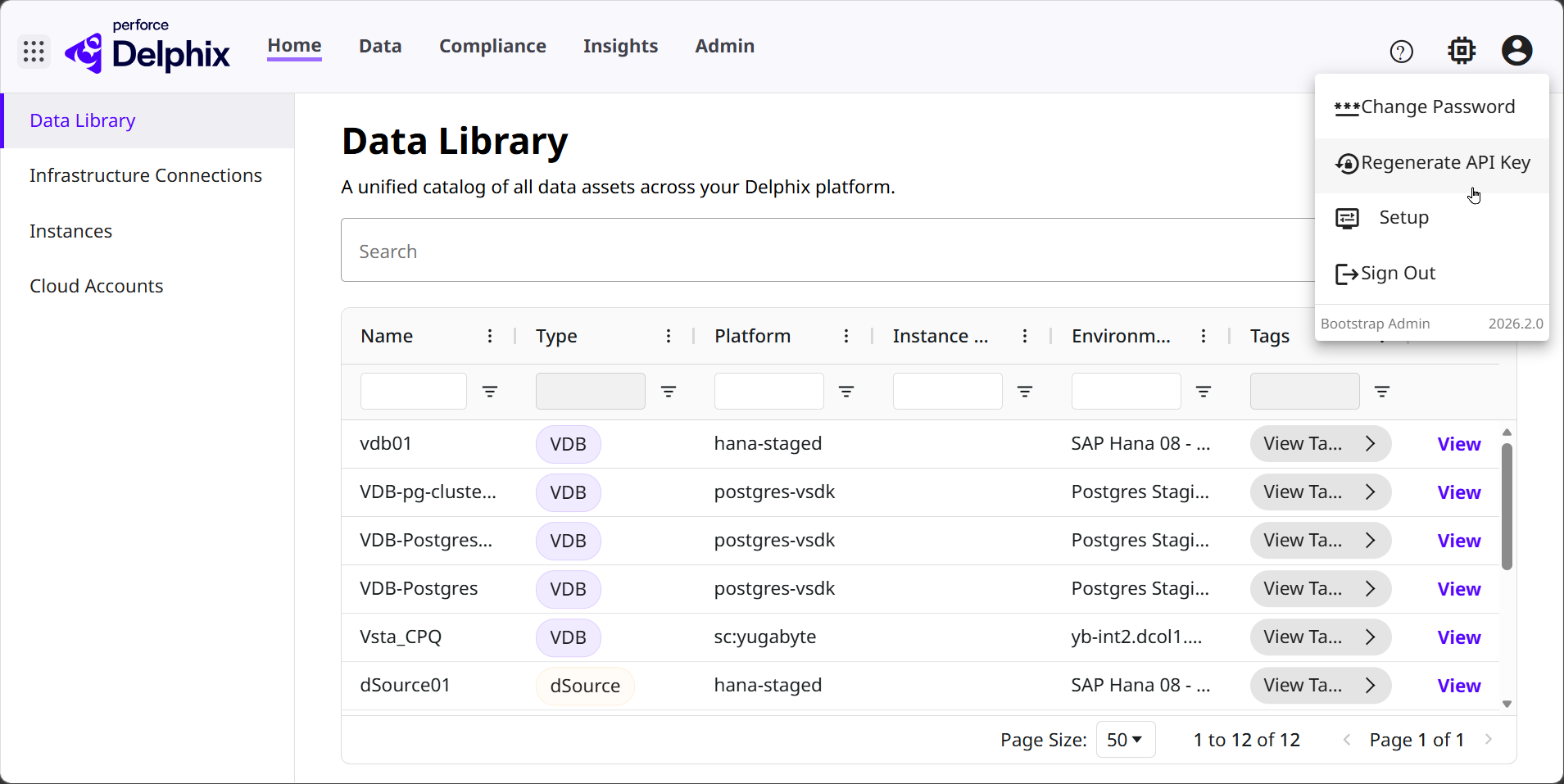
The following API endpoints can be utilized for this feature:
Regenerate
-
API Endpoint:
/management/accounts/api-key-regenerate -
Inputs: Old API Key
-
Outputs: New API Key
API key expiration
Support has been implemented to rotate the API key for another user account. This action is only allowed if the user has the necessary permissions to rotate/regenerate the API key for other accounts. A running DCT instance with VDBs is required.
The following API endpoints can be utilized for this feature:
Regenerate
-
API Endpoint:
/management/accounts/{id}/api-key-reset -
Inputs: User account ID
-
Outputs: New API key
Delete API Key
-
API Endpoint:
/management/accounts/{id}/api-key-delete -
Inputs: User account ID
DCT version 23.0.0 introduces the capability to view and edit security settings for API Key Expiry and Inactive Session Timeout. This is accessible under Admin → Authentication tab. The following API additions are included.
The following API endpoints can be utilized for this feature:
Update Properties
-
API Endpoint:
/management/properties/ -
Input: Object of properties with value in seconds
-
Output: Properties with updated value
Get Properties
-
API Endpoint:
/management/properties/ -
Output: Properties