
To enable and modify the extent of security settings for HTTPS and DSP (Delphix Session Protocol), click Settings in the Network Security panel to open a wizard where you can modify the settings.
Configure HTTPS and DSP settings
The following procedure guides you through the process of enabling or modifying security settings for HTTPS and DSP.
-
Connect to the Delphix Engine
http://<Delphix Engine>/login/index.html#serverSetup -
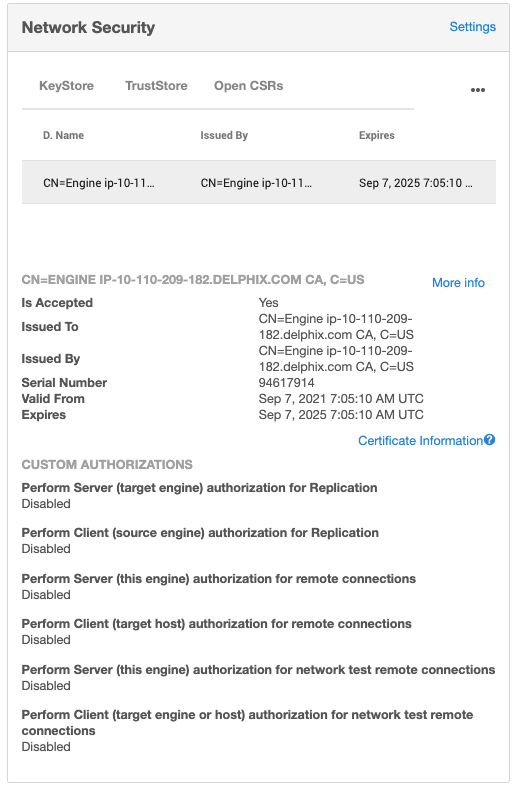
Click on the Settings link in the top right of the Network Security panel. This will open a new wizard where you can modify the settings.
-
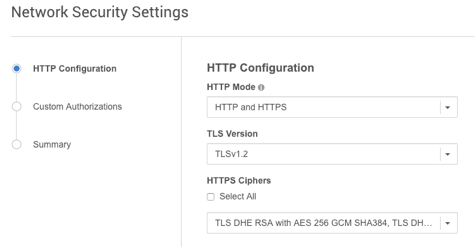
In the Network Settings wizard, you can modify the HTTP mode, TLS Version, and TLS Cipher Suites to be used.
-
Click Next.
-
By default, self-signed certificates are used for server authentication and username/password login acts as client authorization. You can enable the use of custom certificates and modify the extent of how they are used for the following features:
-
Remote host connections (SnapSync, Remote hosts for Target or Server environments, and Oracle V2P)
-
Throughput tests using the Network Performance Tool and DSP
For all three features, Server authentication must be enabled for Client authentication to take effect.Any configuration change requires a stack restart to take effect. Submitting the Network Security Settings in the GUI will automatically trigger a stack restart. All jobs will be stopped, but VDBs will continue to run.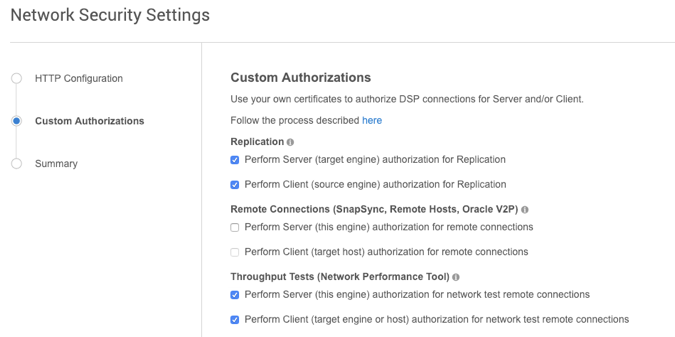
-
Once the HTTP and DSP configurations have been set as desired, click Next.
-
A Summary tab opens. Click Submit to accept your changes and trigger a stack restart necessary for the changes to take effect. All jobs will be stopped, but VDBs will continue to run.
Disable or enable SSH engine access
System administrators with SYSTEM privileges can fully disable SSH access engine-wide to reduce the engine's attack surface and meet security compliance policies. By default, SSH access is enabled.
Key behaviors
-
When SSH is disabled, the engine refuses new SSH connection attempts on port 22 (it resets the connection).
-
The disabled state persists across engine reboots and software upgrades.
-
You can re-enable SSH over HTTPS using the REST API even while SSH is disabled.
-
Attempting to enable SSH when already enabled returns
exception.ssh.already.enabled. Attempting to disable SSH when already disabled returnsexception.ssh.already.disabled.
Prerequisites
-
System administrator (sysadmin) credentials with SYSTEM privileges.
-
Access to the Delphix Engine REST API over HTTPS or access to the serial console for re-enabling access.
Procedure (sysadmin CLI)
-
Log into the Delphix Engine CLI as the
sysadminuser (via SSH or serial console). -
Navigate to the
service/sshcontext:delphix> service/ssh -
To view the current status, run
ls:delphix service ssh> ls Properties type: SSHConfig enabled: true -
To disable SSH access, run
update, setenabled=false, and commit the change:delphix service ssh> update delphix service ssh update *> set enabled=false delphix service ssh update *> commitCommitting this change immediately closes active SSH and CLI sessions.
-
To re-enable SSH access (for example, from the serial console CLI), set
enabled=trueand commit the change:delphix service ssh> update delphix service ssh update *> set enabled=true delphix service ssh update *> commit
Procedure (REST API)
-
If you have not already established a session, follow the steps in the API protocol guidance. Then, to check the current SSH status, send a
GETrequest to the SSH service endpoint:GET /resources/json/delphix/service/ssh -
To disable SSH access engine-wide, send a
POSTrequest withenabledset tofalse:POST /resources/json/delphix/service/ssh { "type": "SSHConfig", "enabled": false } -
To re-enable SSH access engine-wide, send a
POSTrequest withenabledset totrueover HTTPS:POST /resources/json/delphix/service/ssh { "type": "SSHConfig", "enabled": true }