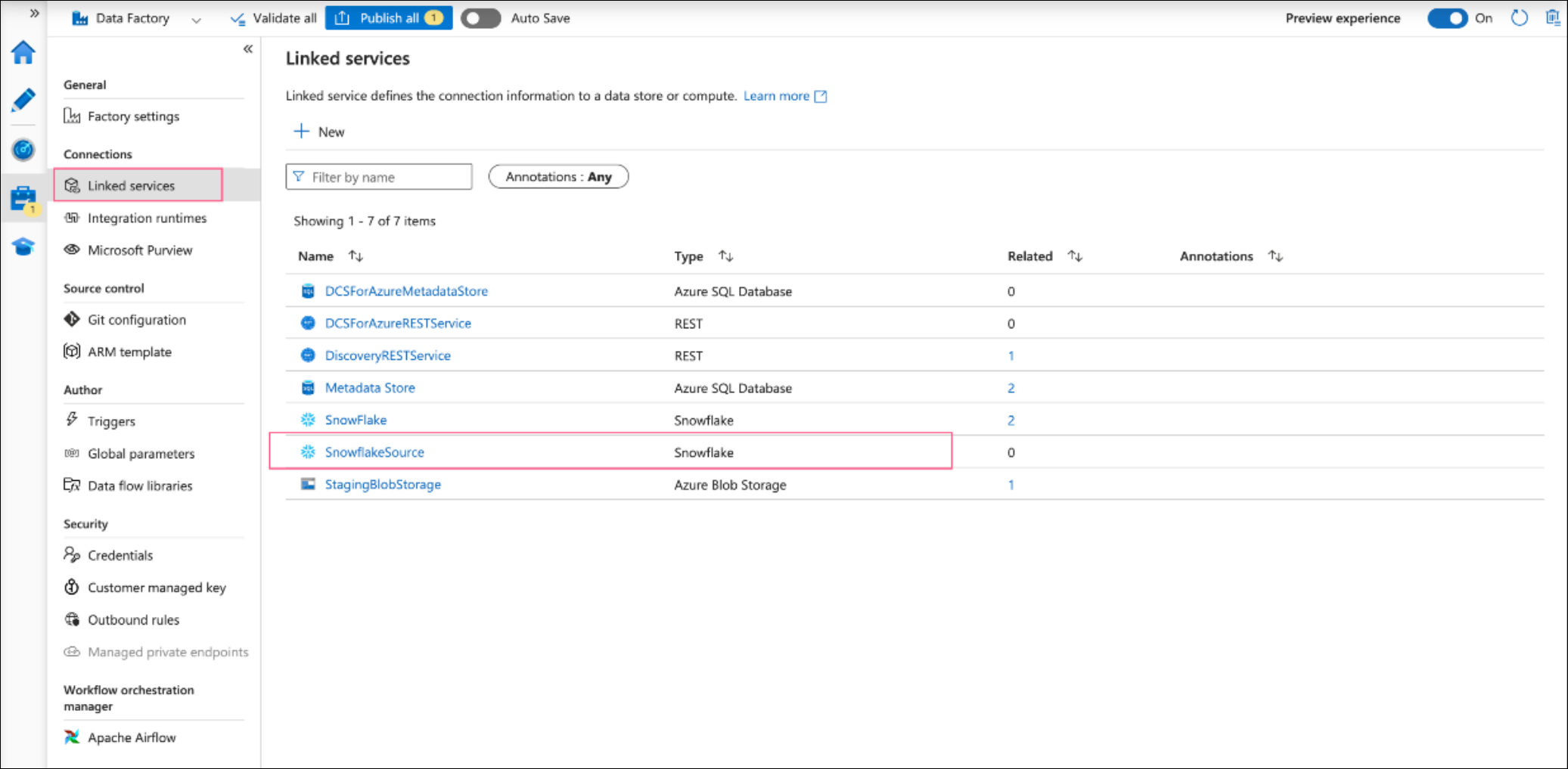
Use the +New button to create a linked service and search for Snowflake in the search bar. Select it and click Continue.
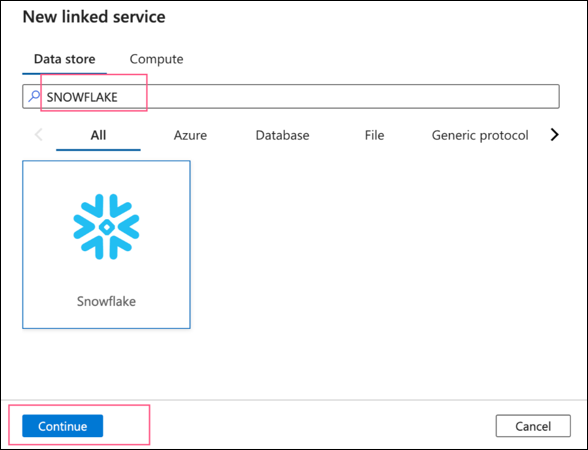
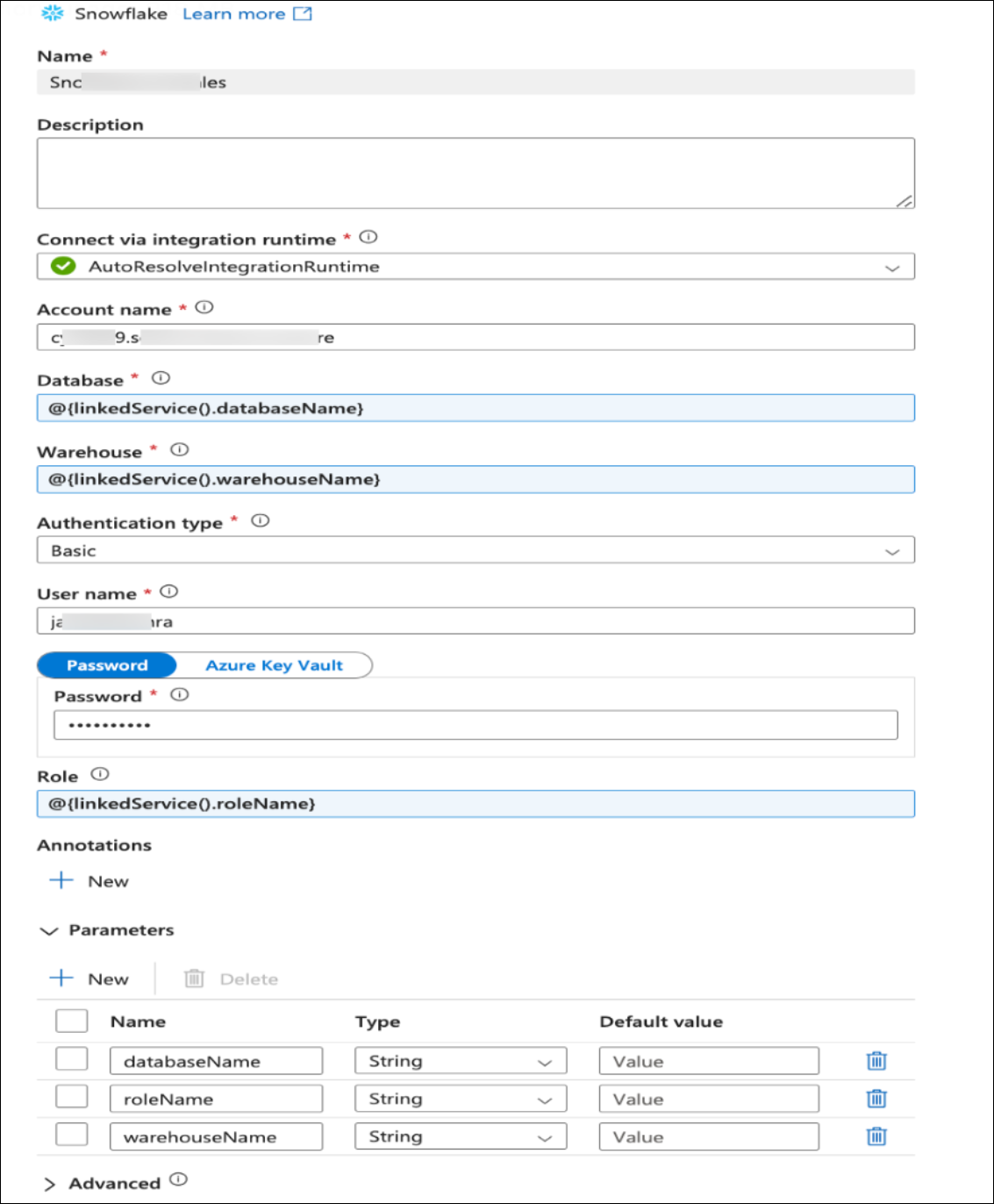
Fill in the required details for the snowflake connector:
-
Parameters: Add three string parameters with or without default values.
-
databaseName -
roleName -
warehouseName
-
-
Name: A friendly name for your snowflake connector.
-
Account Name: Your snowflake account with naming convention as
<accountName>.<region>.azure. -
Database: Choose the
databaseNameparameter. -
Warehouse: Choose the
warehouseNameparameter. -
Authentication Type: Basic or keypair. This example uses basic. Fill in the username and password.
-
Role: choose the
roleNameparameter.
Click on Test connection. Once Test connection succeeds, click on the Create button, the linked service will appear in your list of linked services.