
Learn how to configure an Azure function linked service for Apache Cassandra.
Prerequisites- Azure Function App already created
- Apache Cassandra DB account
- Azure Data Lake Storage Gen2 account
- Permissions to assign Azure RBAC roles (Owner or User Access Administrator)
- Log in to Azure Data Factory.
- Select the correct subscription and data factory.
-
On the page for your data factory, select Launch Studio to open Azure Data Factory Studio.
- Go to Manage and select Linked services.
- Click New linked service.
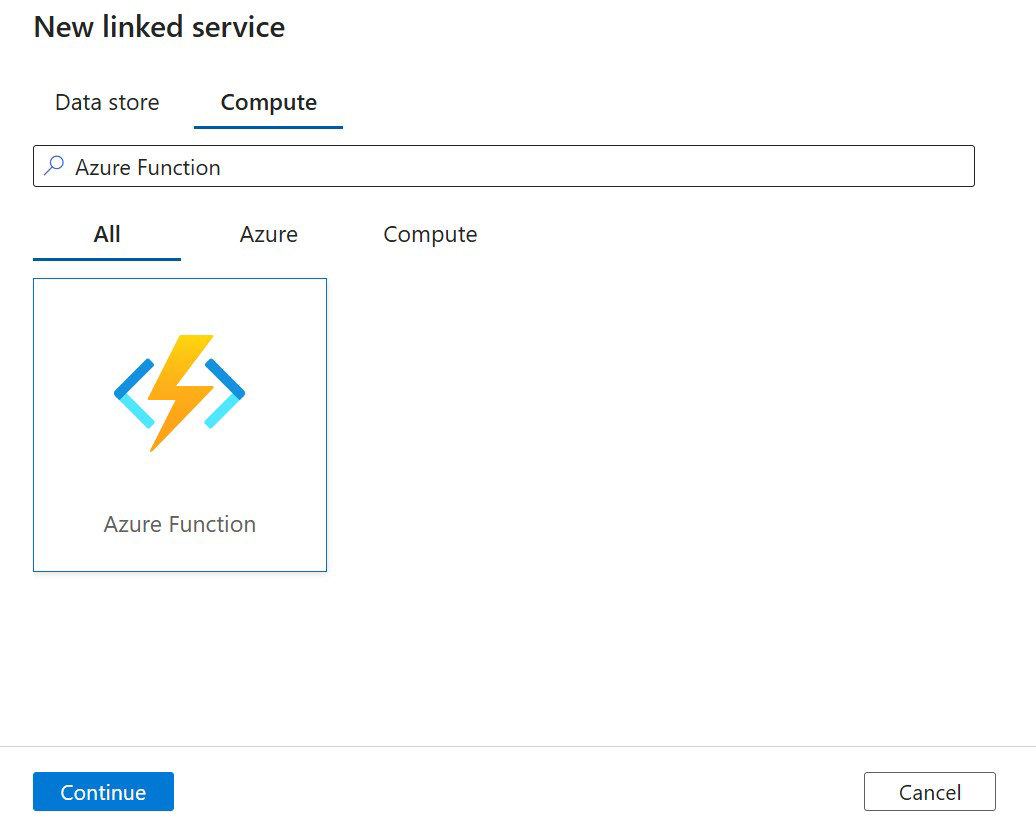
- In the Compute search box, type Azure Function.
-
Select Azure Function from the list, then Continue.
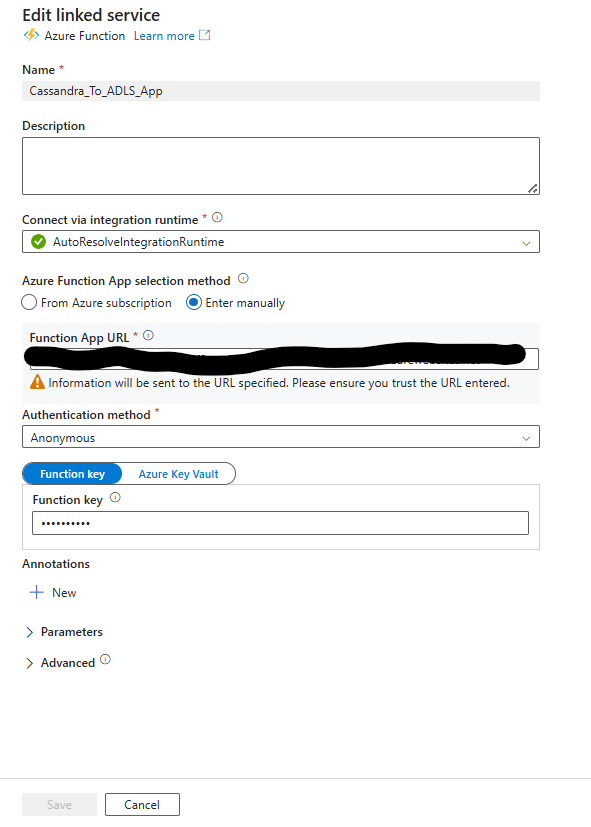
- Configure the linked service:
- Name: Enter a meaningful name to identify the linked service. For example, Cassandra_Source_to_ADLS_Source. Optionally, add a description.
- Connect via integration runtime: Select the appropriate integration runtime, for example, AutoResolveIntegrationRuntime.
- Azure Function App selection method: Select Enter manually.
- Function App URL: Enter the complete address of your function app.
- Authentication method: Select Anonymous.
- Function Key: Enter a predefined function key.
- Click Create.
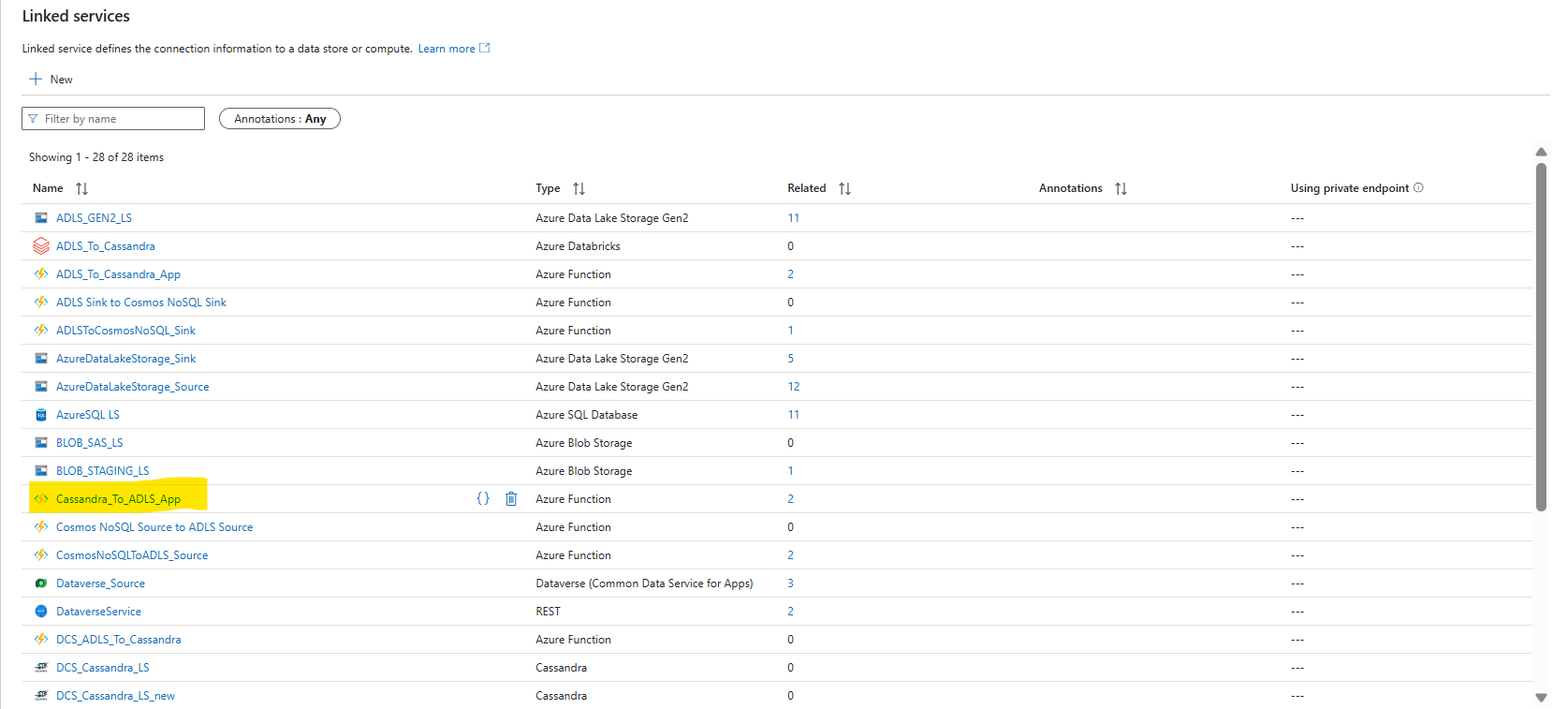
Your Cassandra linked service is now configured and ready to use in Azure Data Factory:
Last updated
Oct 9, 2026