
Learn how to enable a System Assigned Managed Identity for an Azure Function App and grant it the required permissions to access Azure Data Lake Storage Gen2 (ADLS). Using Managed Identity removes the need for secrets, account keys, or connection strings and aligns with Azure security best practices.
Access to Azure Data Lake Storage (ADLS) is controlled using Azure RBAC. To allow an Azure Function to read, write, and delete data in ADLS, the Function’s managed identity must be assigned the appropriate role at the storage account level.
Required Role
- Storage Blob Data Contributor — Provides read, write, and delete access to blobs and containers, which is typically required for Azure Functions interacting with ADLS.
Prerequisites
- Azure Function App already created
- Azure Data Lake Storage Gen2 account
- Permissions to assign Azure RBAC roles (Owner or User Access Administrator) on the ADLS Storage account
Steps
-
Enable managed identity on Azure Function.
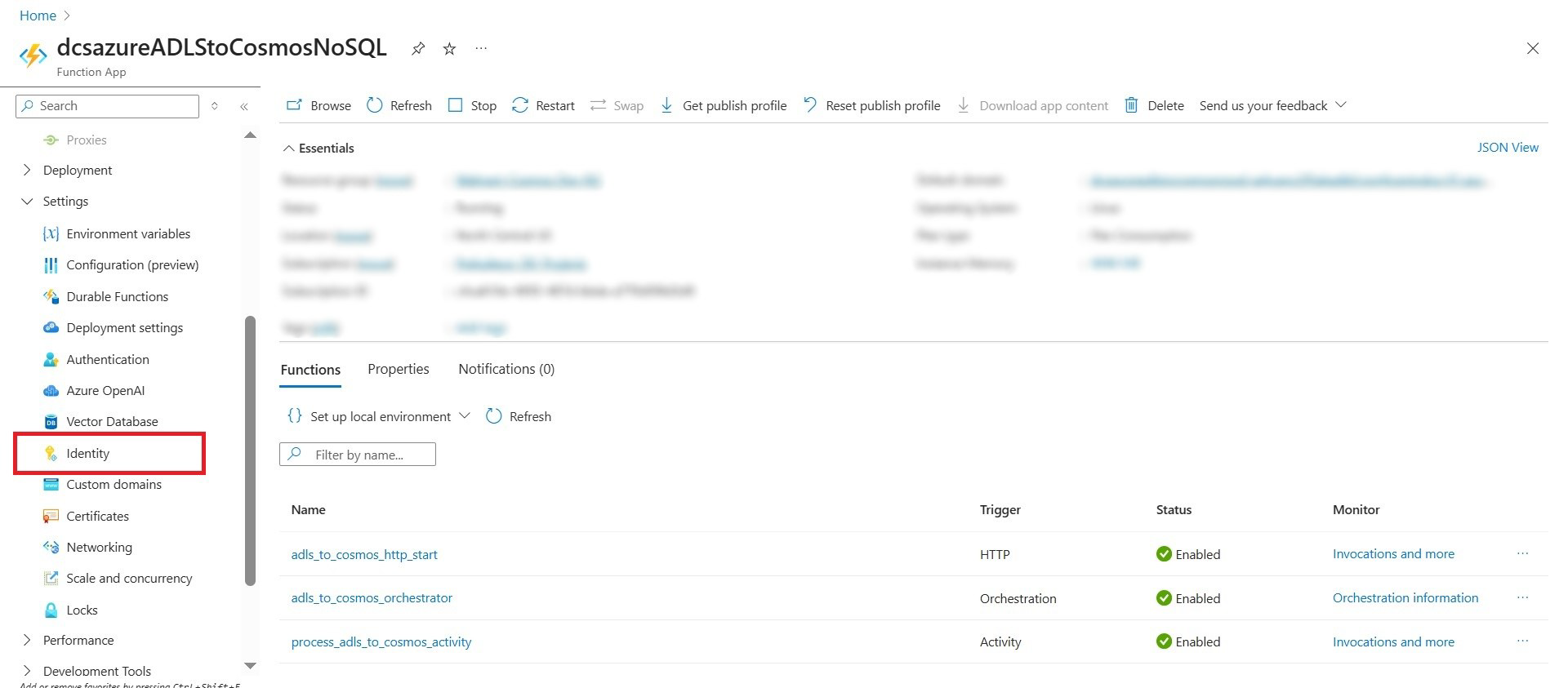
- Navigate to the Azure Function App in the Azure Portal.
- Select Identity from the left menu.
- Under System assigned, set Status to On.
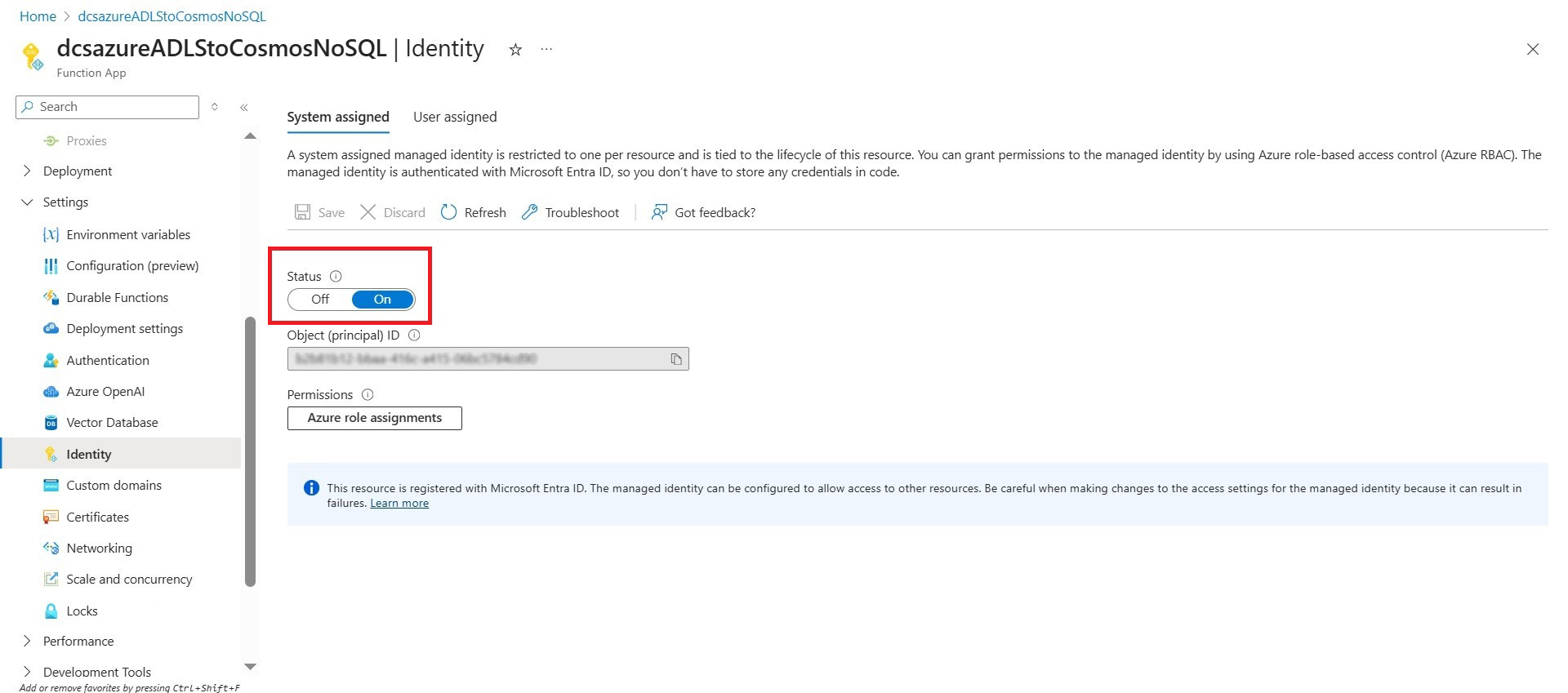
- Save the configuration.
Enabling a system-assigned managed identity creates an Azure-managed service principal for the Function App.
-
Grant ADLS Access to the Azure Function:
- Navigate to the ADLS Storage Account.
- Select Access control (IAM).
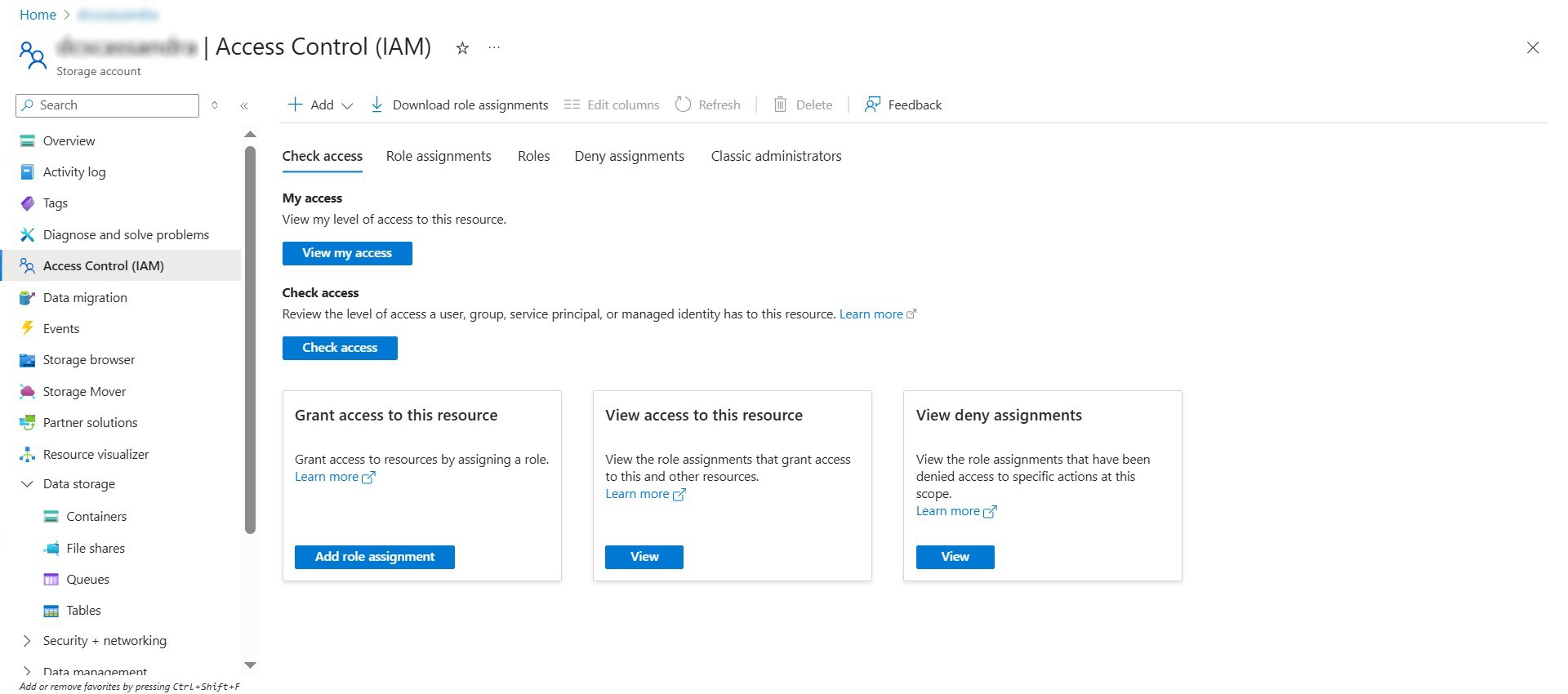
- Click Add role assignment.
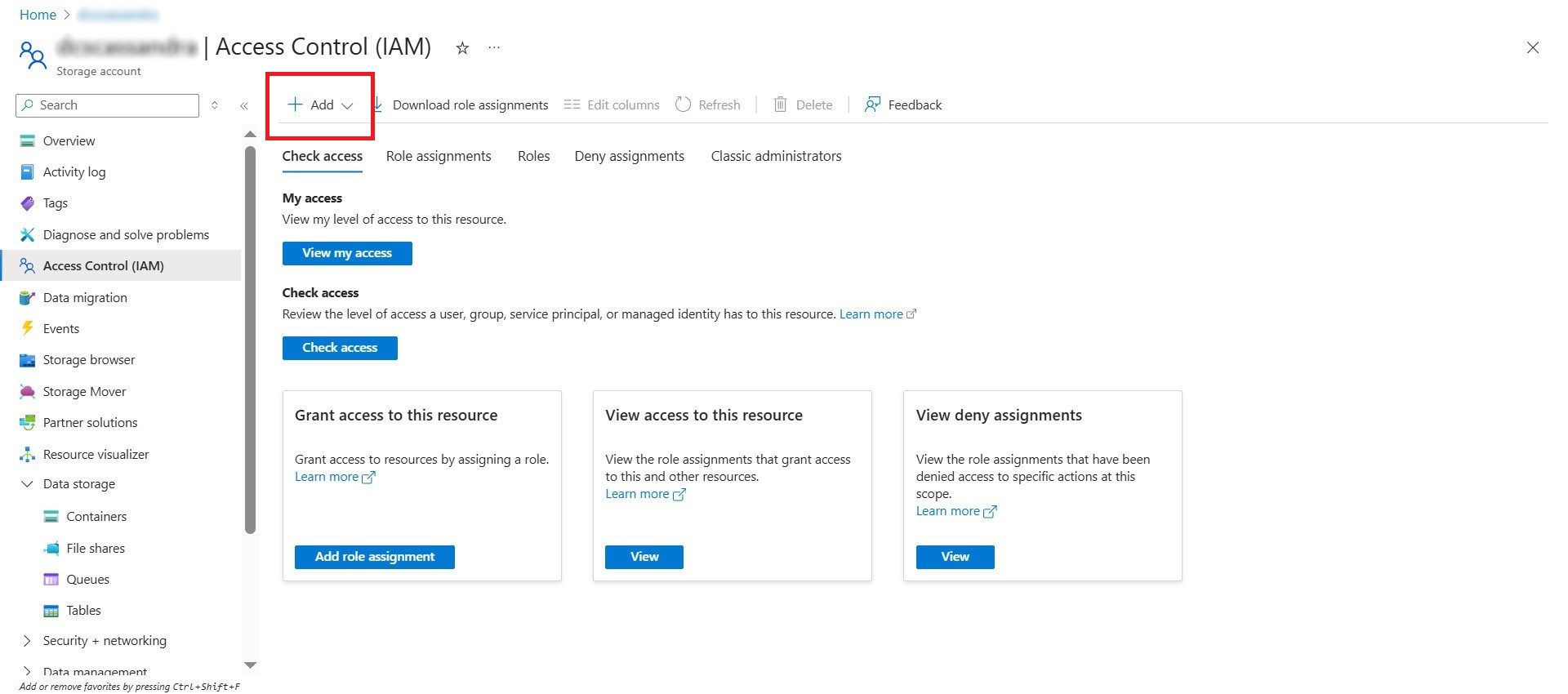
-
Configure the assignment:
- Role: Storage Blob Data Contributor
- Assign access to: Managed identity
- Member: Azure Function App
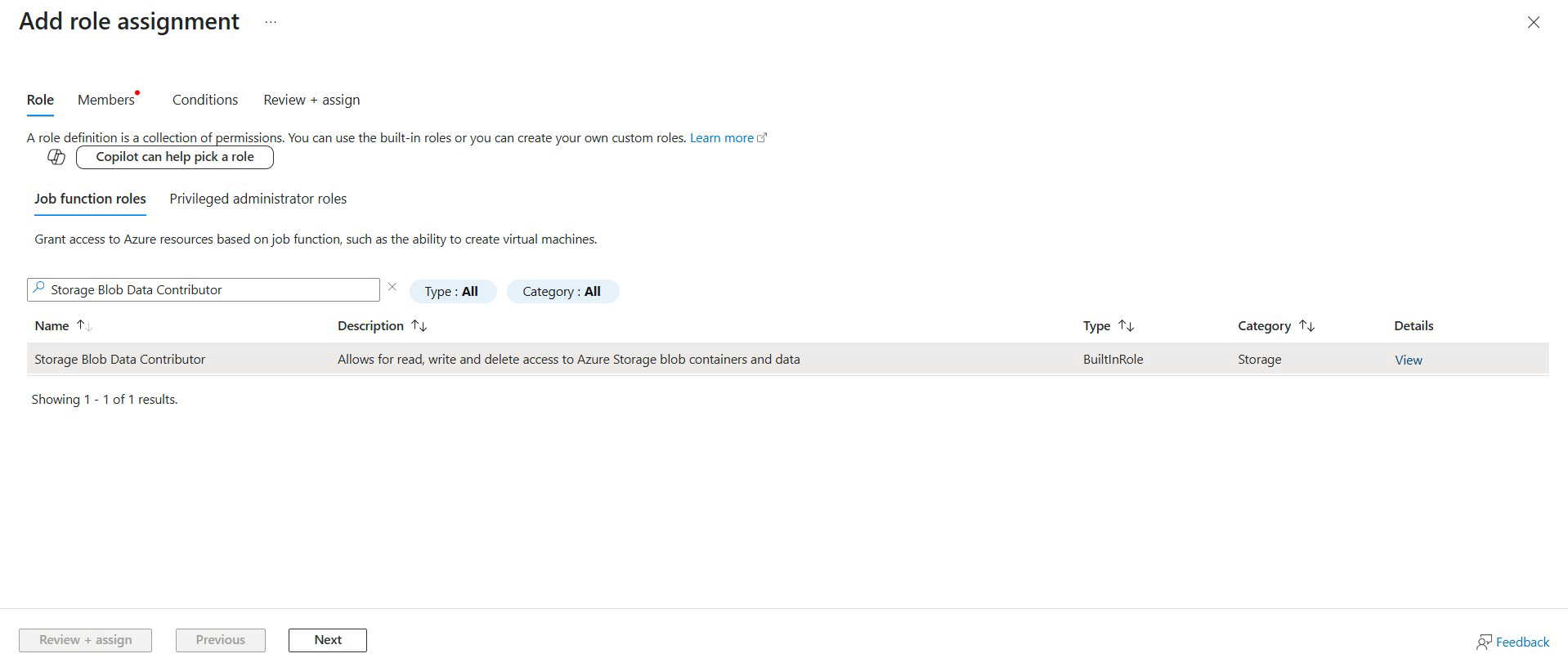
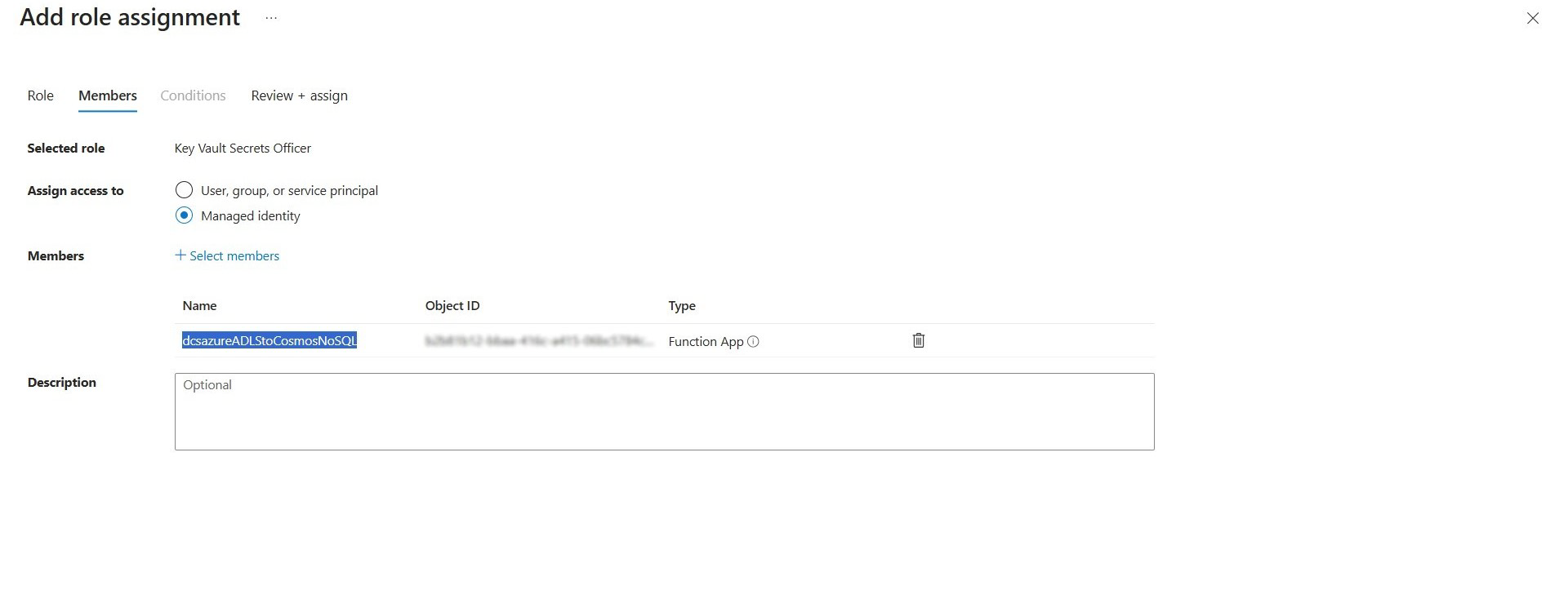
- Save the role assignment.
RBAC permission propagation may take several minutes.
After completing these steps, the Azure Function can securely access Azure Data Lake Storage at runtime using its managed identity, without relying on storage account keys or connection strings in code or configuration.