
This guide demonstrates how to use the Continuous Compliance Engine to locate file paths for complex data types. For illustration, it uses a sample Parquet file.
-
Log in to the Continuous Compliance Engine.
-
Select an existing application or create a new one to define your data source.
-
Choose an existing environment or create a new one for the application.
-
From the navigation pane, open the dashboard for the selected environment.
-
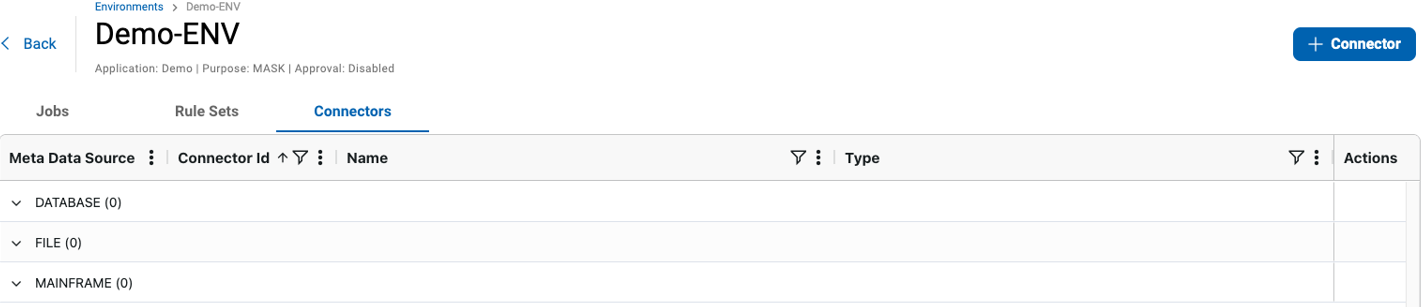
Go to the Connectors tab and select the appropriate connector (database, file, or mainframe).
-
Select the blue + Connector button to add a new connector.
-
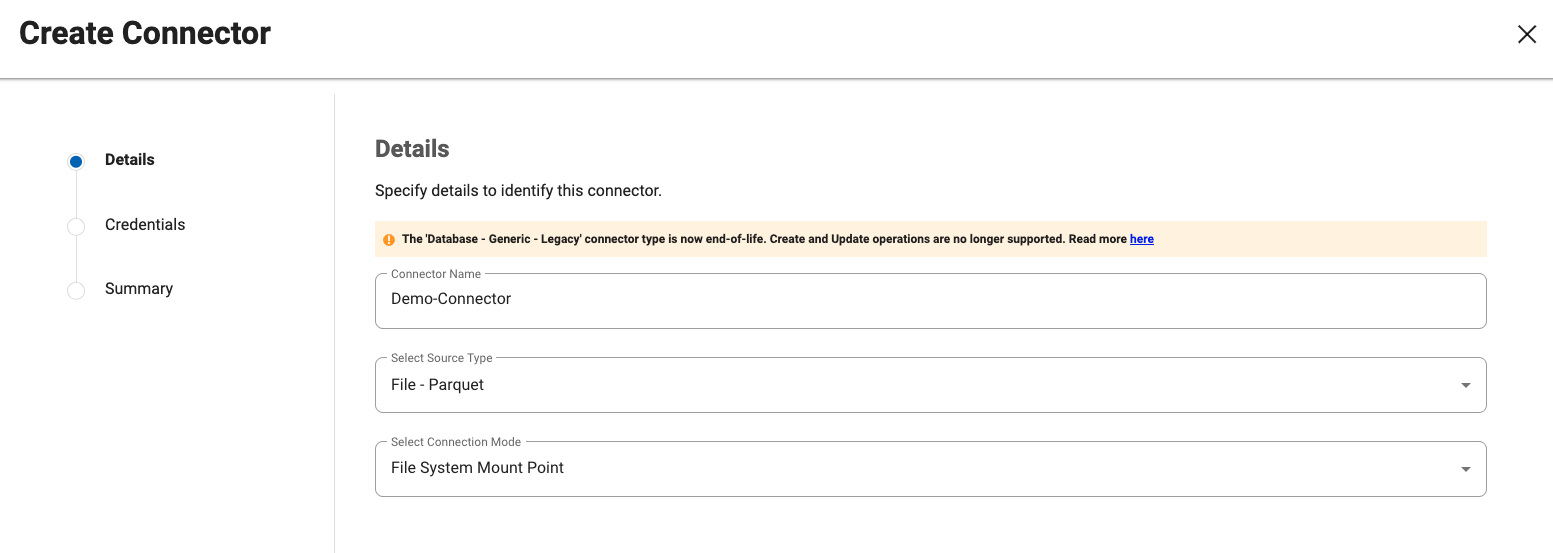
Enter the connector details for the file input.
-
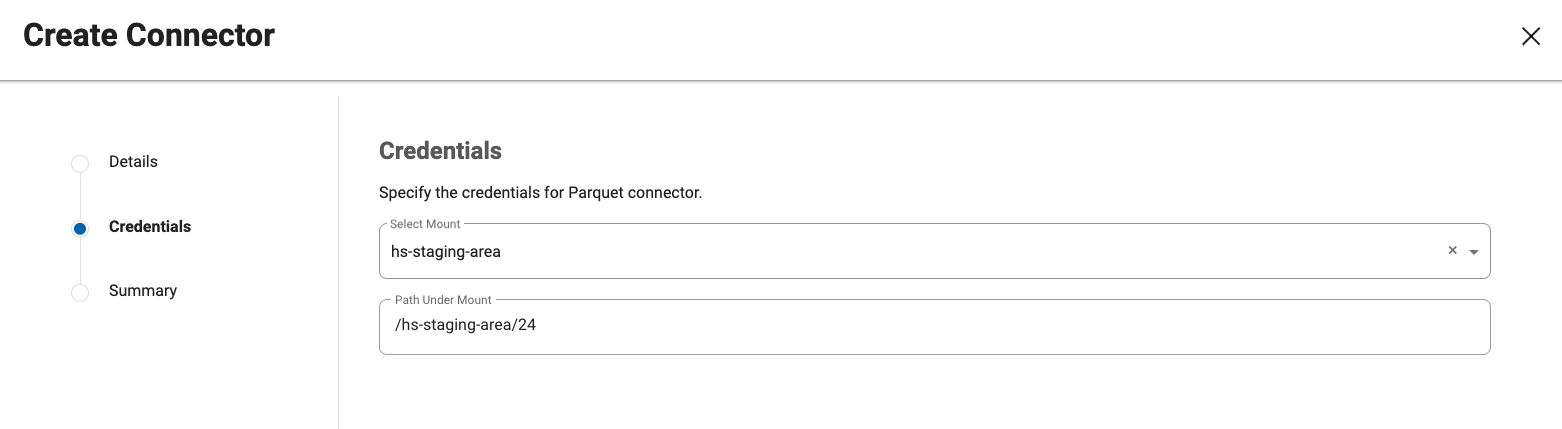
Provide the required credentials.
-
Save your changes.
-
Click the blue + Rule Set button.

-
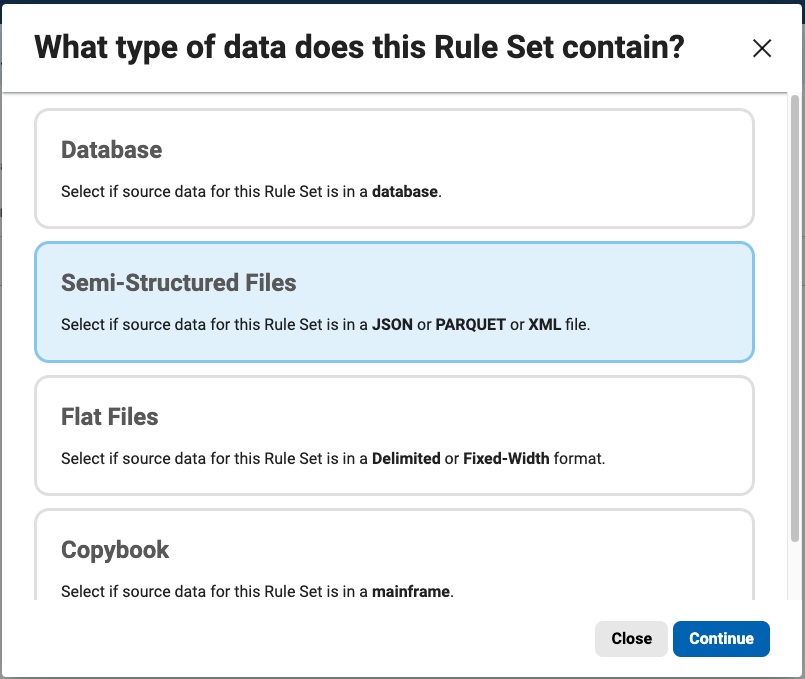
Select the Rule Set that corresponds to your file format.
-
Enter a name for the Rule Set, then select the existing connector.
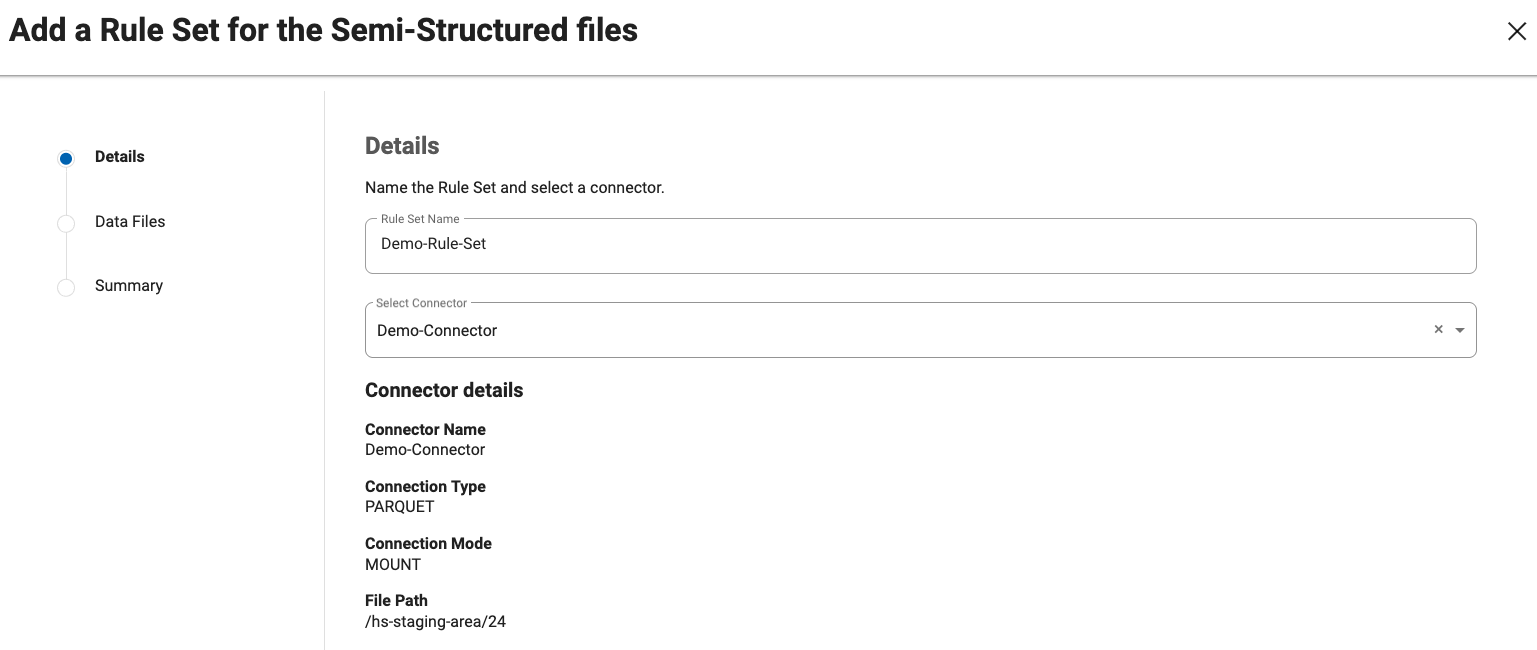
-
Select the file you want to mask and choose the corresponding format file. If the format file dropdown is empty or does not list the required file, refer to the next section Adding a format file.
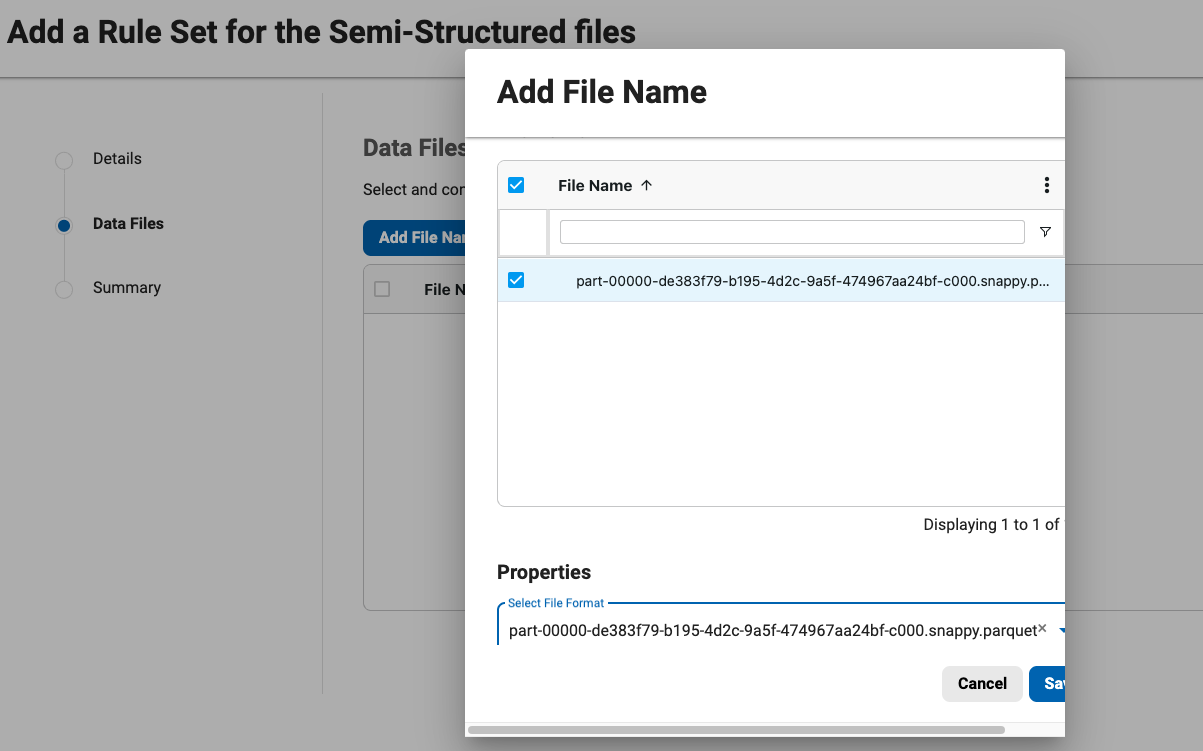
-
Save the Rule Set, and then select the newly created Rule Set to continue.
-
The dashboard now displays all file paths identified by the Continuous Compliance Engine with the full path defined for each field.
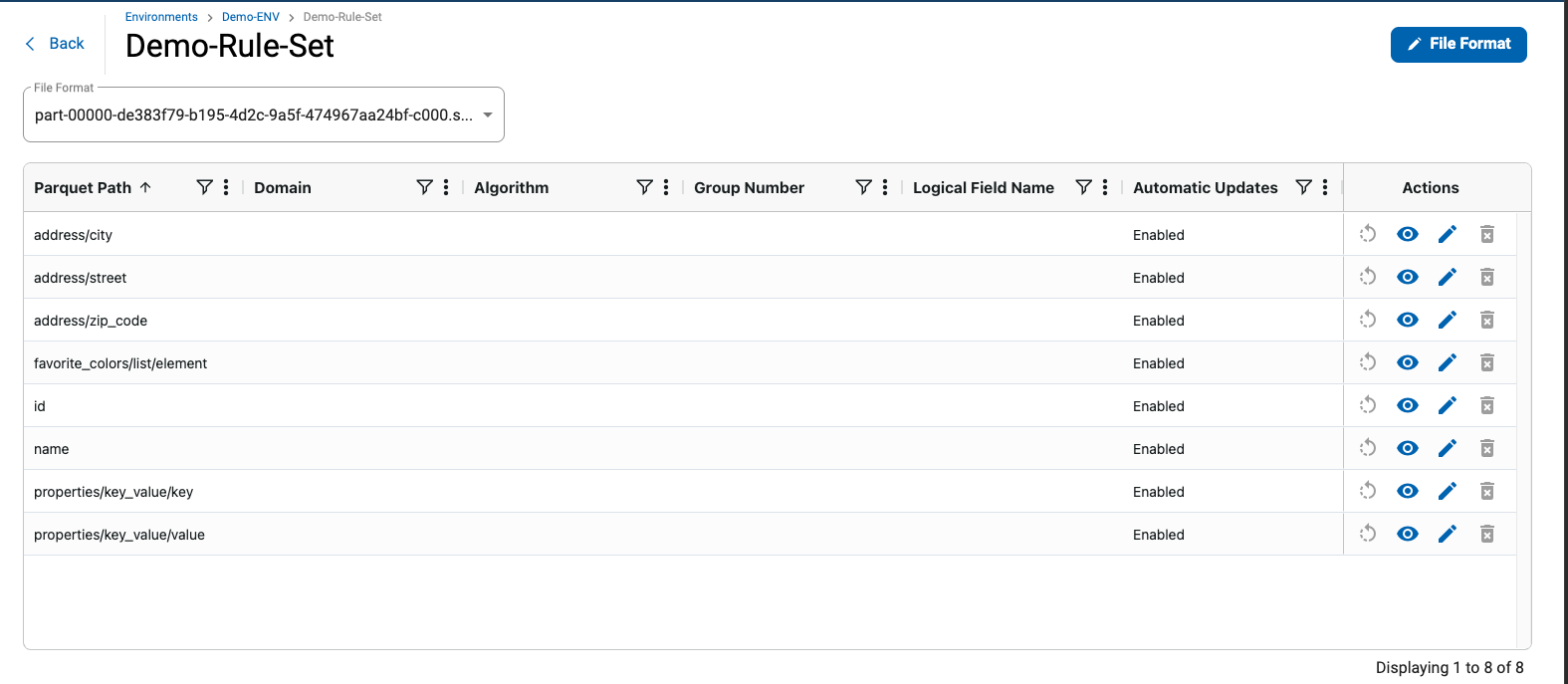
Adding a format file
-
Navigate to Settings > Data Format> File Format

-
Select Format Type. This example selects Parquet for illustration purposes.
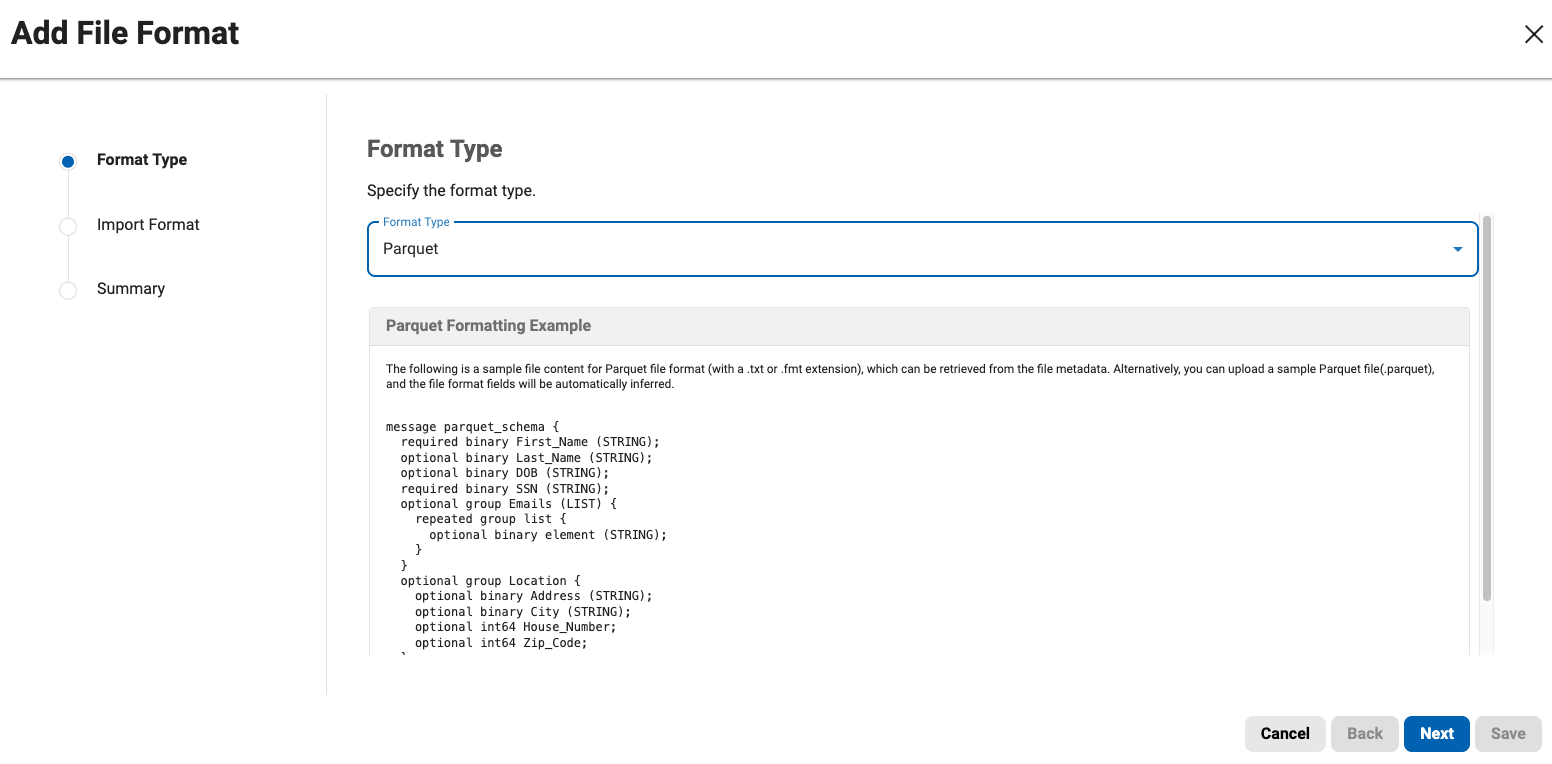
-
Add the format file. This file can be the same file you selected to profile in step 2 above.
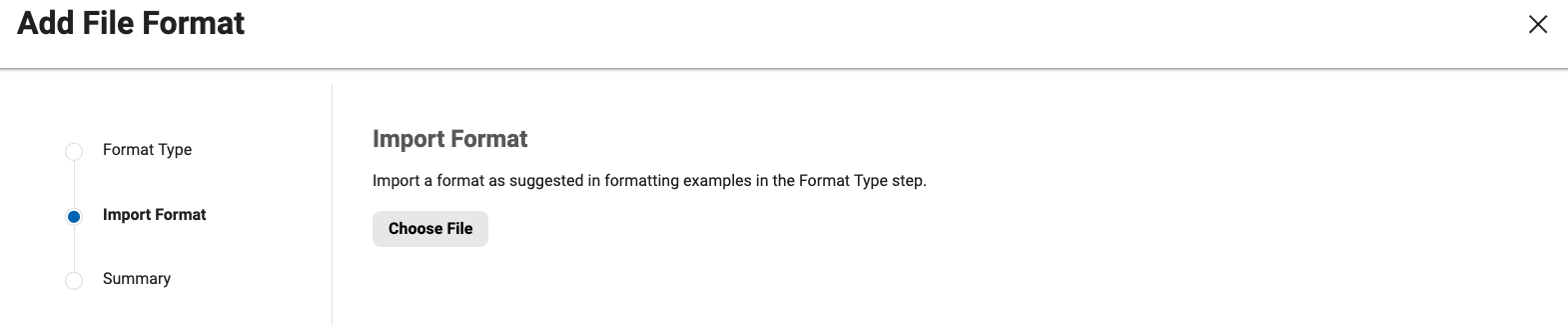
-
The new file format should be available in the Rule Set dropdown.